

Recipient activity
The Recipient Activity tab of Analytics in JungleMail 365 follows one person rather than one newsletter: every newsletter your site sent them, and each open, click, survey answer, bounce and unsubscribe, over the years. Use it to answer a question about one colleague, such as whether the director of operations reads the leadership update.
The tab appears only when a site administrator has turned on Show Recipient Activity tab (Change the menu colors and template tabs). Newsletters sent with anonymous tracking aren’t tied to recipients, so they aren’t in anyone’s history.
Find a recipient
Section titled “Find a recipient”- Select Analytics in the top menu, then the Recipient Activity tab.
- Type at least the first two characters of the recipient’s email address, then choose the address from the list.
You can also select an address in a newsletter’s Newsletter Log (See who opened or clicked).
The recipient’s page
Section titled “The recipient’s page”Recipient details opens with the recipient’s history on your site.
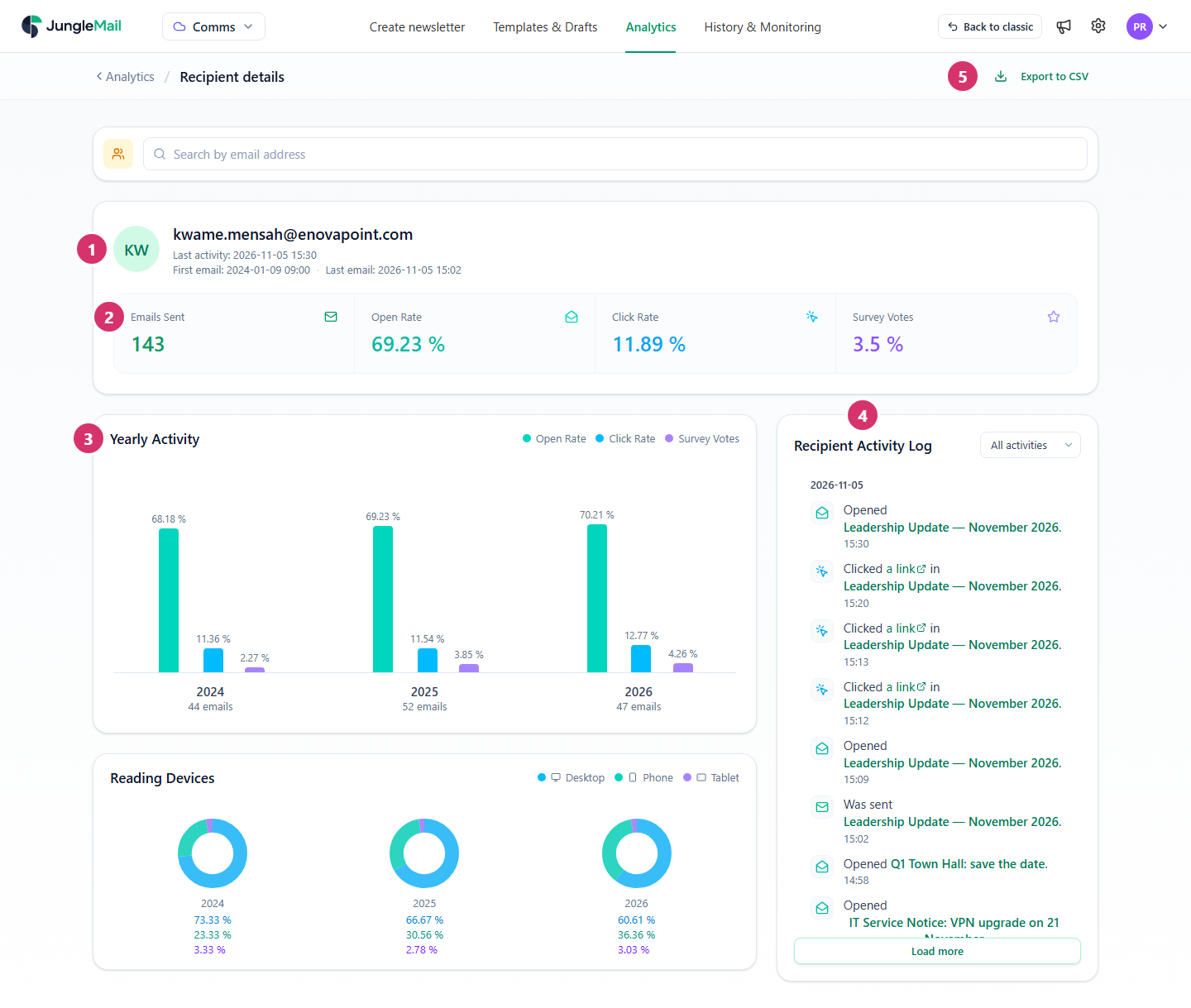
- The recipient’s address, when they last did something, and when your site first and last sent them an email. Unsubscribed or Rejected beside the address means that they no longer receive your newsletters; select it to open the list it is on.
- Emails Sent, Open Rate, Click Rate and Survey Votes over every newsletter your site has sent them.
- Yearly Activity compares the open, click and survey rates of the last three years, with the emails sent each year. Reading Devices, below it, shows on which devices they opened newsletters, year by year.
- Recipient Activity Log lists what happened, newest first, grouped by day: Was sent, Opened, Clicked a link in, Voted in survey, Bounced for and Unsubscribed via a newsletter. Choose one kind in the list beside the title, such as Clicks, and select Load more for older activity. Select a newsletter’s name to see it.
- Export to CSV downloads the whole history, whatever the log shows (Export results to CSV or Word).
To look up someone else, use the search box at the top of the page.
The Engagement Score belongs to a newsletter rather than to a person: it is on the newsletter’s Summary tab (Read a newsletter report).
- Look here first when someone says they no longer get your newsletters. Unsubscribed or Rejected beside the address, or a Bounced for line with the mail server’s reason, tells you why (Some recipients are missing). A site administrator can then remove the address from the list, if the person asks or the problem is solved (Manage unsubscribes and rejections).
- Don’t conclude that someone doesn’t read from a missing open. A colleague whose Outlook blocks pictures reads without being counted (How open and click tracking works). Clicks and survey answers are firmer evidence; when it matters, ask the person.
- Use one person’s history for a question, not for a ranking. The page answers “did Kwame get last month’s leadership update?”; for how a team or an office reads, use the breakdowns, which show groups rather than people (Results by department, job title, office and company).
- Where readers must not be identified, ask for anonymous tracking. Hiding this tab removes one view, but JungleMail still stores who opened and clicked; anonymous tracking stores no addresses at all (Security and privacy settings).