

Design emails
You design a newsletter’s email in the email builder, the Content step of the newsletter wizard. Select Create newsletter in the top menu, then Next, and the builder opens with the Templates tab, so you can start from a template or from a blank email. You also use the builder to edit a template on the Templates & Drafts page.
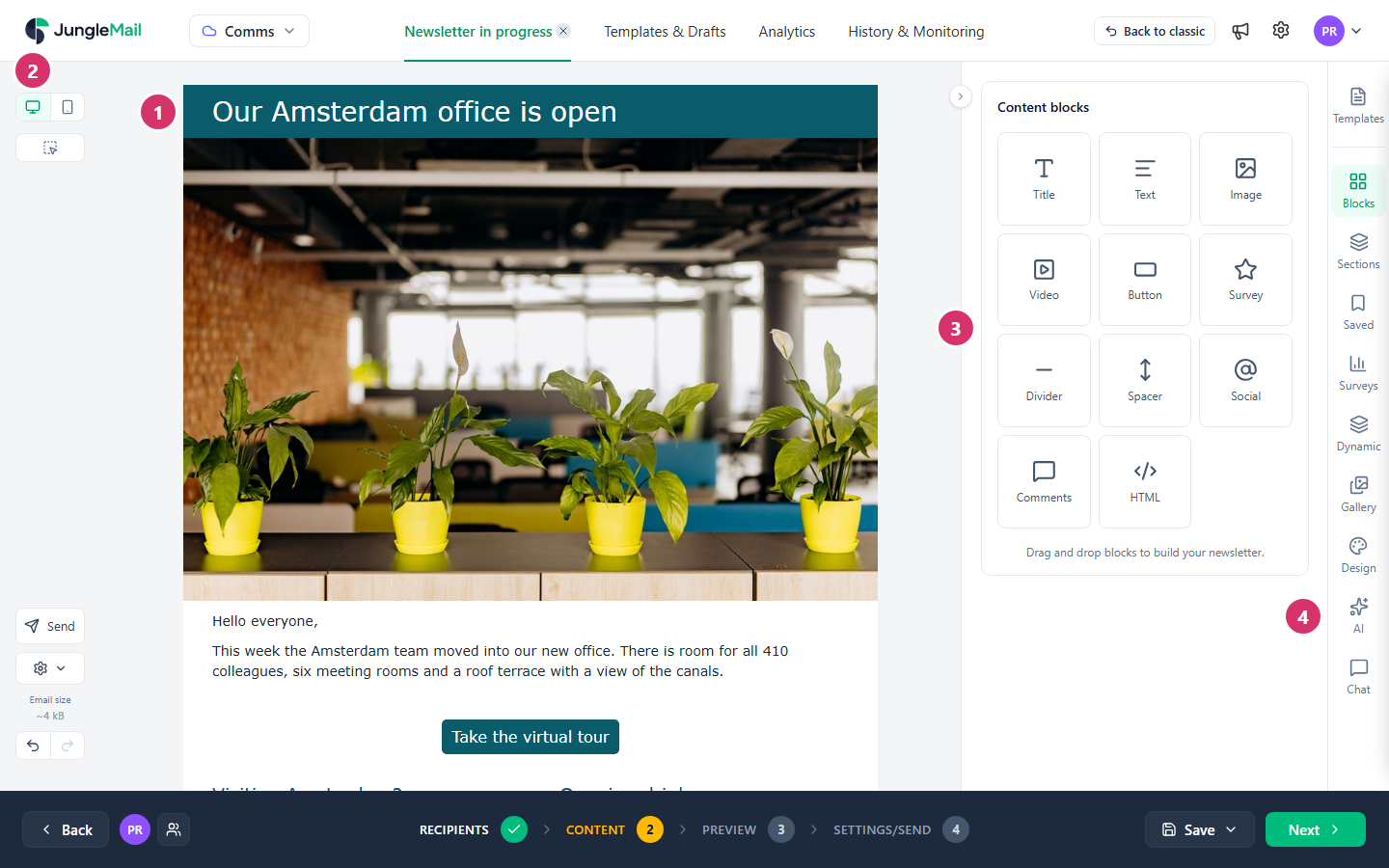
- The email, as recipients will see it. Select any part of it to change it.
- The controls: Desktop view and Mobile view, Select blocks and sections, Send for a test email to yourself, Actions (the gear), the email’s size, and Undo and Redo.
- The panel of the tab you chose. When you select part of the email, its settings open here instead.
- The tabs, described below.
Blocks and sections
Section titled “Blocks and sections”An email is a stack of sections. Each section has one to six columns, and each column holds blocks: a title, text, an image, a button and so on. You add sections from Sections and blocks from Blocks, then select a block to write in it or change its settings.
Until you style a part of the email yourself, it follows the email’s design: the fonts, colors and spacing on the Design tab (Style your email with themes and design settings).
The tabs
Section titled “The tabs”| Tab | What it holds |
|---|---|
| Templates | Templates, sent newsletters, drafts and ready-made designs to start from, and the editors |
| Blocks | The blocks you can add (Blocks) |
| Sections | Section layouts, from one column to six |
| Saved | Sections saved to reuse (Save and reuse sections) |
| Surveys | Ready-made survey sections (Add a survey) |
| Dynamic | Ready-made sections to fill from SharePoint (Add SharePoint content) |
| Gallery | Your site’s images, stock photos and icons (Add images) |
| Design | The email’s default fonts, colors and spacing, and themes |
| AI | The AI assistant, if your site has AI turned on (Write and design with the AI assistant) |
The Rich Text Editor has only the Templates, Saved, Gallery and AI tabs, and the HTML Editor only Templates, Gallery and AI. A newsletter also has a Chat tab, to talk with colleagues who work on it with you; on a newsletter that isn’t saved yet, your first message saves it as a draft (Work on a newsletter together).
The three editors
Section titled “The three editors”| Editor | Use it to |
|---|---|
| Drag & Drop Builder | Build the email from sections and blocks. A new email opens in it |
| Rich Text Editor | Write the email like a document, with a formatting toolbar |
| HTML Editor | Write or paste the email’s HTML code yourself |
Use the Drag & Drop Builder for most newsletters: it is the only editor with the Blocks, Sections, Design, Surveys and Dynamic tabs. The HTML Editor suits an email designed elsewhere and handed to you as code, and the Rich Text Editor a message that reads like a letter.
Choose before you start writing. To change editors, open Templates, select Start from Scratch / Switch to, and choose one. Switching replaces everything in the email with a blank one, and Undo can’t bring it back. See Use the rich text and HTML editors.
While you work
Section titled “While you work”- JungleMail saves your changes to the content a few seconds after you make them. Save > Save Draft, in the bar at the bottom, saves the rest of the newsletter too.
- Save > Save as template keeps the design as a template for later newsletters (Create a template).
- The size under Actions says how large the email is. Gmail cuts off emails over 102 kB (Keep your email under Gmail’s clipping limit).
- Undo and Redo also work with Ctrl+Z and Ctrl+Y.
Where to start
Section titled “Where to start”- Start from a template. If your site has one for what you are sending, such as EnovaPoint Weekly, choose it on the Templates tab: the header, footer and styles are in place, and you change only what is new (Start a newsletter from a template).
- Change the look on the Design tab, not block by block. Every block follows the email’s design until you style it yourself, so one change there, or your site’s theme, restyles the whole email (Style your email with themes and design settings).
- Check it on a phone before you send. Look at the email in Mobile view as you build, then send yourself a test from the Preview step and open it on your phone (Preview and test a newsletter).
Articles
Section titled “Articles”Build the email
Section titled “Build the email”- Build an email with blocks and sections
- Blocks
- Format text and add links
- Add images
- Edit an image
- Add a video
- Save and reuse sections
- Use the rich text and HTML editors
Style it
Section titled “Style it”- Style your email with themes and design settings
- Select and style several blocks at once
- Show content on desktop or mobile only
- Keep your email under Gmail’s clipping limit
- Make your emails accessible
Personalize it and invite responses
Section titled “Personalize it and invite responses”- Personalize with merge tags
- Add an unsubscribe link
- Show a section to some recipients only
- Add a survey
- Add a comments block
Fill it from SharePoint
Section titled “Fill it from SharePoint”- Add SharePoint content
- Pick SharePoint items
- Group SharePoint content
- Skip sending when there is no new content