

Translate an email
Translate… translates a Drag & Drop email with DeepL machine translation, in one step: its subject, its preview text and the text of its Title, Text and Button blocks. Merge tags stay as they are, and other text, such as an image’s alternate text or an HTML block, isn’t translated. It replaces the email’s text with the translation, or, on a site with multilingual newsletters, fills one of the other languages from the primary one.
Use it to translate a finished newsletter in one step, and read the translation through before you send. Where your site has multilingual newsletters, translate into a language of the same newsletter, so that one newsletter, with one schedule and one report, reaches everyone in their own language (Send a newsletter in several languages).
Before you begin
Section titled “Before you begin”- A site administrator turns on DeepL on the site’s AI settings (Turn AI features on or off). Until then, Translate… is grayed out and says DeepL AI is disabled.
- Translate… is in the Drag & Drop Builder only.
- What you translate is processed by DeepL in Germany, outside JungleMail 365: don’t translate confidential newsletters this way.
Translate the email
Section titled “Translate the email”In the Content step, select Actions (the gear) > Translate….
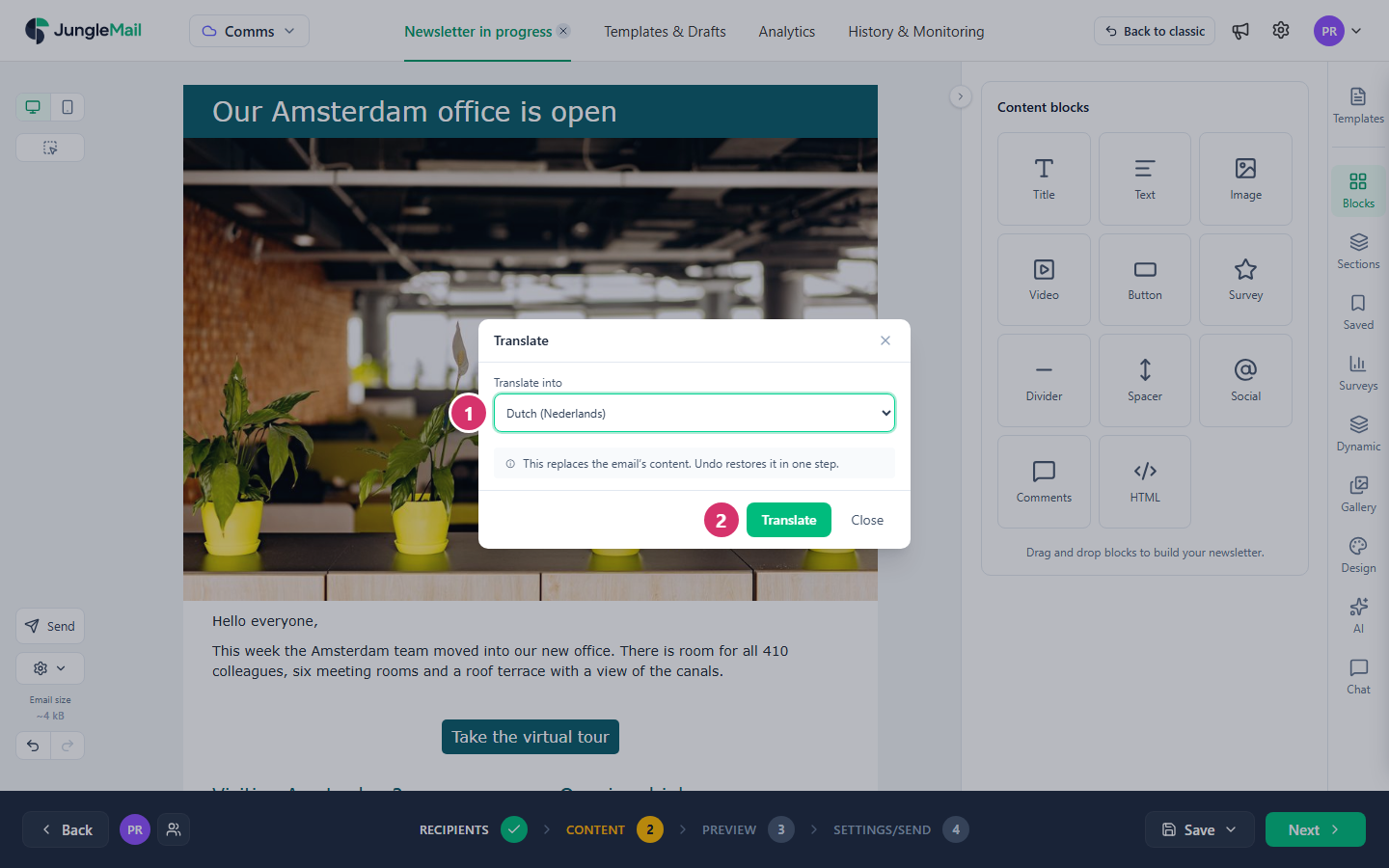
- In Translate into, choose the language, such as Dutch (Nederlands).
- Select Translate. When it is done, JungleMail says Translation completed. Translate once the email is finished: in a newsletter in several languages, a change made afterward has to be made in each language, or translated again.
On a site without multilingual newsletters, the translation replaces the email’s text, subject and preview text, as the dialog says: This replaces the email’s content. Undo restores it in one step. Check the result: machine translation can get names, terms and tone wrong.
Fill a language of a newsletter in several languages
Section titled “Fill a language of a newsletter in several languages”When the email has several languages, Translate into lists the languages other than the primary one, and the translation goes into the chosen language, with its own subject and preview text. The primary language is left as it is.
If some text is already translated in that language, the dialog says how much, and leaves it alone unless you select Replace translations that already exist.
If the email has only its primary language, Translate… is grayed out and says Add a language first – there is nowhere to translate into. Adding languages is described in Send a newsletter in several languages.
- Check names that should stay as they are. A program name such as Cycle to Work Week, a department such as People & Culture, or the name of a newsletter can come back translated. Decide once which names stay in English, and check them in every issue.
- Keep words out of pictures and HTML blocks. Text in an HTML block, words drawn into a picture and alternate text stay in the original language: a banner that says “Town hall on Thursday” stays English. Put the words in Title and Text blocks, which are translated, and check the alternate text by hand (Make your emails accessible).
- Read the translated subject on a phone. Translations change the word order, so the words that matter may no longer come first, where a phone shows them (Write the subject and preview text).
- Without multilingual newsletters, translate a copy. Save the finished email as a template, start the newsletter for the other language from it, and translate that one: the original stays as it is (Create a template).