

Submit a newsletter for approval
On some JungleMail sites, newsletters must be approved before they are sent. On such a site, the newsletter wizard’s last button is Submit for approval instead of Send now or Schedule: the newsletter goes to the site’s approvers, and JungleMail sends it once they approve. Submit it once it is ready to go, early enough for the approvers to answer: what they approve is what goes out, and any change means submitting it again.
Before you begin
Section titled “Before you begin”- A site administrator has turned on approval for your site and chosen who approves (Set up newsletter approval). With Built-in approval, approvers answer in JungleMail; with Microsoft Power Automate, a flow of your organization’s handles the approval (Approval flows in Power Automate).
Submit it
Section titled “Submit it”Prepare the newsletter as usual, up to the Settings/Send step.
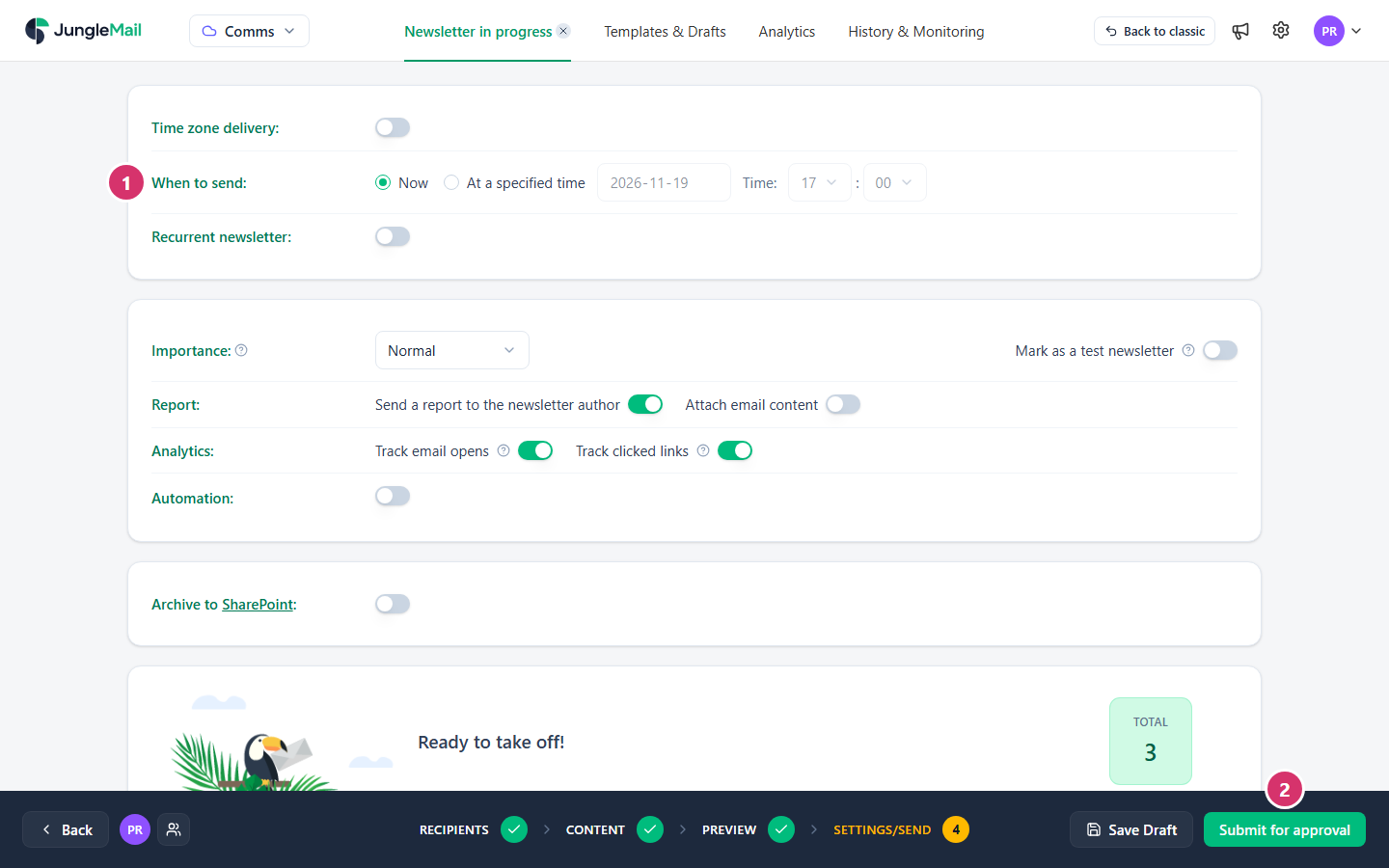
- In When to send, choose when the newsletter goes out once it is approved: Now, which sends it as soon as it’s approved, or At a specified time. Choose At a specified time unless the newsletter is urgent: with Now, it goes out the moment the last approval comes in, which may be late in the evening.
- Select Submit for approval. JungleMail says The newsletter has been submitted., and with built-in approval, the approvers get an email asking them to review it.
Follow the approval
Section titled “Follow the approval”The newsletter waits under Pending approval, at the top of History & Monitoring.
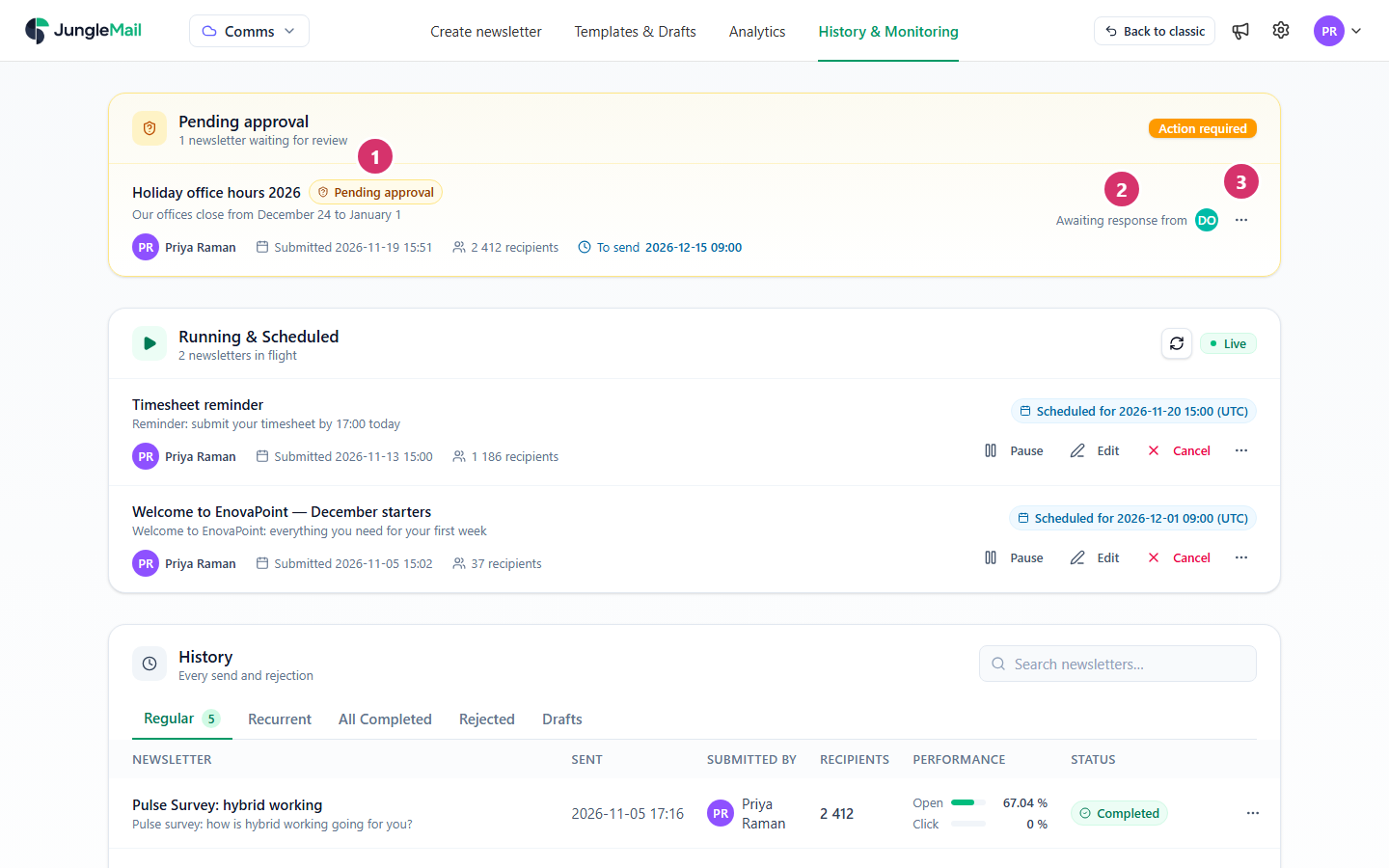
- Pending approval: the newsletter waits for its approvers. Below it are who submitted it and when, how many recipients it has, and, if it is scheduled, when it is to be sent.
- Awaiting response from: the approvers who haven’t answered yet. Select them to open the approval review, with each approver’s answer and comment.
- More actions (…): Open approval review does the same, and Cancel withdraws the newsletter (below).
With built-in approval, depending on how your site is set up, the newsletter needs one approval (At least one must approve) or everyone’s (Everyone must approve). Either way, you and the approvers get an email with the outcome:
- Approved: JungleMail sends the newsletter at the time you chose, and it moves to History like any other.
- Rejected: the email includes the approver’s comment, and the newsletter goes back to your drafts. It is also listed under History > Rejected, where More actions > Open approval review shows each approver’s answer. To send a corrected version, open it from Drafts, or select Edit newsletter on the approval review, make the changes, and submit it again.
Change or withdraw it
Section titled “Change or withdraw it”While it waits, the newsletter’s More actions menu has Cancel, which withdraws it from approval and moves it back to Drafts; with built-in approval, you and the approvers get an email that the approval was canceled. Edit it there and submit it again.
- Test it before you submit it. Approvers see the newsletter as you submit it; a test in your own inbox catches what would otherwise come back as a rejection (Preview and test a newsletter).
- Offer the approvers a test email. The approval review shows a preview; a test lets an approver see the newsletter as Outlook or their phone shows it. Sending tests to others needs the Send test emails permission (Preview and test a newsletter).
- Leave time for every approver. With Everyone must approve, the newsletter waits for the last answer. As the send time comes near, ask those still listed under Awaiting response from.
- Withdraw it rather than wait for a rejection. If you spot a mistake while it waits, cancel it, correct it and submit it again, so that nobody approves a version that is about to change (Change or withdraw it).