

Monitor, pause and stop a newsletter
Once you send or schedule a newsletter, JungleMail 365 takes you to History & Monitoring. There you can follow it while it is being sent, and pause, change or stop it until it has reached everyone. If something is wrong, pause the newsletter first and decide what to do next: a pause can be undone, and terminating can’t.
Follow a newsletter
Section titled “Follow a newsletter”Select History & Monitoring in the top menu.
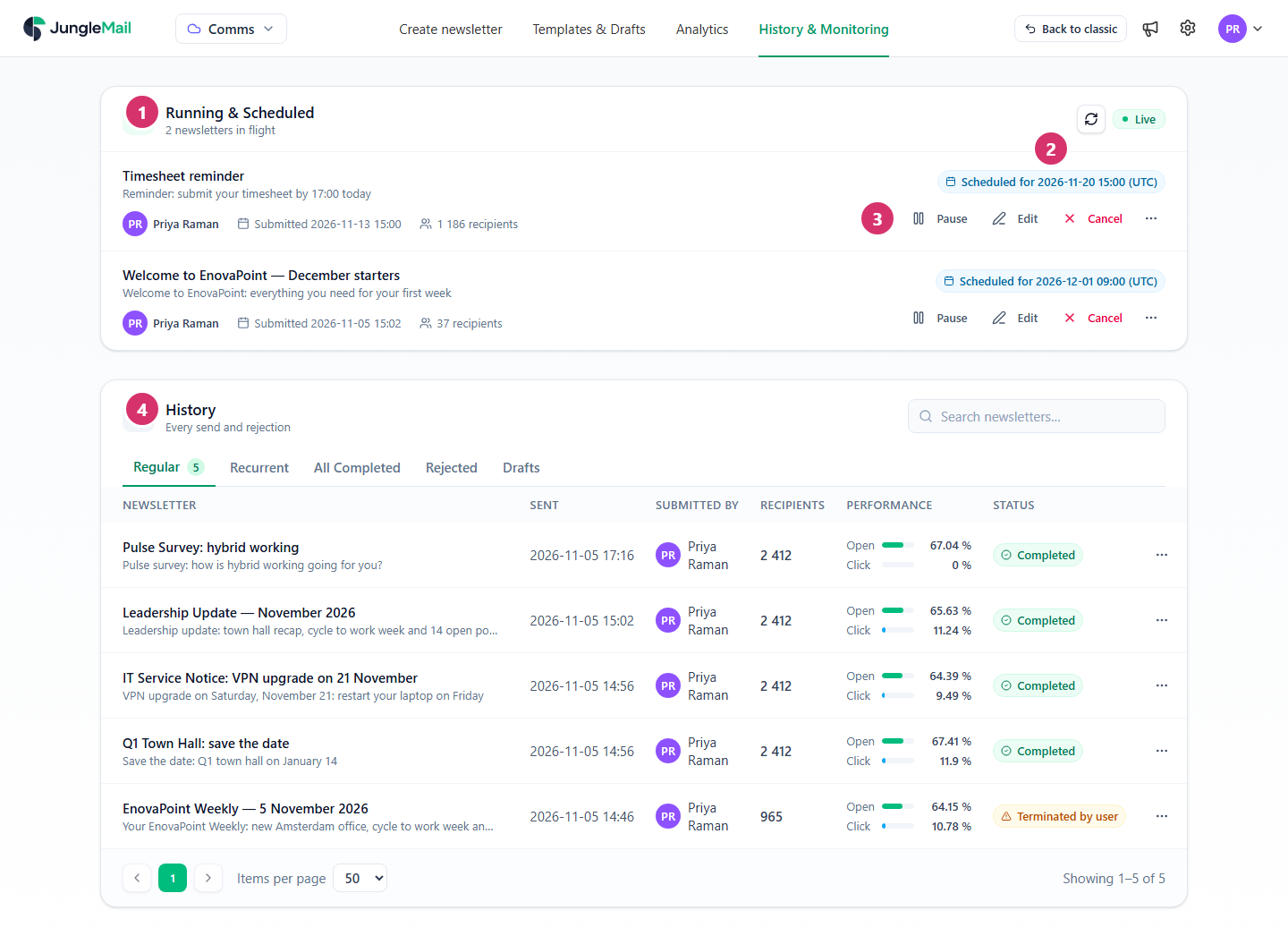
- Running & Scheduled lists the newsletters being sent and those waiting for their time. It updates by itself (Live); select the arrows beside Live to reload it.
- Each newsletter shows its status: Queued just after you send it, Scheduled for a date and time, or how many emails have gone out so far, with the open and click rates up to now.
- The actions for the newsletter: see the table below. More actions (…) has the rest, such as Open preview.
- History lists the newsletters that have reached everyone: see Find and reuse past newsletters.
Pause, edit, cancel or stop it
Section titled “Pause, edit, cancel or stop it”Which actions a newsletter offers depends on where it is: a newsletter waiting for its time can be edited, one that is being sent can be stopped.
| Action | What it does |
|---|---|
| Pause | Holds the newsletter: nothing more is sent until you resume it |
| Resume | Continues a paused newsletter |
| Edit | Cancels the newsletter and opens it in the newsletter wizard as a draft, after you confirm. Send or schedule it again when you’re done |
| Cancel | Cancels a newsletter that hasn’t started. It goes back to Drafts, where you can edit it and send it again. Confirm with Cancel newsletter, or keep it with Keep it |
| Terminate | Stops a newsletter that is being sent, after you confirm. People who haven’t received it by then won’t get it, and it moves to History as Terminated by user |
You need permission to send newsletters on the site to see these actions.
A scheduled newsletter that is still paused when its time comes stays paused: nothing is sent until you select Resume, and it then goes out at once, so resume it at an hour you want it to arrive.
When JungleMail pauses a newsletter
Section titled “When JungleMail pauses a newsletter”JungleMail pauses a newsletter itself when it can’t go on, and says why in its status:
- Paused (email limit reached): your plan’s email limit is used up. Sending goes on once the limit is raised and you select Resume (When you reach your plan limit).
- Reauthorize to fix: the sending account’s Microsoft 365 mailbox or the SharePoint connection needs someone to sign in again, for example after a password change. Select Reauthorize to fix, sign in with that account, and select Resume if the newsletter doesn’t go on by itself (Newsletters stop sending after a password change).
- Paused (Entra ID connection needs authorization) or Paused (Entra ID connection disabled): JungleMail can’t read the newsletter’s Microsoft 365 groups. Point to the information icon for what to do. If your site reads groups with each editor’s own account, Reauthorize to fix appears for whoever submitted the newsletter: sign in, and it goes on by itself. Otherwise a site administrator fixes the connection, and you select Resume (Connect Microsoft Entra ID).
- Send a corrected copy only to those who missed it. After Terminate, copy the newsletter from History, fix it, and add a By newsletter filter with the terminated newsletter: the copy then goes only to the people who didn’t get the first one (Filter recipients, Find and reuse past newsletters).
- Find out who can reauthorize your sending account. For a Microsoft 365 sending account, Reauthorize to fix needs the account that set it up to sign in again. Ask your site administrator who that is, so that a paused newsletter doesn’t wait for someone on vacation.
- Open your own copy as soon as it arrives. If you are among the recipients, read it at once: through a Microsoft 365 sending account, a large newsletter takes a while to reach everyone, so there is time to pause the rest if something is wrong (Choose a sending account type).