

Templates
A template in JungleMail 365 is a saved email design that you start newsletters from, so that each issue starts with the structure, the branding and the regular parts already in place. Make one for every newsletter you send more than once, such as a weekly update or an event invitation. Templates are on the Templates & Drafts page, together with your drafts and the newsletters you have sent. Select Templates & Drafts in the top menu.
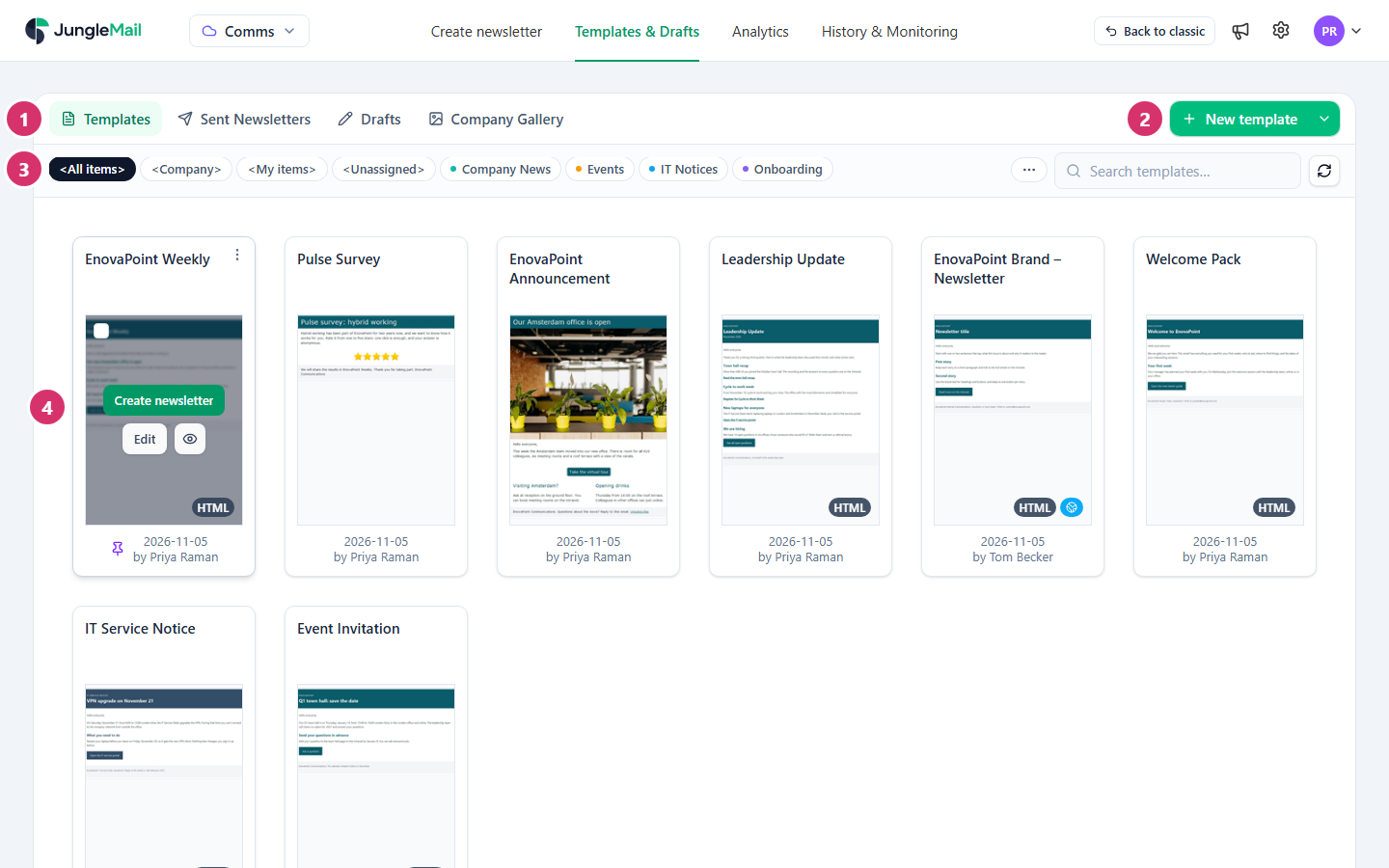
- The four tabs: Templates, Sent Newsletters, Drafts and Company Gallery.
- New template, to make a template. Its arrow offers the other editors and Import from file….
- The categories, to show only the templates in one of them. The search box is at the end of the same row.
- A template. Point to it to show Create newsletter, Edit and the eye, which previews it. More actions (⋮), at its top right, holds everything else you can do with it.
Templates and drafts
Section titled “Templates and drafts”- A template is a design to start from: the email’s content, with a subject and a preview text of its own. It has no recipients, sending account or schedule. When you start a newsletter from a template, JungleMail copies the template’s content into the newsletter, so changing the template later doesn’t change newsletters already made from it. To keep the current design before a big change, save a copy of it (Create a template).
- A draft is a newsletter you saved without sending it, with Save Draft in the newsletter wizard. It keeps everything you set: the sending account, the recipients, the content and the settings. Select Edit on its card to carry on where you left off.
Templates are designed in the email builder, like newsletters (Design emails).
The four tabs
Section titled “The four tabs”| Tab | What it shows |
|---|---|
| Templates | Your site’s templates, and the templates shared with every site from the Global site |
| Sent Newsletters | The newsletters sent from your site. Start a new one from any of them, or keep its design with Save as template |
| Drafts | Newsletters saved but not sent yet |
| Company Gallery | Designs to start from: JungleMail Templates, ready-made by JungleMail, and Templates, shared from the Global site |
A site administrator chooses whether the site shows the Sent Newsletters and Company Gallery tabs, here and in the email builder’s Templates panel, and whether that panel shows Drafts (Change the menu colors and template tabs).
Categories
Section titled “Categories”Categories group templates, for example by team or by kind of message. Select a category in the row above the cards to show only its templates, and <All items> to show everything again. Three categories are built in:
- <Company>: the templates shared from the Global site.
- <My items>: the templates you made.
- <Unassigned>: the templates that have no category.
The … at the end of the row lists every category, including any that don’t fit in the row; you also create, rename and delete categories there. The Sent Newsletters and Drafts tabs have categories of their own, separate from the templates’ (Rename, pin, categorize and delete templates).
Marks on a card
Section titled “Marks on a card”| Mark | Meaning |
|---|---|
| HTML | Made in the Rich Text Editor or the HTML Editor, not the Drag & Drop Builder |
| Globe | Shared from the Global site. You can use it and copy it, but only the Global site changes it |
| Pin | Pinned to the top of your list |
| Draft | Someone has unsaved changes to this template |
| People | Someone has the template open in the editor right now |
| Language, as EN +1 | The template has content in more than one language |
Under each card are the date it was last changed and who changed it.
Where to start
Section titled “Where to start”- Start each issue of a regular newsletter from its template, not from the last issue. A template brings the design, the subject and the preview text, and nothing else: no old stories to replace one by one, and no recipients, attachments or recipient files that may be out of date (Start a newsletter from a template).
- Make the template from your best newsletter. On Sent Newsletters, Save as template keeps its design; then replace that issue’s stories with notes on what goes where (Create a template).
- Copy a past newsletter only to send it again almost as it was, such as a corrected notice to the same people. Copy newsletter brings its recipients, settings, attachments and recipient files with it (Find and reuse past newsletters).
Articles in this section
Section titled “Articles in this section”Use templates
Section titled “Use templates”Export and import
Section titled “Export and import”For administrators
Section titled “For administrators”On the Global site, the same place in the top menu is Company Gallery: the templates and images shared with every site. Keep your organization’s branded designs there, so that every site starts from the same header, footer and colors, kept up to date in one place.