

Send to Microsoft 365 and Entra ID groups
The Microsoft 365, AD groups recipient source sends a newsletter to the members of groups in Microsoft Entra ID, your organization’s directory. JungleMail 365 reads each group’s members when it sends the newsletter, and every member gets an email of their own, with their own merge tags and their own line in the report.
Use it for most newsletters to employees: your IT team keeps the groups up to date, so a newsletter reaches whoever is in them on the day it goes out, with no list for you to maintain. Choose Exchange groups only for a dynamic distribution group, such as All Employees (Recipients).
Before you begin
Section titled “Before you begin”- A site administrator has connected Microsoft Entra ID to your JungleMail site (Connect Microsoft Entra ID). Until then, the source shows a message instead of its groups (below).
- For a dynamic distribution group, use Exchange groups instead: those groups are not in Microsoft Entra ID (Send to Exchange and dynamic distribution groups).
Choose the groups
Section titled “Choose the groups”In the newsletter wizard, go to the Recipients step.
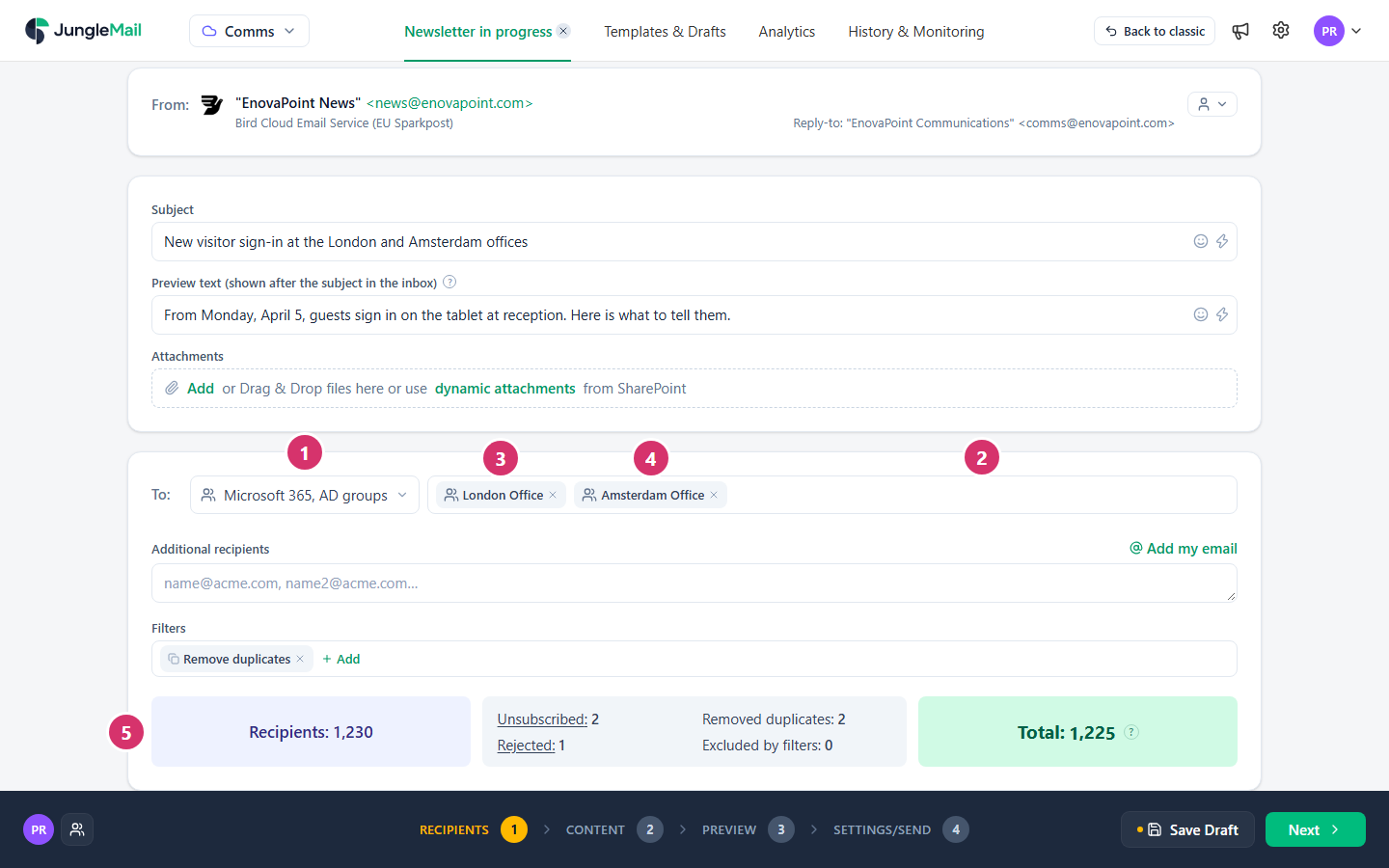
- Open the list next to To and select Microsoft 365, AD groups.
- Select the box beside it and find the group. What it says depends on your organization’s settings:
- Select groups…: the groups are listed as soon as you select the box. Type any part of a group’s name or email address to narrow the list.
- Start typing group name…: type the first letters of the group’s name or email address, at least two, and wait a moment for the matching groups.
- Select the group. Groups with the same name show their email address beside the name, so you can tell them apart.
- To add another group, select the box again and repeat. To take a group out, select the × on it.
- Check the counts below: Recipients is everyone in your groups, and Total is everyone who will receive the newsletter. A person who is in two of your groups gets one email, and is counted under Removed duplicates.
To send to only some of the members, such as those in one department, add conditions under Filters rather than asking your IT team for a new group (Filter recipients).
Which groups you can choose
Section titled “Which groups you can choose”| Group | Can you choose it |
|---|---|
| Microsoft 365 groups, distribution groups, security groups, mail-enabled security groups | Yes |
| Groups inside the groups you choose | They are included: JungleMail sends to their members too |
| Dynamic distribution groups | No. Use Exchange groups |
| SharePoint groups | No. Send to a SharePoint list instead (Send to a SharePoint list) |
Members without an email address in Microsoft Entra ID get nothing, and the counts leave them out. Guests in your groups receive the newsletter like everyone else, and so do mail contacts while your site’s connection reads organizational contacts.
Your organization can limit which groups may be used: the list then offers only those. If a newsletter has a group that isn’t allowed, such as one copied from an older newsletter, the counts are replaced by Unable to resolve recipients. and a message that names the group, such as According to JungleMail Security and Privacy settings it is not allowed to send to “London Office” Microsoft Entra ID group. Please remove it. Remove the group, or ask an administrator whether it can be allowed (Restrict recipient sources, groups and domains).
Authorize your own account
Section titled “Authorize your own account”Your site may read groups with each editor’s own Microsoft 365 account, so that you see only the groups your account may see. The box then says This site reads Microsoft Entra ID groups with your own Microsoft 365 account. Select Authorize my account… and sign in with your own account, once. Newsletters you submit, scheduled ones included, read the groups with it too. If your account later needs a new sign-in, such a newsletter pauses: select Reauthorize to fix beside it in History & Monitoring, and it goes on by itself.
If your account is a guest in the organization, or doesn’t sign in with Microsoft Entra ID, it can’t read groups this way: ask your site administrator to use a service account or application permissions (Connect Microsoft Entra ID).
If the connection is not enabled
Section titled “If the connection is not enabled”In the newsletter wizard’s Recipients step, with Microsoft 365, AD groups chosen:
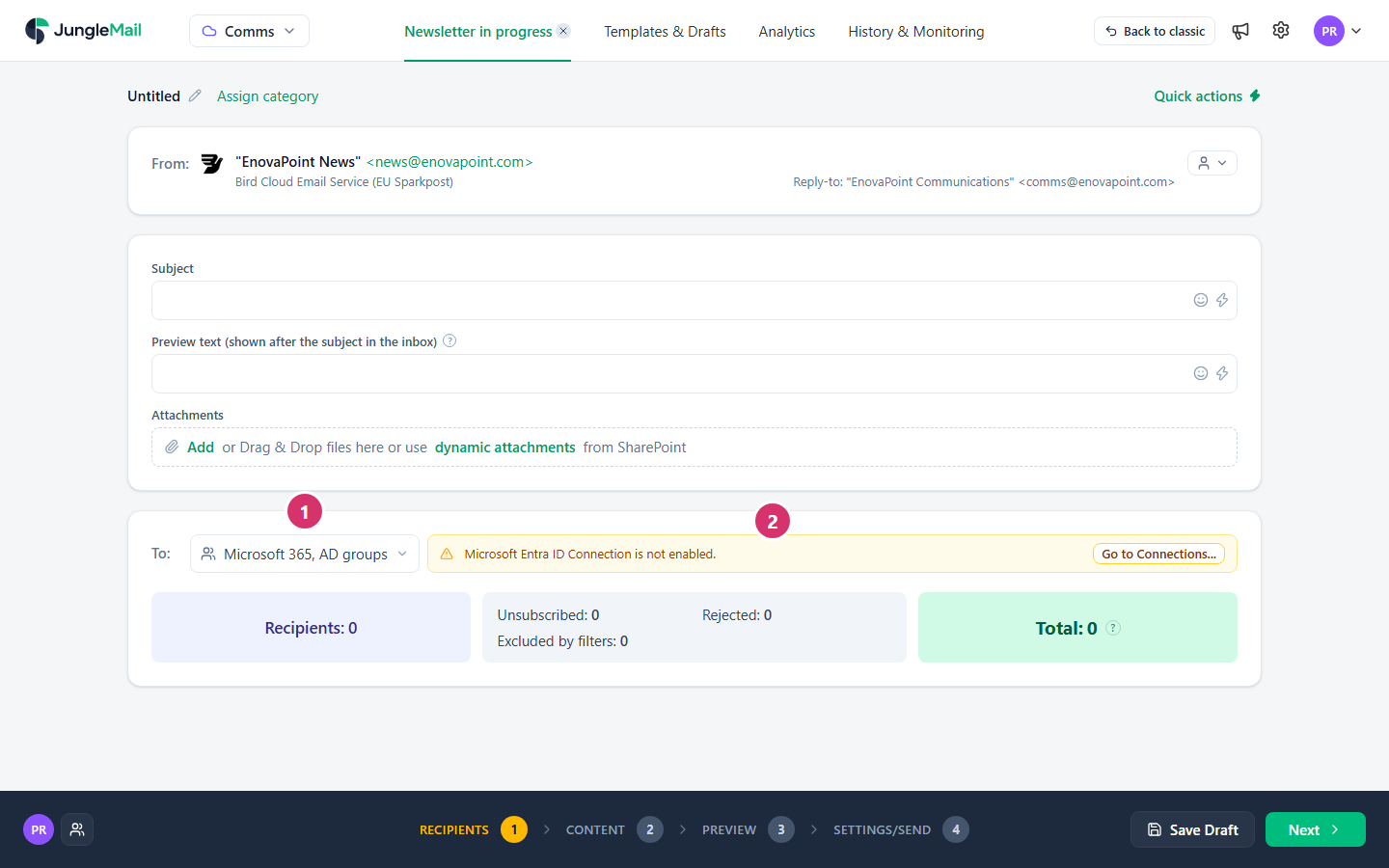
- The source.
- Microsoft Entra ID Connection is not enabled.: your JungleMail site isn’t connected to Microsoft Entra ID yet. A site administrator selects Go to Connections… to set the connection up; if you aren’t one, ask yours.
If the box shows Administrator attention required: with Reauthorize JungleMail app…, you can still choose groups, but the site’s connection needs renewing: a site administrator reauthorizes it in Settings > Connections.
- Choose the group here, never type its address. Under Email addresses, a group’s address is one recipient: nobody gets their own merge tags, the report counts the whole group as one reader, and one unsubscribe removes every member, all 820 of London Office (Recipients).
- Look for guests before you send internal news. Guests and mail contacts in a group receive the newsletter too,
and a Microsoft 365 group such as IT Champions can include people from a partner company. Leave their domain out
with a By email or domain filter, such as
*@partner.example(Filter recipients). - Personalize with what your directory holds. Each member brings their Microsoft Entra ID details, such as
{Office}and{Department}, so one newsletter to several office groups can name each reader’s own office. Where some people have no value, give a word of your own withIfEmpty, and check one of them in the Preview step (Merge tags).