

Send to Exchange and dynamic distribution groups
The Exchange groups recipient source reads groups through Exchange rather than through Microsoft Entra ID. It is the one to use for dynamic distribution groups, whose members Exchange works out from a rule, such as everyone in an office or everyone who joined in the last 90 days. JungleMail 365 reads the members when it sends the newsletter, and every member gets an email of their own.
Use it for dynamic distribution groups, such as EnovaPoint’s All Employees and New Starters, which only this source can read. For every other group, choose Microsoft 365, AD groups, the recommended source (Send to Microsoft 365 and Entra ID groups).
Before you begin
Section titled “Before you begin”- A site administrator has set up the Microsoft Exchange connection for your JungleMail site (Connect Microsoft Exchange). Until then, the source shows a message instead of its groups (below).
Choose the groups
Section titled “Choose the groups”In the newsletter wizard, go to the Recipients step.
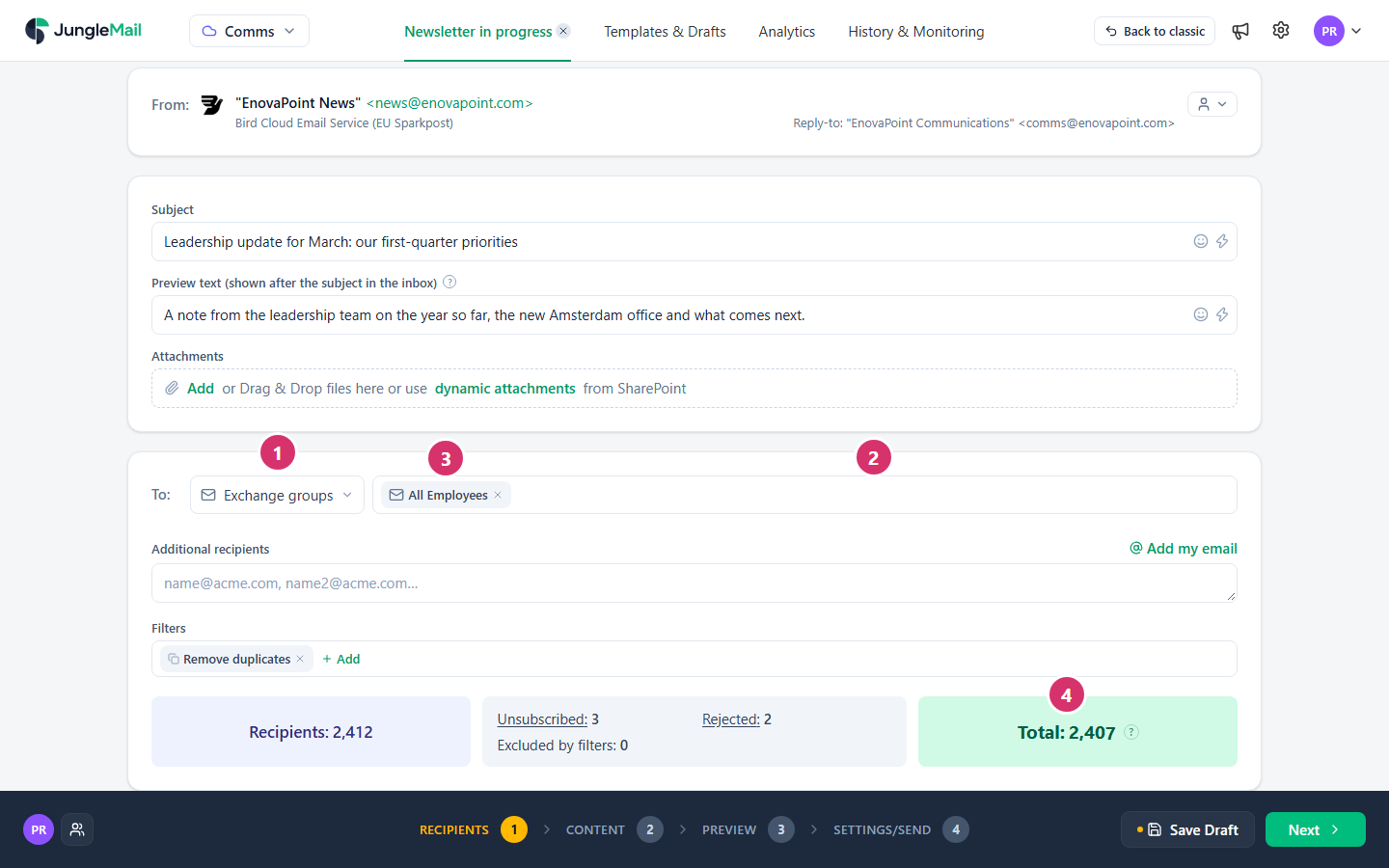
- Open the list next to To and select Exchange groups.
- Select the box beside it and find the group, such as All Employees:
- If it says Select groups…, the groups your organization allows are listed as soon as you select the box; type any part of a name or email address to narrow the list.
- If it says Start typing group name…, type the first letters of the group’s name or email address, at least two, and wait a moment for the matching groups.
- Select the group. To add another, select the box again; to take one out, select the × on it.
- Wait for the counts below, and check Total: everyone who will receive the newsletter. Compare it with the size you expect, such as 2,412 for All Employees. If it is much smaller, the lines above it say who is left out and why (Some recipients are missing).
Exchange takes longer than Microsoft Entra ID to list the members of a large group. If counting takes too long, JungleMail stops, shows the number it reached followed by +, and says The recipients retrieval query has been paused. JungleMail will continue recipients retrieval during the sending process. The newsletter still goes to everyone. For the full count before you send, select Resolve all now where it is offered.
To send to only some of the members, such as those in one department, add conditions under Filters (Filter recipients).
Which groups you can choose
Section titled “Which groups you can choose”| Group | Can you choose it |
|---|---|
| Dynamic distribution groups, distribution groups, Microsoft 365 groups, mail-enabled security groups | Yes |
| Groups inside the groups you choose | They are included: JungleMail sends to their members too |
| Security groups that aren’t mail-enabled | No. Use Microsoft 365, AD groups |
| SharePoint groups | No. Send to a SharePoint list instead (Send to a SharePoint list) |
If JungleMail can’t read a group, the counts are replaced by Unable to resolve recipients. and a reason that names the group:
- Exchange group … not found.: the group was deleted or renamed after you chose it. Remove it and choose it again.
- An unknown error occurred while resolving the … group. Please contact support.: contact support (Get help from support).
Your organization can limit which Exchange groups may be used. A group that isn’t allowed gets the message According to JungleMail Security and Privacy settings it is not allowed to send to “All Employees” Exchange group. Please remove it., with its own name (Restrict recipient sources, groups and domains).
If the connection is not enabled
Section titled “If the connection is not enabled”In the newsletter wizard’s Recipients step, with Exchange groups chosen:
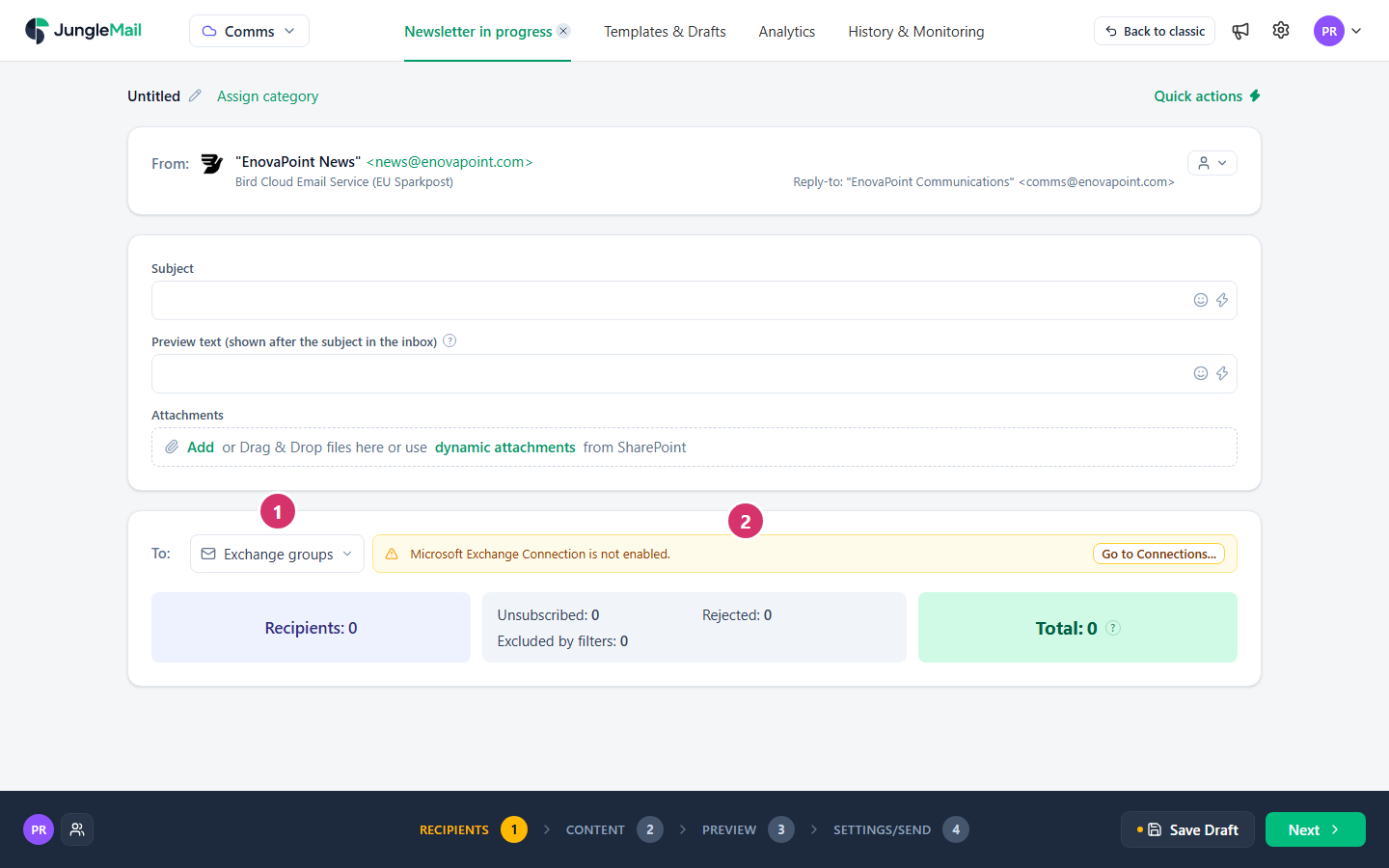
- The source.
- Microsoft Exchange Connection is not enabled.: your JungleMail site isn’t connected to Exchange yet. A site administrator selects Go to Connections… to set the connection up; if you aren’t one, ask yours.
- Choose the group here, never type its address. Typed under Email addresses, the address of All Employees is one recipient: Exchange hands the email on to everyone, but merge tags, sections for some recipients and the report no longer work per person, and one unsubscribe removes the whole company (Recipients).
- Know the rule behind the group. Exchange picks the members by the details in each person’s directory entry, which must match the rule exactly, so someone whose office is missing or spelled differently isn’t in an office’s group. Your IT team can list the current members with View all members in the Exchange admin center (Create and manage dynamic distribution groups in Exchange Online).
- Allow for the daily refresh. Exchange Online works out a dynamic group’s members again at least once every 24 hours, and a change to someone’s details counts only from then (same source). Someone who joined this morning may not be in New Starters yet: if they must get today’s newsletter, add them under Additional recipients.
- Don’t welcome the same people twice. New Starters holds everyone who joined in the last 90 days, so a monthly Welcome to EnovaPoint sent to it reaches each newcomer three times. Send each issue as a copy of the last, and leave out the people who received earlier issues with the By newsletter filter, ticking every earlier issue (Filter recipients). A recurring newsletter can’t do this: its filter keeps only the issues sent before you set it.