

Create a template
Make a template for any newsletter you send more than once, so each issue starts with the design already in place. You can start a template from scratch, or keep the design of a newsletter you have made, which is quicker when one already looks the way you want. A template holds a whole email; for a part that you reuse in different emails, such as a header, save a section instead (Save and reuse sections).
Before you begin
Section titled “Before you begin”- Your role on the JungleMail 365 site has to allow creating templates. If New template and Save as template are missing, ask your site administrator.
Start a template from scratch
Section titled “Start a template from scratch”-
In the top menu, select Templates & Drafts.
-
Select the arrow beside New template, then the editor to design the template in: Drag & Drop builder, Rich text editor or HTML editor. New template itself starts a Drag & Drop builder template. Keep the Drag & Drop builder unless the design is HTML made elsewhere: a new newsletter opens in that editor, and the email builder’s Templates panel offers only templates made in the editor the email is in (Start a newsletter from a template).
-
In Create new template, type the Template name. Add the Email subject and Preview text (shown after the subject in the inbox) that newsletters made from the template start with, or leave them empty. For a regular newsletter, put the part that stays in the subject, such as
EnovaPoint Weekly:, so that each issue only adds its main story. -
Select Save.
The template editor opens. A name that another template already has is refused: choose another.
Design and save the template
Section titled “Design and save the template”The template editor holds the email builder, with the template’s name and its actions along the bottom. To change a template later, point to it on Templates & Drafts and select Edit.
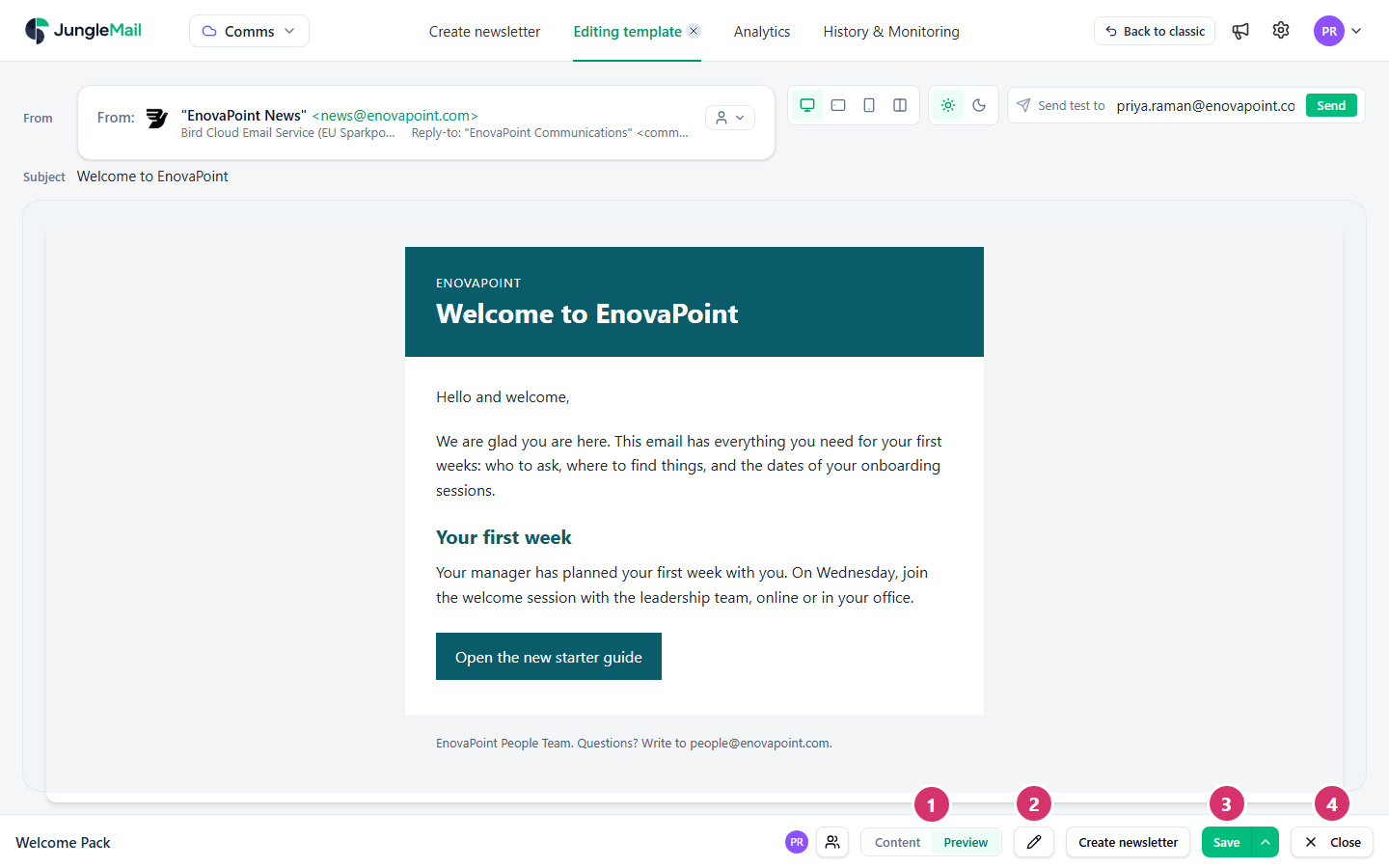
- Under Content, design the email in the email builder (Design emails). Select Preview to see it as recipients will.
- To change the subject or the preview text, select the pencil, Edit subject and preview text.
- Select Save. To keep the template as it was and save your changes as a new one, select the arrow beside Save, then Save a copy, and give the copy a name of its own in Save as template. Redesign a template that others use this way: the original stays as it was until the copy is ready.
- Select Close.
The template editor doesn’t save as you work. If you select Close with changes not saved, JungleMail asks Save your changes?: Save, Discard changes or Cancel. While the editor is open, Editing template in the top menu takes you back to it from any other page.
Save a newsletter as a template
Section titled “Save a newsletter as a template”In the newsletter wizard, go to the Content step.
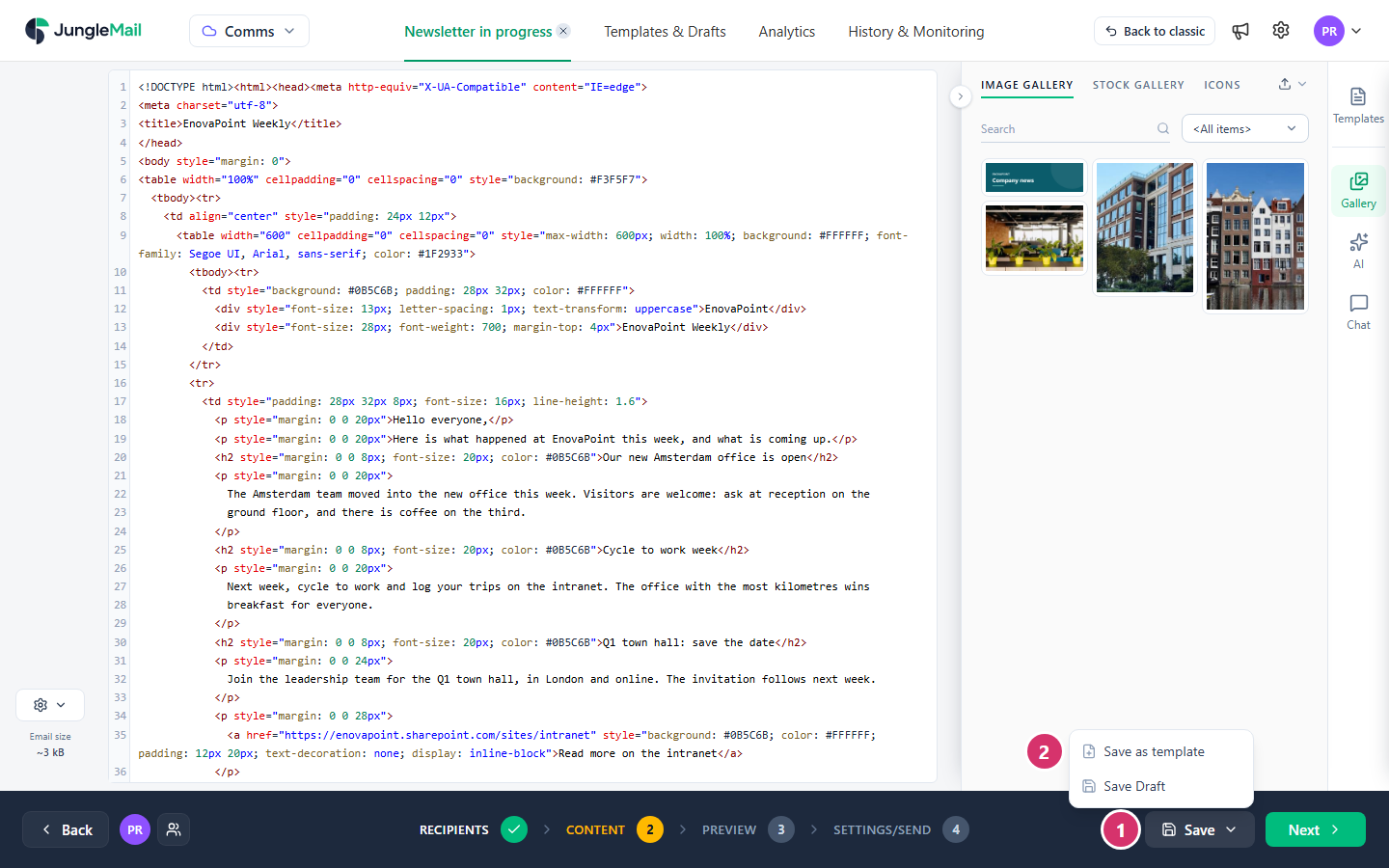
- Select Save.
- Select Save as template.
- In Save as template, check the Template name, Email subject and Preview text (shown after the subject in the inbox). They start with the newsletter’s own. Then select Save.
The template is saved, and the builder’s Templates panel opens with it. The newsletter stays as it was.
If a template already has that name, JungleMail asks Overwrite template content?: select Overwrite to replace that template’s content, or Cancel, then save again under another name.
When the newsletter was started from one of your site’s templates, or once you have saved it as a template, the menu also offers Save template. It replaces that template’s content with the newsletter’s, and keeps the template’s name, subject and preview text. Use it only to change the design of every newsletter to come: the template then also holds this newsletter’s stories.
From the Templates & Drafts page
Section titled “From the Templates & Drafts page”Save as template is also in More actions (⋮) on a sent newsletter or a draft, under Sent Newsletters and Drafts. On a template, Duplicate makes a copy, named after the original with (copy) added. Each of them opens the same dialog, and the new template opens in the template editor.
- Leave notes where the content goes. Sample text such as “Main story: what changed and why it matters, in two sentences” tells whoever starts from the template what to write, and a note nobody replaced is easy to spot in the Preview step.
- Put the footer in, with its unsubscribe link. Every newsletter made from the template then has it, and where your organization requires the link, JungleMail doesn’t send without it (Add an unsubscribe link). Build the header and footer from your saved sections, such as EnovaPoint Header, so that they match your other emails.
- Describe every picture once, in the template. Newsletters made from it get the logo and banners with their alternate text, which screen readers read out in their place (Make your emails accessible).