

Create and send newsletters
Every newsletter in JungleMail 365 is made in the newsletter wizard. Select Create newsletter in the top menu, and the wizard opens at its first step, Recipients.
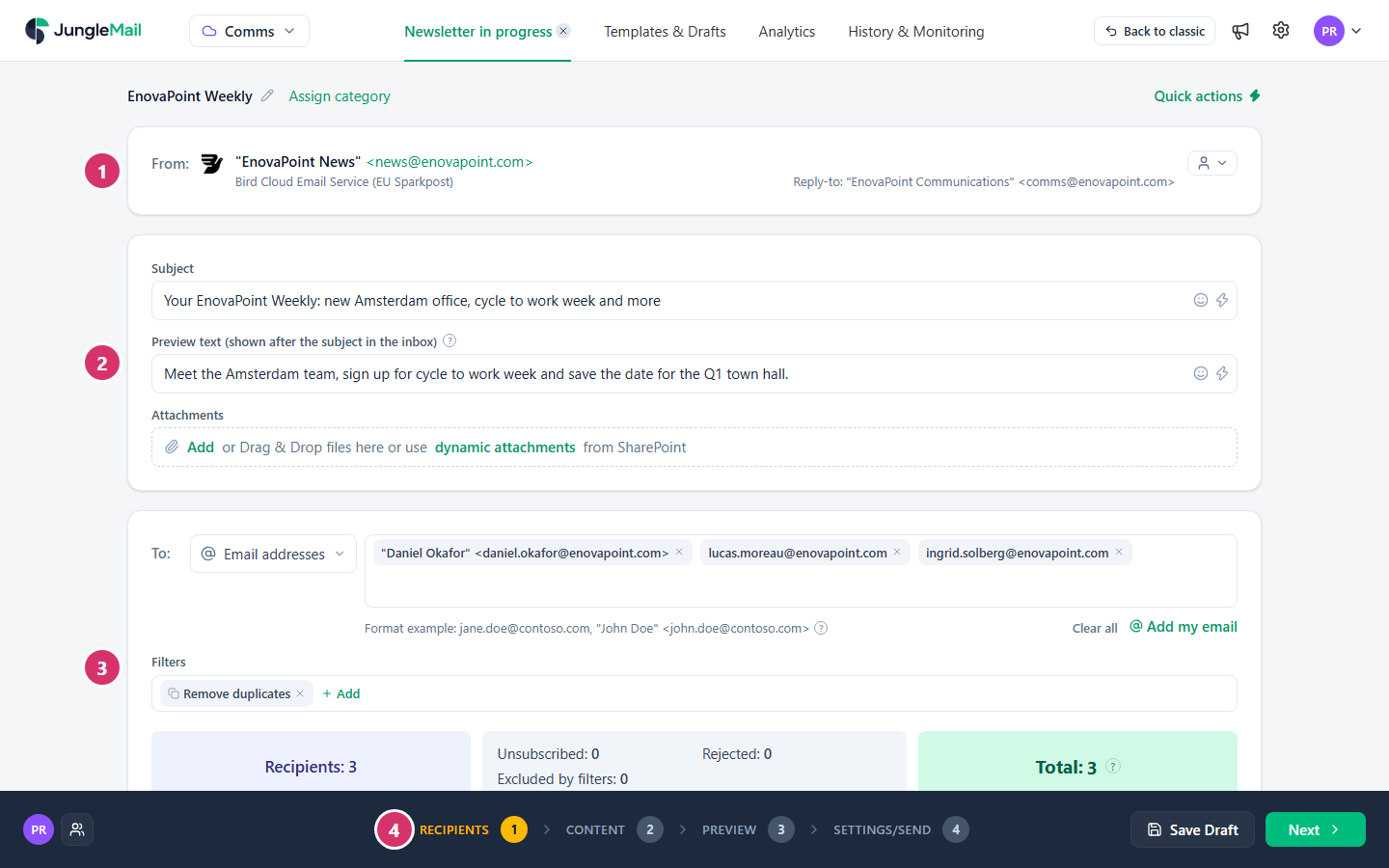
- From: the sending account the newsletter comes from. A site administrator sets these up.
- Subject, Preview text (shown after the subject in the inbox) and Attachments (Pro and Enterprise): what recipients see in their inbox.
- To: who receives the newsletter.
- The wizard’s four steps. Move between them with Next and Back.
Where to start
Section titled “Where to start”- New to JungleMail? Send a short newsletter to two or three colleagues first: Send your first newsletter takes you through every step once, in about 15 minutes.
- For a real newsletter, start from a template and a group. A template brings your organization’s design, so only the news is new (Start a newsletter from a template). A group reaches whoever is in it on the day the newsletter goes out (Choose recipients).
- Test before you send. Send now sends at once, without asking again. Send yourself a test and look at it on your phone first (Preview and test a newsletter).
The four steps
Section titled “The four steps”Recipients
Section titled “Recipients”Who the newsletter comes from and who it goes to, its subject, its preview text and any attachments.
Content
Section titled “Content”The email itself, built in the email builder from a template, a previous newsletter or a blank page. See Design emails.
Preview
Section titled “Preview”The newsletter as recipients will see it, on desktop, tablet and mobile, in light and dark mode. The step points out anything that is missing, Pre-flight checks lists problems in the content, and you can send yourself a test email.
Settings/Send
Section titled “Settings/Send”When the newsletter is sent, whether it repeats, and its delivery, tracking and report options. It ends with Send now, or Schedule for a later time; on a site that requires approval, with Submit for approval.
While you work on a newsletter
Section titled “While you work on a newsletter”- Newsletter in progress stays in the top menu while you visit other pages. Select it to return to the wizard, or select the × beside it to discard the newsletter.
- Save Draft keeps the newsletter as a draft; in the Content step it can be in the Save menu. Drafts are under Templates & Drafts > Drafts.
- The newsletter’s name is at the top of the Recipients step: Untitled at first, then the subject you type. Select the pencil to give it another name, and Assign category to file it.
- Quick actions, at the top right of the Recipients step, fills the newsletter with a copy of one of the three latest newsletters.
A newsletter needs a sending account, at least one recipient, a subject and some content before it can be sent. Until each is there, the Preview and Settings/Send steps say what is missing, each with a link that goes straight to it. If your site has no sending account yet, a site administrator adds one first (Choose a sending account type).