

Add a comments block
The Comments block adds two icons to the email, to like the newsletter and to comment on it. They lead to the newsletter’s archived copy on your SharePoint site, where colleagues can discuss it: a new policy, a change, a question for the leadership team.
Use it when the conversation is the point: colleagues read each other’s comments and can answer them, in the open. When you want answers you can count, or opinions people would rather not share in public, add a survey instead: its answers stay in the newsletter’s report, anonymous if you choose (Add a survey).
Before you begin
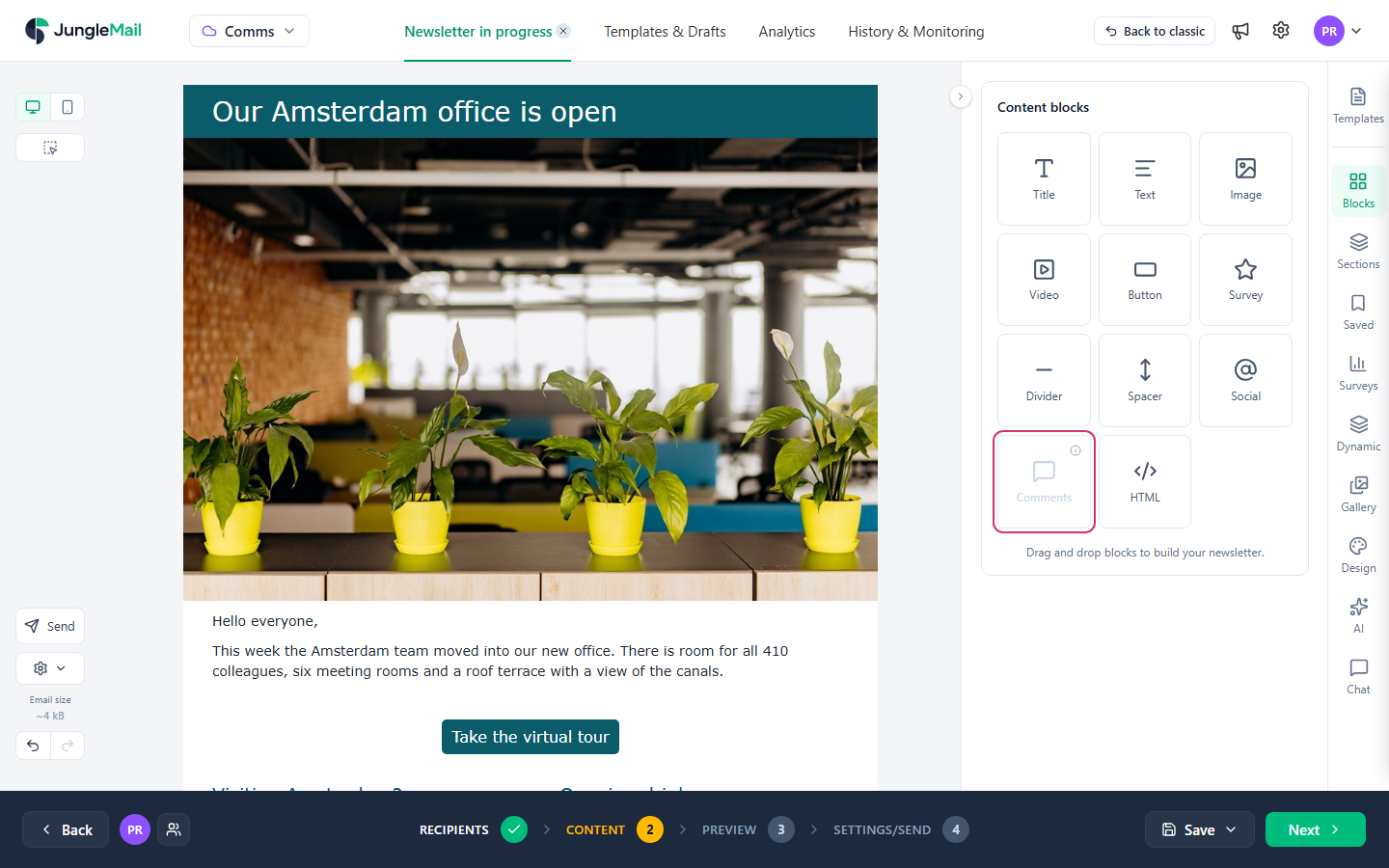
Section titled “Before you begin”- The block works only with the newsletter archive, which a site administrator sets up in Settings > Site Management > Archive (Archive newsletters to SharePoint). Until then, the Comments block on the Blocks tab is grayed out and says To use the Comments block, configure it in Archive Settings.
- The archive must go to a Site Pages library: only an archived page takes likes and comments.
- The archive is part of the Pro and Enterprise plans.
Add the block
Section titled “Add the block”In the newsletter wizard’s Content step:
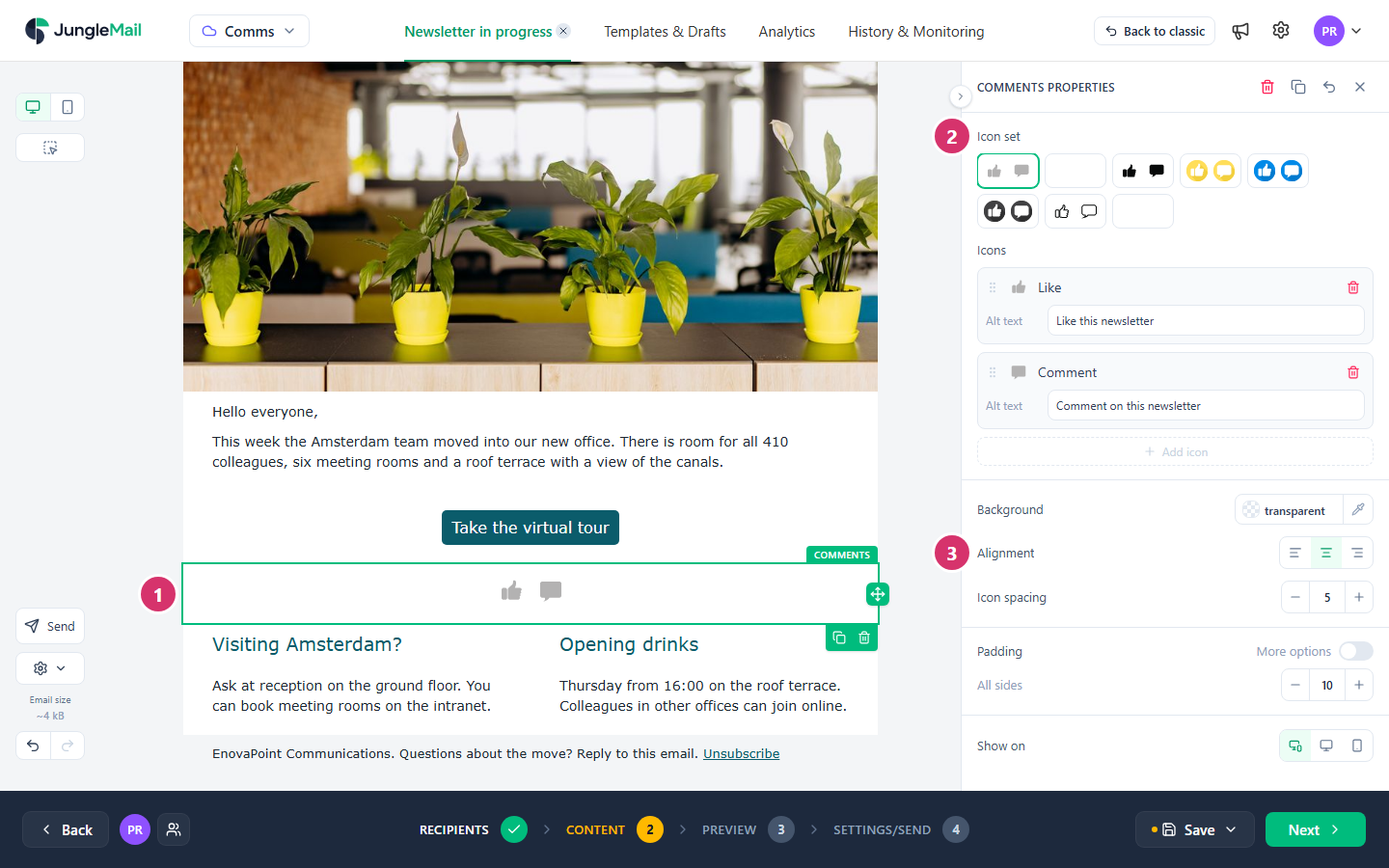
- Drag the Comments block from Blocks into the email, usually below the main story, where readers have finished what they might comment on.
- Select it, and in Comments properties choose an Icon set, and give each icon an Alt text, such as “Like this newsletter” and “Comment on this newsletter”. Say what the icon does rather than what it shows: screen readers read the alt text out in place of the icon (Make your emails accessible).
- Set its Alignment, Icon spacing and Padding like any block.
- In the Settings/Send step, check that Archive to SharePoint is on. Without it, JungleMail refuses to send a newsletter that has a Comments block.
The icons’ links are made when the newsletter is sent and archived; you can’t change them. In a preview or a test email, they lead to a sample page instead.
- Archive to a library that every recipient can open. The icons lead to SharePoint, so a recipient without access to the archive library gets SharePoint’s access request instead of the comments. For a newsletter to all of EnovaPoint’s 2,412 employees, choose a Site Pages library on the intranet site that everyone can read; ask the site administrator which list your newsletters go to (Archive newsletters to SharePoint).
- Ask a question next to the icons. A line above the block, such as “What would make hybrid working easier for your team?”, tells readers what to comment on.
- Decide who answers before you send. The comments are in SharePoint, not in the newsletter’s report, and they are questions asked in front of everyone. For a new policy from People & Culture, agree that someone there watches the comments in the first days.
- Open the archived copy after the first send. Test emails lead to a sample page, so the sent newsletter is the first chance to check that the icons open the archived copy and that a colleague can comment on it.