

Change the menu colors and template tabs
The Appearance tab of a site’s settings sets the colors of the site’s menus in JungleMail 365, so that people who work in several sites can tell at a glance which one they are in. It also chooses the template tabs editors see, whether Analytics shows Recipient Activity, and the notes shown with recipient sources in the newsletter wizard.
Before you begin
Section titled “Before you begin”- You need the Administrator role on the site, or a role with Manage Settings.
- While Inherit from global settings is on, the site uses the global settings. Turning it off switches every tab to the site’s own settings at once, privacy and branding included, and the site no longer follows later changes to the global ones: check the other tabs straight away, and tell your global administrator (Global settings and inheritance).
Change the colors and tabs
Section titled “Change the colors and tabs”Go to Settings > Settings > Appearance.
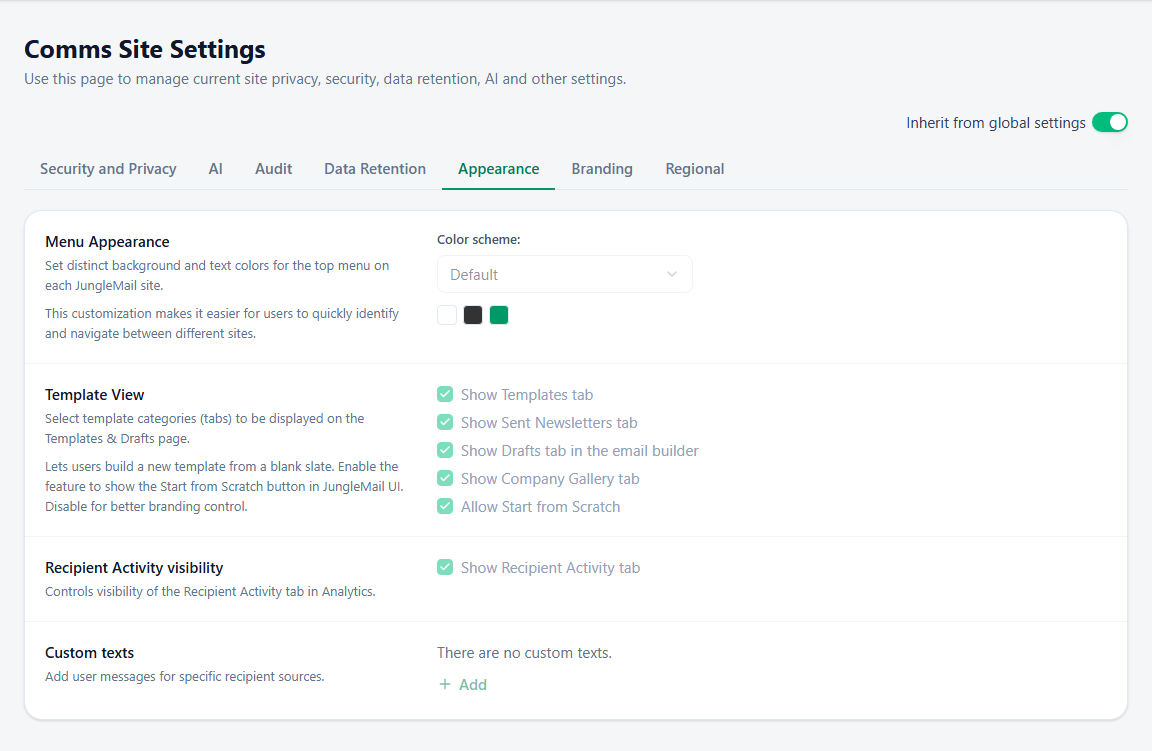
- Color scheme: give each site its own colors when people work in more than one, so that an editor who sees the People & Culture colors knows a newsletter started here goes out with that site’s sending accounts and settings. In an organization with one site, the global colors or a built-in scheme are enough. With Custom, choose colors that differ in more than shade, such as a dark blue for Comms and a green for People & Culture; keep text readable on its background, at least 4.5:1 contrast (Understanding Success Criterion 1.4.3: Contrast (Minimum)); and give Text (active item) a color that differs clearly from Text. The top menu shows your choice straight away.
- Show Sent Newsletters tab and Show Company Gallery tab: keep the first on where editors reuse past newsletters, such as a weekly one, and the second on unless editors should start only from your site’s own templates: it offers JungleMail’s ready-made designs as well as the templates shared from a Global site (Templates).
- Allow Start from Scratch doesn’t change the email builder: editors can always start from a blank email. To keep new newsletters on brand, set a default template instead (Set the default template).
- Show Recipient Activity tab: hiding the tab removes that view from Analytics, but JungleMail still records who opened and clicked (Security and privacy settings).
- Custom texts are notes above a recipient source in the newsletter wizard. Put one where editors could choose wrong, such as above the groups: “All Employees reaches all 2,412 people at EnovaPoint: check with Daniel Okafor before you send to it”. Keep the Warning mood for that one note, so that it still stands out.
Then select Save.