

Delivery, tracking and report options
These options are in the newsletter wizard’s Settings/Send step, below When to send. They apply to the newsletter you are working on. Most newsletters go out well with the options as they start: keep tracking on, and change the others for a reason, such as a trial send or a newsletter that doesn’t belong in the archive.
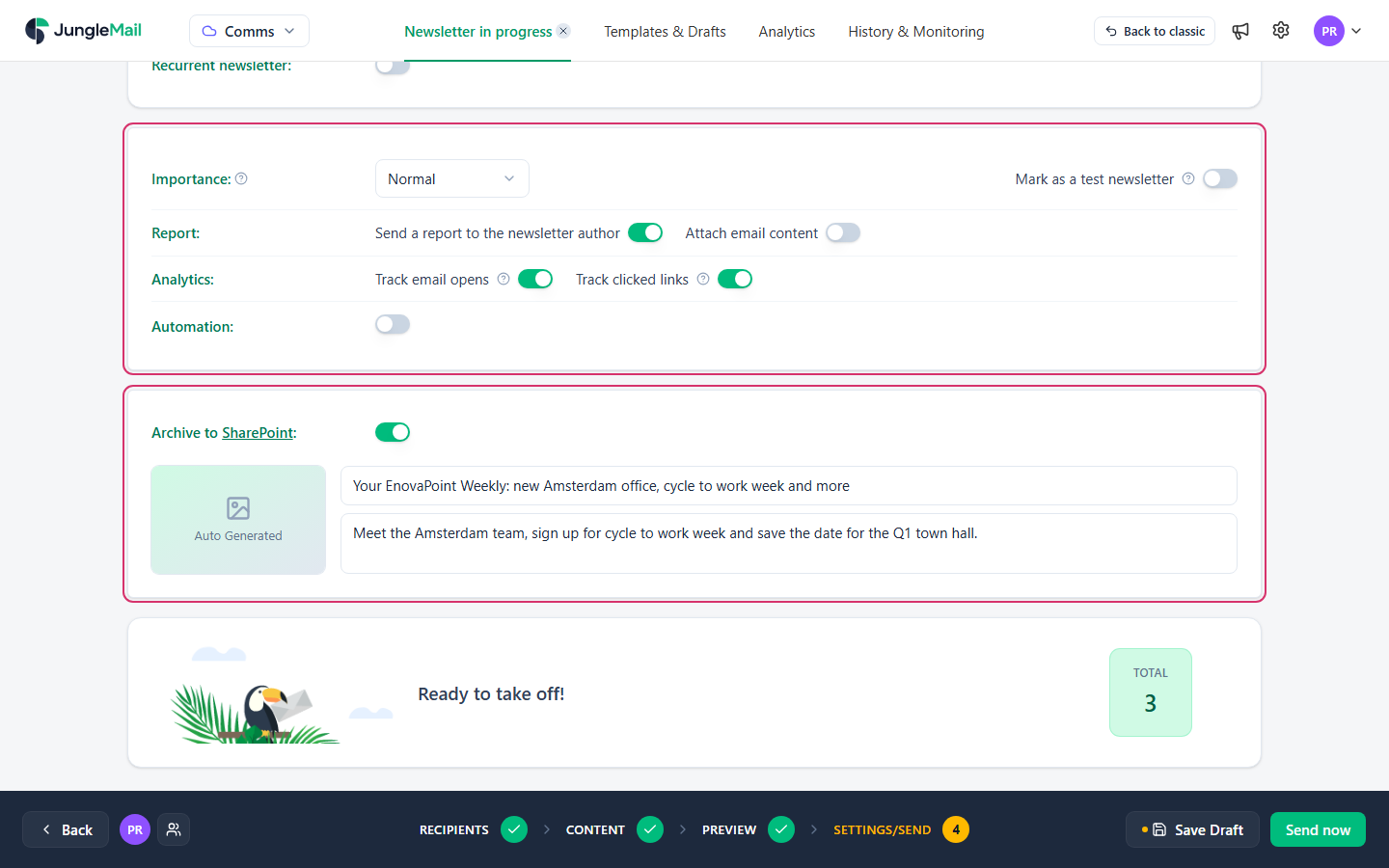
| Option | What it does | New newsletter |
|---|---|---|
| Importance | Marks the email as Low, Normal or High importance for the recipient’s email program | Normal |
| Mark as a test newsletter | Labels the newsletter as a test, so you can leave it out of your analytics | Off |
| Send a report to the newsletter author | Emails you a report once the newsletter has been sent | On |
| Attach email content | Adds the newsletter to that report as a PDF, on a single page or on several | Off |
| Track email opens | Adds a 1-pixel image to the newsletter, so JungleMail can count who opens it | On |
| Track clicked links | Makes the newsletter’s links trackable, so JungleMail can count who clicks what | On |
| Automation | Starts a Power Automate flow you choose once the newsletter has been sent; it says so if there is none | Off |
| Archive to SharePoint | Saves a copy of the newsletter in your site’s SharePoint archive; only on sites that have one | Your site’s default |
The archived copy’s title and description start as the newsletter’s subject and preview text, and its image is Auto Generated unless you choose one with Select from gallery (Archive newsletters to SharePoint).
Open tracking depends on images: recipients whose email program doesn’t load them aren’t counted as opens. See How open and click tracking works. With anonymous tracking turned on for your site, the two options read Anonymous track email opens and Anonymous track link clicks.
- Keep both tracking options on. Without Track email opens, the report shows no opens and no bounces, and a follow-up can’t single out the people who didn’t open the newsletter (Bounces and rejections, Follow up on a previous newsletter).
- For privacy, ask for anonymous tracking instead. A site administrator can turn it on: JungleMail then still counts opens and clicks but stores no addresses, so you keep the rates without seeing who opened, and can’t follow up on them (Security and privacy settings).
- Mark trial sends as tests. A newsletter sent to a few colleagues to try something out then stays out of your averages when you turn on Hide test newsletters in Analytics (Find and compare newsletter results).
- Keep High importance for what needs action soon. Leave Normal for regular newsletters, and keep High for the rare notice that readers must act on, such as a VPN upgrade, so that it still stands out.
- Check what the archive will show. The archive keeps one copy for everyone, so merge tags such as a first name aren’t filled in: rewrite an archive title or description that has one. Where your site lets you, turn Archive to SharePoint off for a newsletter not meant for everyone who can read the archive (Archive newsletters to SharePoint).