

Edit an image
The image editor changes a picture without another program. Use it to make a picture fit its place in the email: crop or resize it, straighten it, adjust its brightness and colors, or add a filter, a frame, text or a sticker. The result is saved as a new picture in the gallery, so the original stays as it was.
Edit a picture in the email
Section titled “Edit a picture in the email”In the Content step, select the Image block, then select Edit with Editor: on the block’s strip on the email, or in Image properties. The image editor opens with the picture.
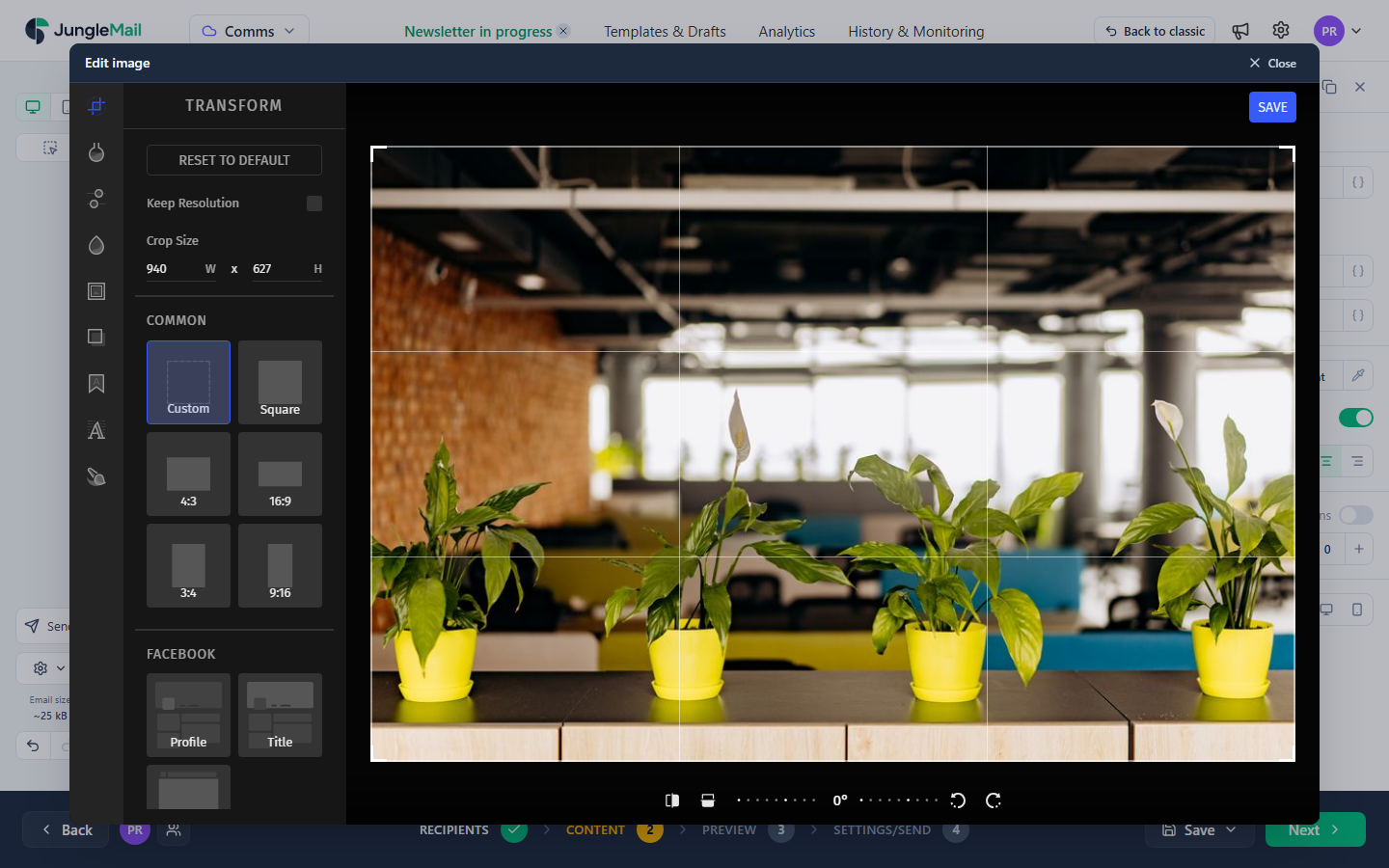
- Choose a tool from the icons on the left. The editor opens on Transform, to crop, resize, rotate or flip the picture; the other tools adjust the colors, add a filter, blur part of the picture, or add a frame, an overlay, text, stickers or drawing.
- Make the change. Undo and Redo take back or repeat a step.
- Select Save at the top right. JungleMail saves the result as a new picture in the gallery and puts it in the block.
To leave the editor without saving, select Close at the top right.
You can also edit a picture in the gallery: on the Gallery tab, open the picture’s menu (⋮) and select Edit with Editor. The edited copy is added to the gallery, and JungleMail says Image has been saved to the gallery.
Change a picture with AI
Section titled “Change a picture with AI”Where AI is turned on for your site, Edit with AI changes what a picture shows from a request in plain words, such as “Remove the background” or “Make it a winter scene”. Use the image editor for exact changes, such as a crop or text, and AI for what the editor can’t do, such as a new background.
- Select Edit with AI: on the block’s strip, in Image properties, or in a gallery picture’s menu (⋮). A Video block has it too, for its thumbnail.
- Describe the change, or pick one of the ideas, and select Process. A new chat opens on the AI tab with the new version.
- Select Apply under it to put it in the block, with alternate text from the assistant. Undo takes it back.
On an empty Image block, Create with AI draws a new picture from your description. The picture and your request go to the AI provider your site uses (Write and design with the AI assistant).
Pictures you can’t edit
Section titled “Pictures you can’t edit”Edit with Editor is grayed out, with the reason, for:
- icons and other pictures written into the email rather than linked: Icons and embedded pictures cannot be edited.
- pictures whose address comes from a merge tag, such as SharePoint content: Pictures from merge tags cannot be edited.
- pictures that don’t load: The picture could not be loaded, so it cannot be edited.
A JPEG picture stays a JPEG; other formats are saved as PNG.
- Crop pictures that sit side by side to the same shape. With Auto width, pictures fill the width of their columns, so in a row of equal columns, photos of different proportions end up at different heights. Choose the same crop size in Transform for each, such as for the photos of three offices in one row.
- Make a very large photo smaller here, not with Width, %. Width, % on the block changes only how big the picture is shown, and readers still download the whole file. Resize it in Transform, to no less than the width it fills in the email (Add images).
- Blur what shouldn’t be shared. In a photo of an office or an event, blur names on screens and whiteboards before you use it, with the tool that blurs part of the picture.
- Edit animated GIFs in another program. The editor saves every picture that isn’t a JPEG as a PNG, so an edited GIF becomes a still picture.