

Group SharePoint content
Group by puts the items of a dynamic section under headings: news posts under their topic, events under their office, documents under their department. Each heading is followed by its items.
Group when every reader should see all the groups, such as EnovaPoint’s events in all six offices under the office’s name. When each reader should see only their own office’s events, show a section to some recipients only instead (Show a section to some recipients only).
Before you begin
Section titled “Before you begin”- You need a section with SharePoint content (Add SharePoint content).
- Group by is part of the Enterprise plan. On other plans it is grayed out with Available on the Enterprise plan.
Group the items
Section titled “Group the items”You group the items on the dynamic section’s Dynamic tab, in the newsletter wizard’s Content step.
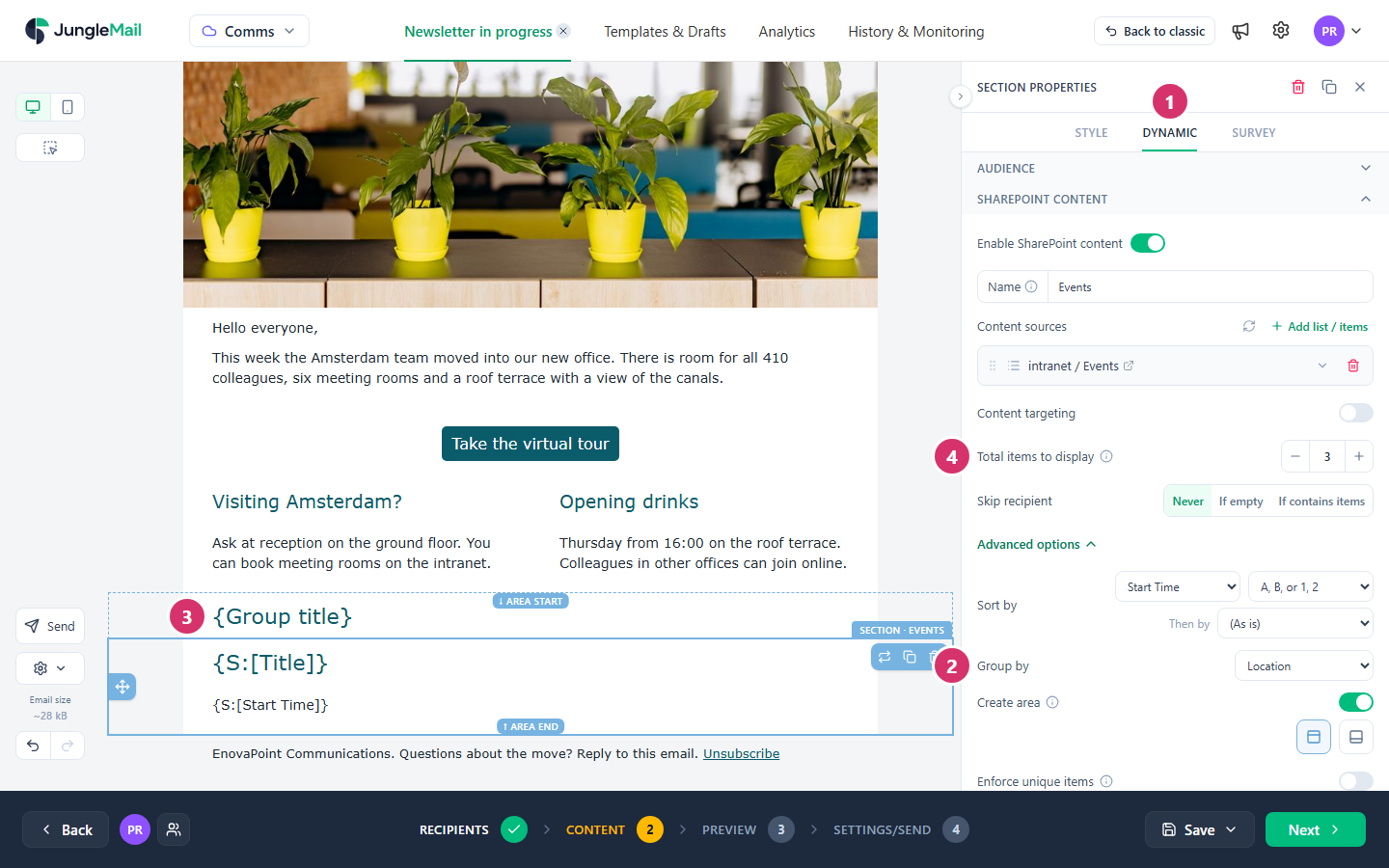
- Select the dynamic section and select Dynamic.
- Select Advanced options, then choose the column to group by in Group by, such as Location. The list offers (Site), which groups by SharePoint site when the items come from several sites, and the columns that every source of the section has and that can be grouped: single line of text, choice, lookup and person columns. If there are none, it says None of these lists has a column that can be grouped on.
- JungleMail adds a section above the dynamic section, with a title showing {Group title}, and links the two with Create area: in the email, each group is this heading followed by its items. Style the heading like any title.
- Set Total items to display: with grouping on, it is the number of items in each group. Multiply it by the number of groups before you choose: 3 events for each of six offices is up to 18 events in one email, and a long email is cut off by Gmail (Keep your email under Gmail’s clipping limit).
The groups appear in the order of their first items, so they follow Sort by. When Sort by is the column you group by, the groups are in alphabetical order: A to Z, or Z to A with B, A, or 2, 1.
Items with no value in a text or choice column are listed under (Ungrouped); items with no value in a lookup or person column are left out. An item with several values, such as two topics, appears in each of its groups, or only in the first with Enforce unique items on.
To stop grouping, choose (Do not group). The heading comes out, but the linked section stays; remove it, or turn off Create area to unlink it.
Show other details of the group
Section titled “Show other details of the group”The heading uses the merge tag Group title, on the Dynamic section tab of Insert merge tag. You can use it in other blocks of the linked section too, for example in a sentence such as “More news about {Group title}”.
- Group by a choice or lookup column. Every item then uses the same spelling of each value, so London is one group, not one for “London” and another for “London office”.
- Make the column required in SharePoint. Items with no value end up under (Ungrouped), or are left out for a lookup or person column. A required column makes whoever adds an event fill it in.
- Choose the order of the groups with Sort by. Sort by the grouping column for groups in alphabetical order, such as offices from Amsterdam to Toronto; sort by date for the group with the soonest or newest item first.