

Create a newsletter
You create a newsletter in the newsletter wizard, step by step: who receives it, what it says, how it looks, and when it goes out. The steps below take you through it; each links to the details. For most newsletters, start the email from one of your site’s templates: it brings the design, and you write only the news.
Before you begin
Section titled “Before you begin”- You need a role on the JungleMail site that lets you create newsletters, such as Editor.
- The site needs a sending account. If the wizard’s From field is empty, ask a site administrator to add one (Choose a sending account type).
Start the newsletter
Section titled “Start the newsletter”Select Create newsletter in the top menu, or on the dashboard. The wizard opens at its first step, Recipients, with a new newsletter called Untitled.
While you work on a newsletter, the top menu shows Newsletter in progress instead of Create newsletter. To start another one, finish, save or discard this one first (see below).
Fill in the four steps
Section titled “Fill in the four steps”- Recipients: check the sending account in From, type the Subject and the Preview text (shown after the subject in the inbox), and choose who receives the newsletter in To. Then select Next. See Write the subject and preview text and Choose recipients. Choose the recipients before the content: the email builder can offer their details, such as their first name, only once they are chosen (Personalize with merge tags).
- Content: choose how to start the email, then build it (see below). Then select Next.
- Preview: check the newsletter as recipients will see it, and send yourself a test. Then select Next. See Preview and test a newsletter.
- Settings/Send: select Send now, which sends it at once without asking again, or schedule the newsletter for later. See Send or schedule a newsletter.
You can go back to any step with Back, or by selecting it in the bar at the bottom.
Start the content
Section titled “Start the content”The Content step opens with the ways to start the email beside an empty canvas.
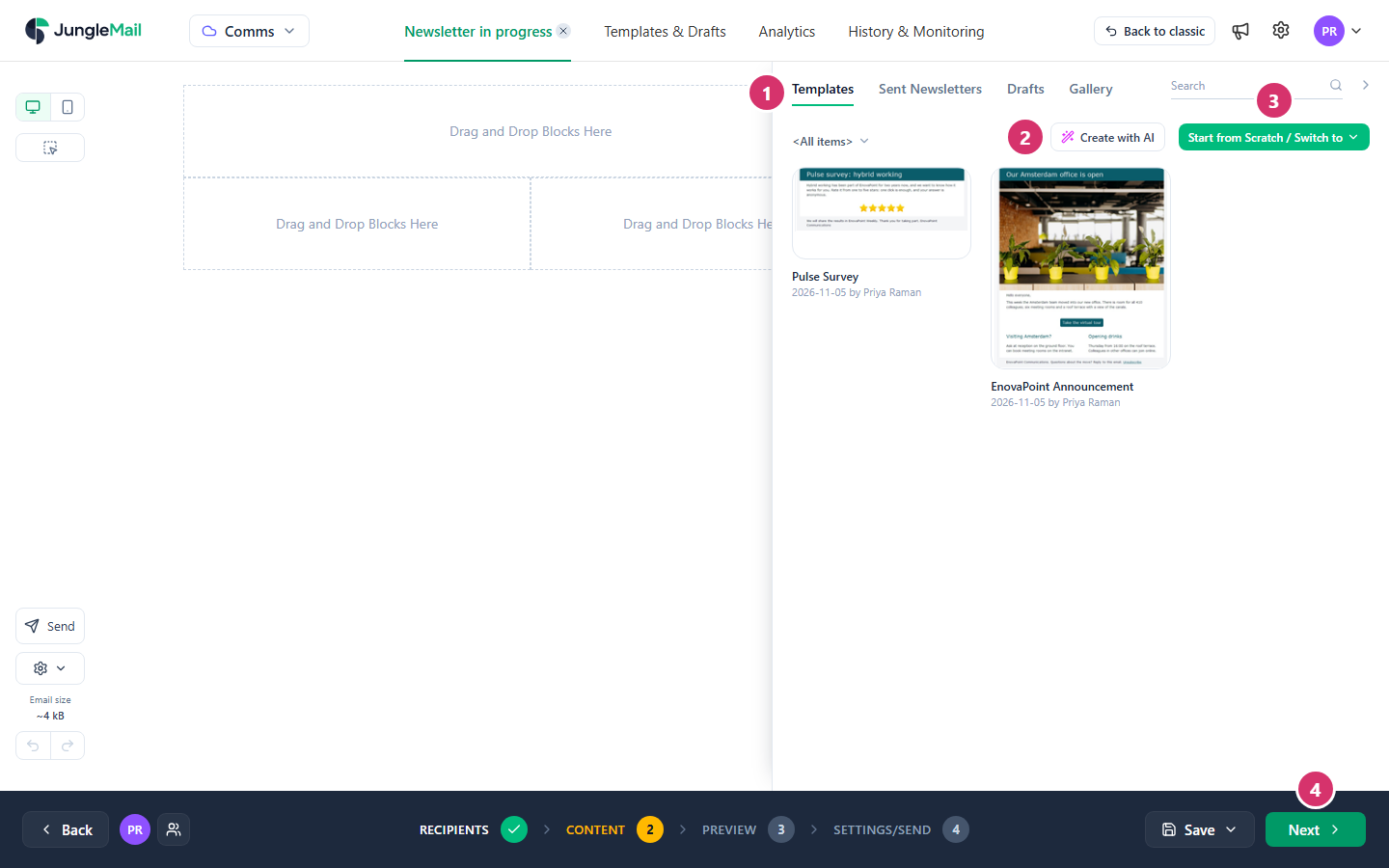
- Start from something that exists: a template under Templates, including those shared with every site, a past newsletter under Sent Newsletters, a draft under Drafts, or a ready-made design by JungleMail under Gallery. Select it to load it into the email. A past newsletter brings its old news as well, to replace. If your site has no template for this newsletter yet, save one once an issue looks right (Create a template).
- Or select Create with AI to have the AI assistant draft the email for you. It needs AI turned on for your site: without it, the button isn’t there, or the assistant says AI is not enabled for this site. (Write and design with the AI assistant). Give it material to work from, such as a PDF of the town hall slides, and check every fact it writes: AI can make mistakes.
- Or select Start from Scratch / Switch to and choose a new email in the Drag & Drop Builder, the Rich Text Editor or the HTML Editor, or import one. A new email is blank, or a copy of your site’s default template for that editor if it has one. Stay with the Drag & Drop Builder unless you have a reason to choose another, such as HTML designed elsewhere: only there can colleagues edit with you at the same time, and only there does Translate… work. Choose before you write, because switching editors later replaces the whole email.
- When the email is ready, select Next.
How to build the email itself is in Design emails.
Save it and come back later
Section titled “Save it and come back later”- Save Draft keeps the newsletter as a draft under Templates & Drafts > Drafts. In the Content step, if you may save templates, it is in the Save menu, beside Save as template. The dashboard lists your drafts too, under Continue where you left off.
- While you edit the email in the Content step, JungleMail saves the content by itself, so the newsletter appears under Drafts even before you save it.
- To leave the newsletter, select the × beside Newsletter in progress. If it has unsaved changes, JungleMail asks Do you want to save your changes?: Yes saves it as a draft, Cancel newsletter deletes it, and Cancel takes you back to it.
- Name the newsletter as you start. History, Analytics and the drafts list show it by its name, which is the subject until you change it with the pencil at the top of the Recipients step. A name with the date, such as EnovaPoint Weekly — 16 March 2027, tells the issues apart, and Assign category files it with others of its kind.
- Save the draft early. JungleMail saves the email’s content as you edit it; Save Draft saves the rest of the newsletter too, such as its recipients and subject (Design emails).
- Ask a colleague to read it in the wizard. Once the newsletter is saved, invite them with Who is working on this newsletter: they can correct the content while you keep the recipients and settings (Work on a newsletter together).