

Rename, pin, categorize and delete templates
A site’s template list grows quickly. Rename templates so their names say what they are for, pin the ones you use most, group them in categories, and delete the ones nobody needs. All of this is on the Templates tab of Templates & Drafts.
Templates shared from the Global site, marked with a globe, belong to the Global site: on your site you can’t rename, pin, categorize or delete them.
Rename, pin or delete a template
Section titled “Rename, pin or delete a template”On the Templates tab, point to the template and select More actions (⋮) at its top right.
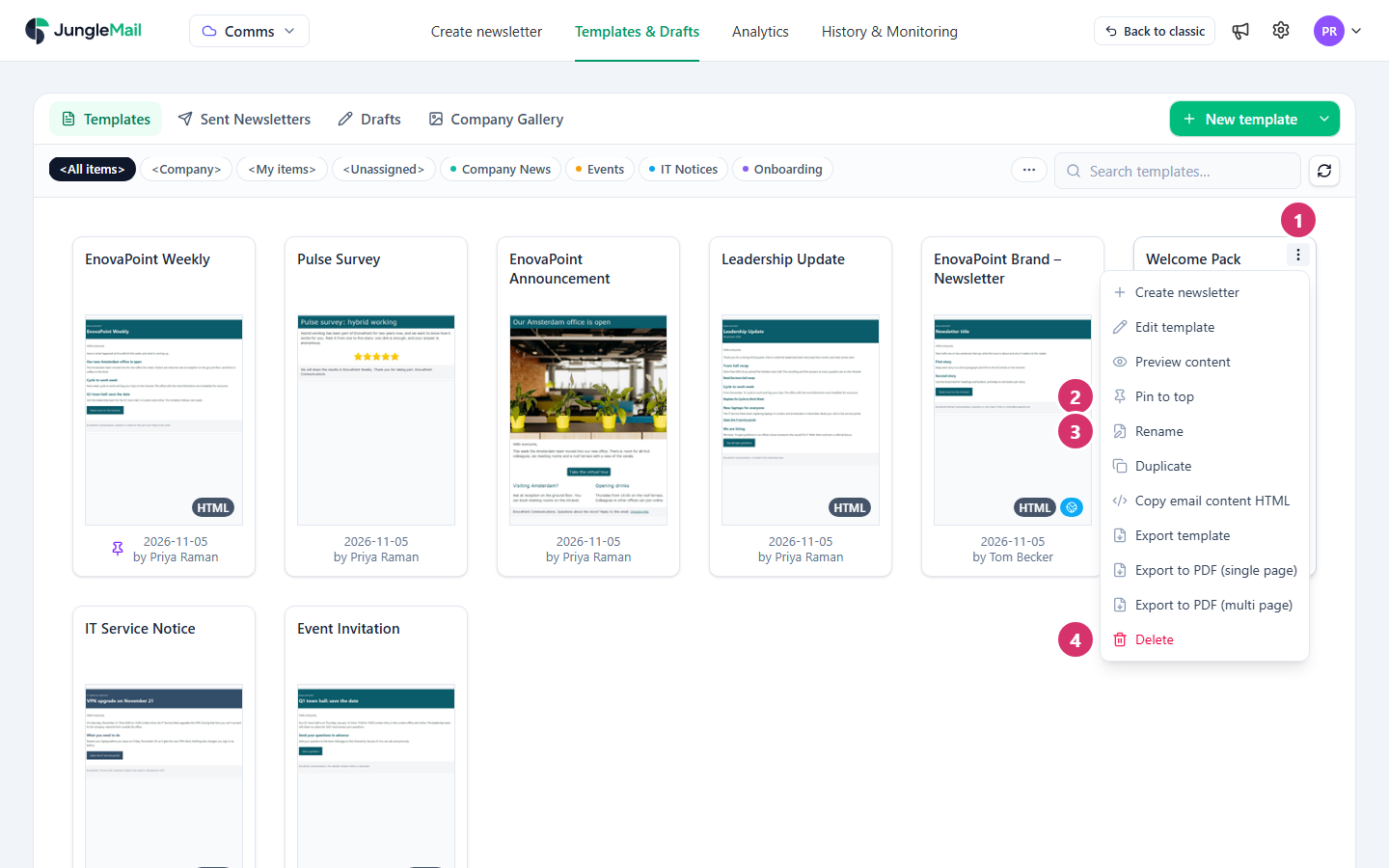
- More actions opens the menu.
- Pin to top keeps the template near the top of your list, with a pin under it. Pins are your own: other people’s lists don’t change. Unpin from top puts the template back in its place.
- Rename opens Rename template, where you change the Template name, and also the Email subject and Preview text (shown after the subject in the inbox) that newsletters made from it start with. Select Save. Name a template for what it is for, such as Event Invitation, not for a date or a version: newsletters made from it take its name until they are renamed.
- Delete asks you to confirm in Delete template, then moves the template to the site’s Recycle Bin, from which it can be restored (Restore deleted items). Newsletters made from the template keep their content. A template you still have open in the template editor can’t be deleted: JungleMail says Unable to delete, and you close it there first.
Put templates in categories
Section titled “Put templates in categories”On the Templates tab, point to a template and select the box at its top left.
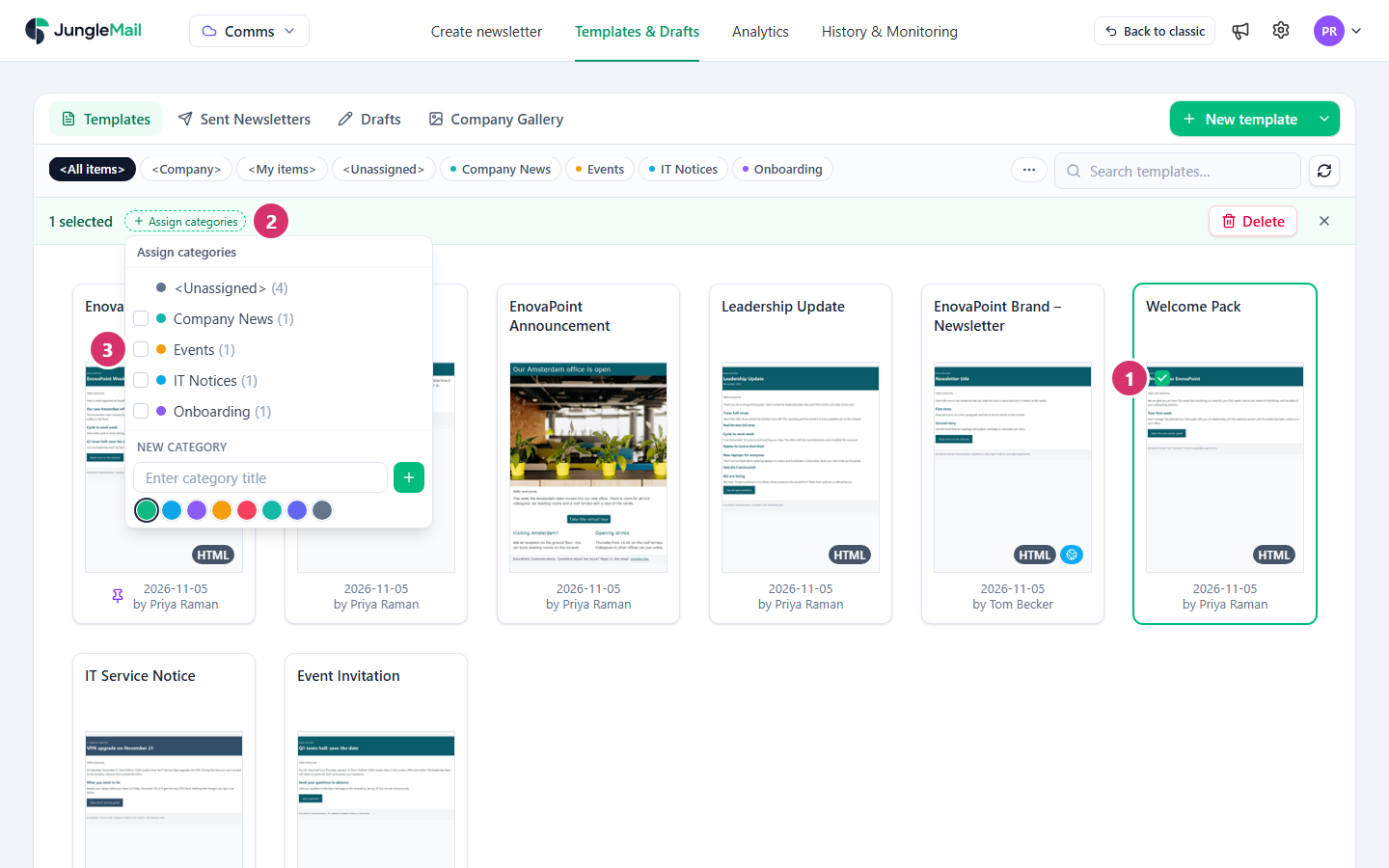
- Select the box of each template to categorize. A bar above the templates says how many you selected.
- Select Assign categories.
- Tick the categories the templates belong in. The list starts with none ticked, and the templates end up with exactly the categories you tick: tick their current ones too if they should keep them.
- Select anywhere outside the list. JungleMail says Categories updated.
To take every category off the selected templates, select <Unassigned> in the list and confirm in Remove categories?. Esc closes the list without changing anything.
To delete several templates at once, select their boxes and select Delete in the same bar. If any of them is open in the template editor at that moment, none of them is deleted.
Create, rename or delete a category
Section titled “Create, rename or delete a category”Select … at the end of the row of categories.
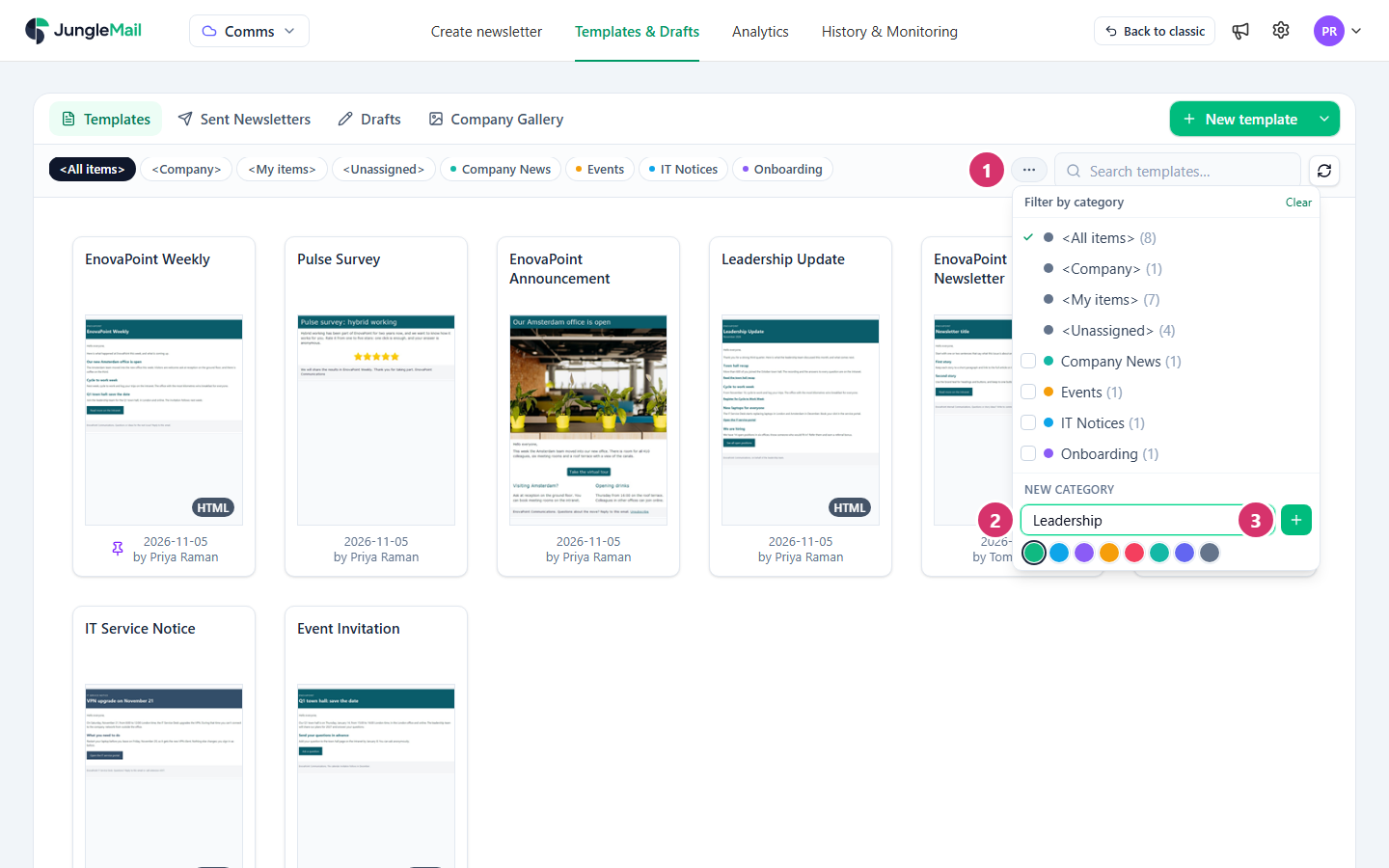
- Select …. It lists every category, including any that don’t fit in the row.
- Under New category, type the category’s title and pick its color.
- Select + (Add category).
To rename or delete a category, point to it in the same list and select the pencil or the bin, then Save or Delete. Deleting a category doesn’t delete its templates. The built-in categories, such as <My items>, can’t be changed.
Template categories are separate from the categories on the Sent Newsletters and Drafts tabs, which work the same way.
- Give a copy its own name as you make it. Duplicate offers the original’s name with (copy) added; change it in the dialog, because two templates with nearly the same name are hard to tell apart in the list (Create a template).
- Keep to a few categories, by team or by kind of message, such as HR and Events. <My items> already shows the templates you made, so a category per person adds nothing, and <Unassigned> shows the templates still to file.
- Delete designs that nobody should start from. An out-of-date template left in the list can still be picked. Deleting it is safe: it waits in the site’s Recycle Bin, and newsletters made from it keep their content (Restore deleted items).