

Analytics and reports
JungleMail 365 follows every newsletter after it is sent: how many emails went out, how many recipients opened them, which links they clicked, how they answered surveys, and which emails bounced or led to an unsubscribe. Select Analytics in the top menu to see the results.
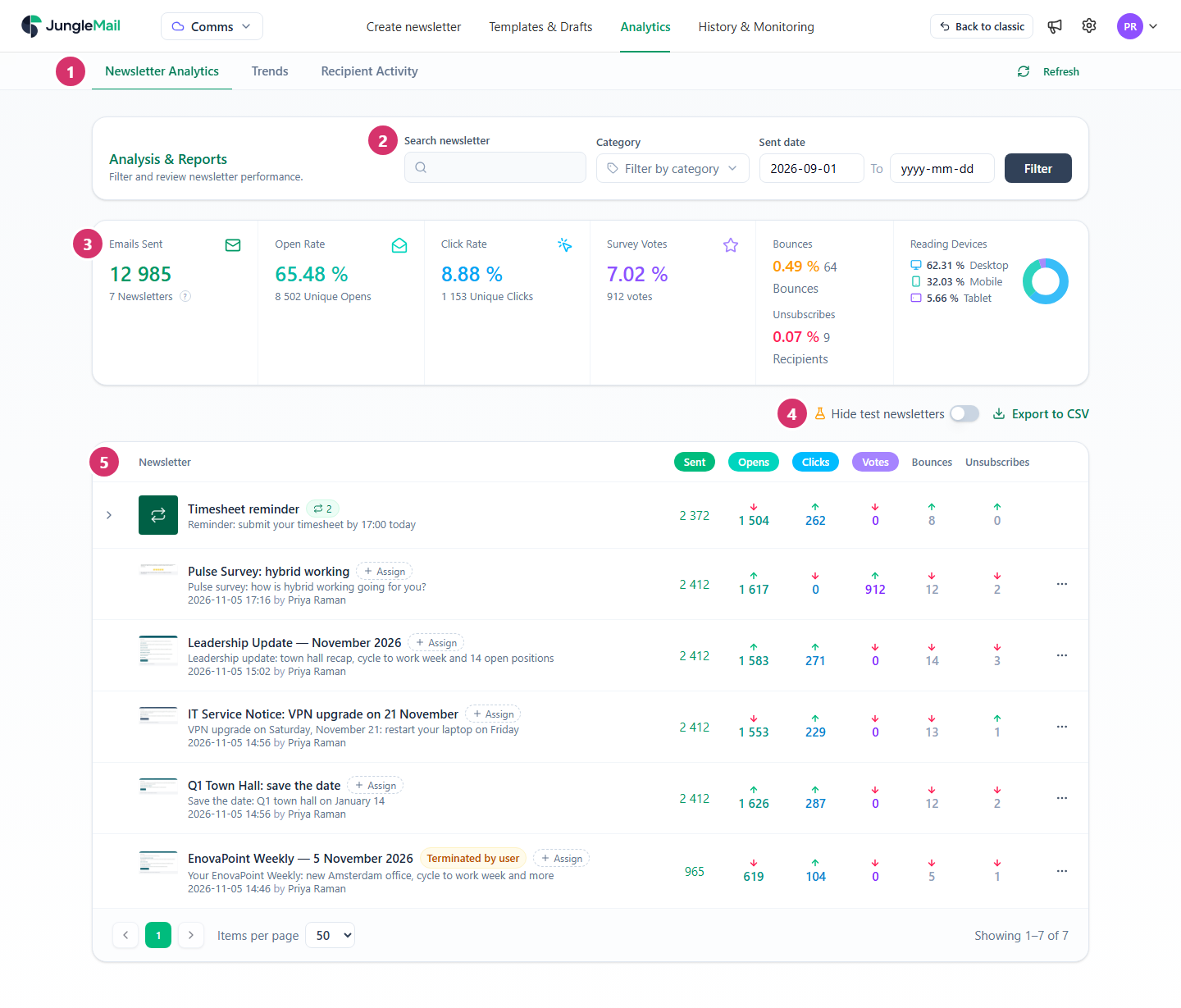
- Newsletter Analytics, Trends and Recipient Activity: the results of each newsletter, two periods side by side, and one recipient’s history.
- Search newsletter, Category and Sent date: which newsletters are listed. Select Filter after changing the dates.
- The totals of the newsletters listed: emails sent, open rate, click rate, survey votes, bounces, unsubscribes and the devices people read on.
- Hide test newsletters leaves out the newsletters marked as tests, and Export to CSV downloads the list.
- One row per newsletter. Select its name to open its report.
What JungleMail measures
Section titled “What JungleMail measures”| Measure | What it counts |
|---|---|
| Emails sent | Emails that JungleMail handed over for delivery |
| Opens | Recipients whose email program loaded the newsletter’s images, or who clicked, voted or unsubscribed |
| Clicks | Clicks on the links in the newsletter |
| Survey votes | Answers to the surveys in the newsletter |
| Bounces | Emails that the recipient’s mail server could not deliver |
| Unsubscribes | Recipients who unsubscribed through the newsletter |
| Reading devices | Whether people opened the newsletter on a desktop, a phone or a tablet |
Unique counts each recipient once, and total counts every time: a recipient who opens a newsletter three times is one unique open and three total opens. Rates are shares of the emails sent: an open rate of 65.63% means that 65.63% of the emails sent were opened at least once.
How opens and clicks are recorded, and why some are never counted, is in How open and click tracking works.
Where to start
Section titled “Where to start”- Have Outlook load the newsletters’ images. An open is counted only when the images load or the reader clicks, and an open missed is never counted later. Unless you send through a Microsoft 365 sending account, ask your IT team to set this up before you start following open rates (Load newsletter images automatically in Outlook).
- Mark trial sends as tests, and hide them. Turn on Hide test newsletters, so that a newsletter sent to three colleagues doesn’t pull your averages up or down (Find and compare newsletter results).
- Read one report in full. Open your latest newsletter’s report and read the click rate as the firmer signal, and the Peak Engagement Window as a hint for your next send time. Treat the open rate as a minimum (How open and click tracking works) (Read a newsletter report).
What to do about a figure
Section titled “What to do about a figure”Compare a figure with your own earlier newsletters to the same people, not with another organization’s: how many opens are counted depends on your readers’ email programs.
| When | It usually means | What to change |
|---|---|---|
| The open rate drops | Fewer people chose to open it, or fewer opens could be counted | The subject and preview text (Write the subject and preview text); the send time, from the Peak Engagement Window; whether Outlook loads the images |
| Opens hold, clicks drop | People opened it but found nothing to act on, or found it too low | Where the main link sits, from the click map (Links, click map and clickstream); link text that says where it goes |
| Bounces appear | Addresses that no longer exist, or a spam filter refusing emails | The recipient source, or the allowlist (Bounces and rejections) |
| Unsubscribes rise after a newsletter | It reached people it wasn’t meant for | The recipients, or which sections each group sees (Choose recipients, Show a section to some recipients) |
Articles in this section
Section titled “Articles in this section”How results are collected
Section titled “How results are collected”Find and read results
Section titled “Find and read results”- The dashboard
- Find and compare newsletter results
- Read a newsletter report
- See who opened or clicked
- Export results to CSV or Word
Look closer at a newsletter
Section titled “Look closer at a newsletter”- Links, click map and clickstream
- Results by department, job title, office and company
- Results by location
- Survey results
Recipients and periods
Section titled “Recipients and periods”Across the organization
Section titled “Across the organization”- Results across all sites, for global administrators
Settings that change the results
Section titled “Settings that change the results”A site administrator decides which breakdowns are collected, such as departments and locations (Set up analytics segments and locations), and whether reports may show who opened or clicked (Security and privacy settings). Where readers must not be identified, ask for anonymous tracking: you keep the rates, and nobody can see who opened (How open and click tracking works). In each newsletter, the Track email opens and Track clicked links options decide whether it is tracked at all (Delivery, tracking and report options).