

Results by location
The Locations tab of a newsletter’s report in JungleMail 365 shows its results per country, on a map and in a table, and for some countries per state or province. It answers two different questions, depending on what a site administrator has turned on (Set up analytics segments and locations):
| View | The location is |
|---|---|
| Location from profiles | Where the recipient works, from their profile in Microsoft Entra ID or Exchange |
| Geolocation by IP | Where the newsletter was opened, worked out from the IP address of each open |
When both are on, switch between them at the top of the tab. Either covers the newsletters sent after it was turned on. For newsletters to colleagues, read Location from profiles: it reports where people work, while an IP address can place them far from their desk. Geolocation by IP suits recipients without a directory profile, such as subscribers.
Read the Locations tab
Section titled “Read the Locations tab”Open the newsletter’s report from Analytics, then the Locations tab.
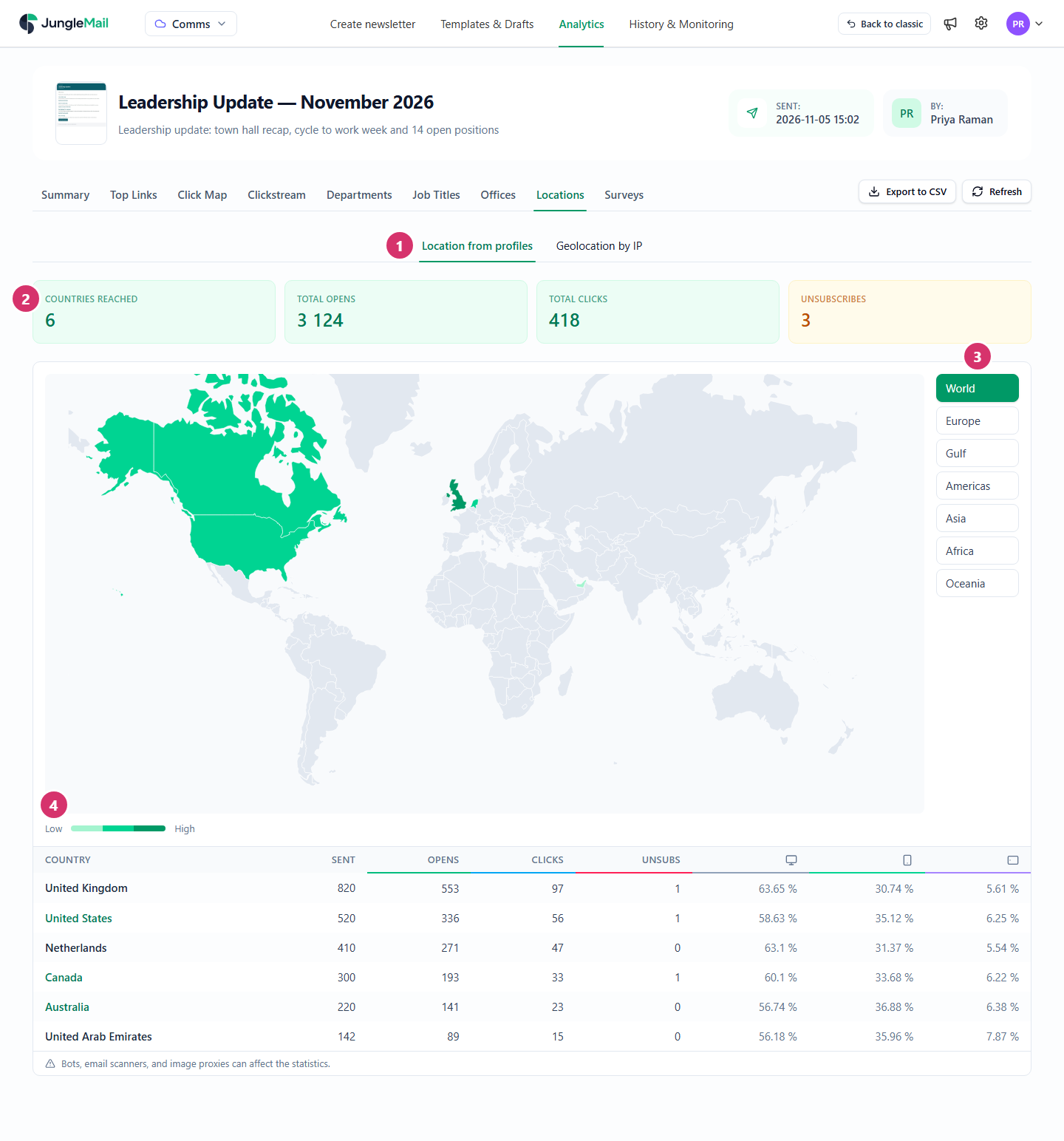
- Location from profiles and Geolocation by IP: the two views.
- The totals: Countries reached, then the newsletter’s Total opens, Total clicks and Unsubscribes.
- World, Europe, Gulf, Americas, Asia, Africa and Oceania move the map to a region.
- The darker a country, from Low to High, the more recipients opened the newsletter there. Point to a country to see its opens and clicks.
Below the map, a table lists each country with its emails Sent, unique Opens and Clicks, Unsubs, and the share of opens on a desktop, a phone and a tablet:
- In Location from profiles, select an opens, clicks or unsubscribes figure to switch the table between counts and rates. Geolocation by IP has no Sent column: an email isn’t sent to a place.
- A country name in green has states or provinces. Select it to see them, with a map for the United States, Canada and Australia; World goes back.
- Recipients whose country is missing or not recognized are listed at the end, as <Blank> or <Unrecognised>, and aren’t on the map, unless an administrator has chosen to count them as a country.
Export to CSV at the top of the report downloads the table (Export results to CSV or Word).
Where profile locations come from
Section titled “Where profile locations come from”JungleMail takes the country and the state or province from the recipient’s profile in Microsoft Entra ID or Exchange. For recipients from a file, a SharePoint list or JungleMail subscribers, it reads the first column or field it finds with one of these names:
| Field | Column names |
|---|---|
| Country | Country, Country or region, CountryOrRegion, Country/Region, CountryRegion, ContactCountryOrRegion, WorkCountry, Work Location Country Code |
| State or province | State or province, StateOrProvince, State/Province, StateProvince, State, Province, WorkState, Work Location State Primary |
Reading IP locations with care
Section titled “Reading IP locations with care”An IP address shows where the connection came from, not where the person sits. A recipient on a VPN appears where the VPN ends, and email security scanners and image proxies, which load images on recipients’ behalf, appear where their servers are. The tab reminds you of this at the bottom: Bots, email scanners, and image proxies can affect the statistics.
When the tab is missing or empty
Section titled “When the tab is missing or empty”- The tab isn’t there: an administrator hasn’t chosen to show a location breakdown in Analytics.
- Not enabled: the breakdown is shown but not collected yet.
- No location data is available for this newsletter: it was sent before the breakdown was turned on.
- Upgrade required: location breakdowns are part of the Pro and Enterprise plans.
- Compare offices in rates. London’s 820 employees open more emails than Dubai’s 142 by sheer number; in Location from profiles, select an opens or clicks figure to see each country as a share of its own emails sent.
- When one office reads less, check the hour it receives the newsletter. A newsletter sent at 10:00 in London reaches Sydney in the evening. Time zone delivery, on the Enterprise plan, sends it at the same local time in each office (Send or schedule a newsletter).
- Have the profiles filled in when <Blank> is large. A large <Blank> or <Unrecognised> row means recipients’ profiles lack a country or spell it in a way JungleMail doesn’t recognize; your IT team can correct them in Microsoft Entra ID (How to manage user profile information in the Microsoft Entra admin center).