

Survey results
When a newsletter contains a survey, its report in JungleMail 365 collects the answers on the Surveys tab: how many recipients answered, how the votes split between the answers, and the comments people left. How to put a survey in a newsletter is in Add a survey. Read the comments as well as the split of the votes: the votes say how people feel, the comments why.
See the answers
Section titled “See the answers”Select Analytics in the top menu, then the newsletter’s name, then the Surveys tab.
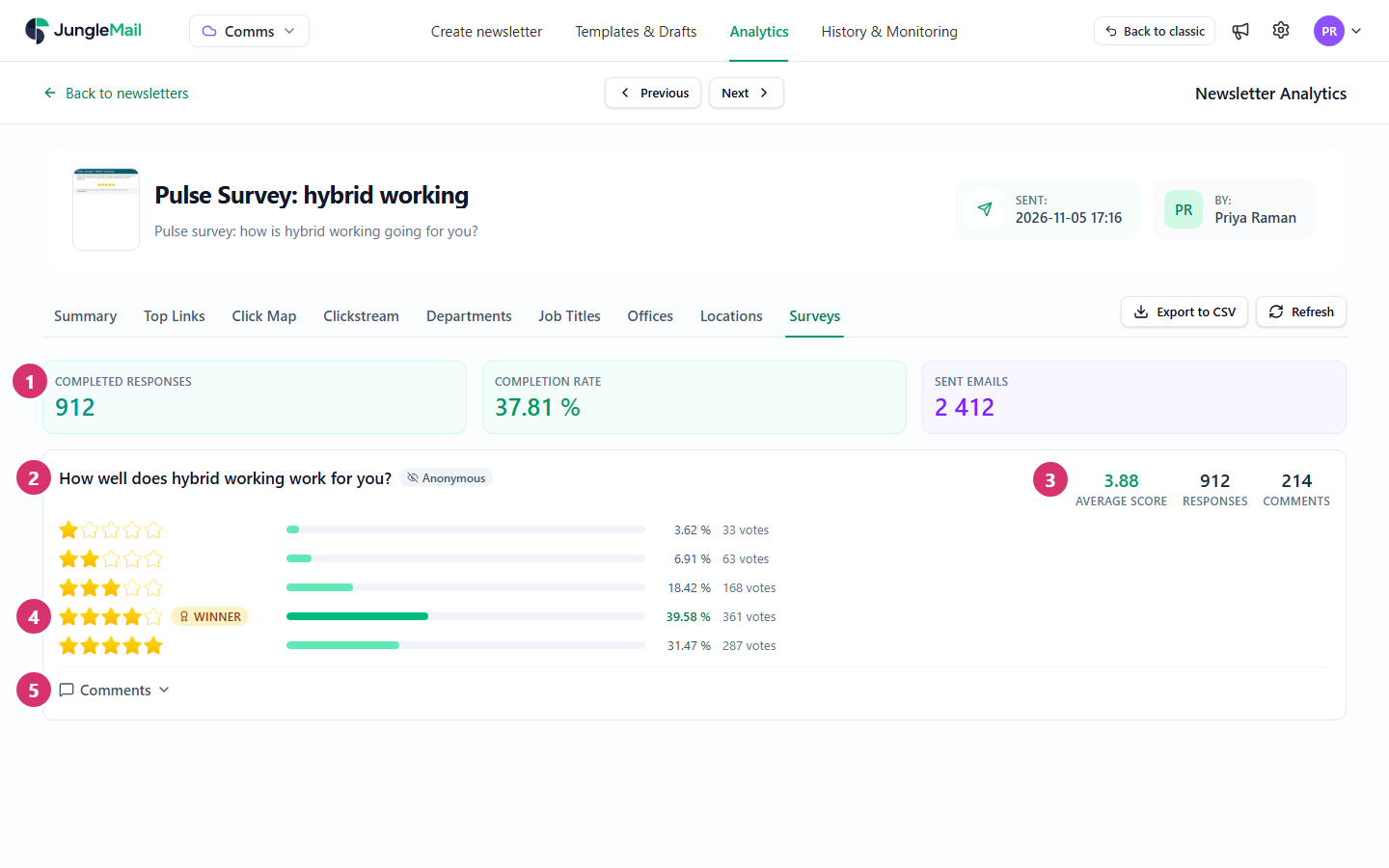
- Read the totals at the top:
- Completed Responses: the recipients who answered at least one survey in the newsletter.
- Completion Rate: those recipients as a share of the emails sent.
- Sent Emails: the emails sent.
- Read each survey below. Its title is the Survey title of a Survey block, or the Title/Group of survey sections, as set in the email builder; recipients don’t see it. Anonymous beside it means the report doesn’t show who voted; Expired, or Expires in with the time left, appears when the survey has an end date.
- Read its figures: Responses, the votes for the survey; Average score for a survey of rating icons, such as stars; and comments, how many comments were left, when the survey allows them.
- Read the answers. Each shows its share of the votes and its number of votes. Leader marks the answer with the most votes while a survey with an end date is still open. Winner marks it once the survey has ended, or at any time when the survey has no end date. Tied answers get no Winner.
- Select Comments to read what people wrote (see below).
See who chose an answer
Section titled “See who chose an answer”Select the number of votes beside an answer. A dialog opens with the recipients who chose it and when; Export to CSV downloads the list.
Read the comments
Section titled “Read the comments”For a survey that allows comments:
- Select Comments below the answers. The comments appear with the time and, unless the survey is anonymous, the recipient’s address.
- To read the comments left with one answer, select that answer. Filtered to shows which; select Clear filter to see all comments again.
Survey results elsewhere
Section titled “Survey results elsewhere”- On the Summary tab, the Surveys tile shows the share of emails with an answer, with Participated, Total Votes and Not Voted.
- On the Click Map, each answer in the email carries a purple badge with its share of the votes, and View voters lists who chose it (Links, click map and clickstream).
- In the list of newsletters, the Votes column and the Survey Votes total compare surveys across newsletters (Find and compare newsletter results).
- Answering a survey also counts as opening the newsletter (How open and click tracking works).
Survey sections that share a Title/Group in the email builder are reported together, as one survey.
- Wait for the Winner before you announce a result. Leader can still change while the survey is open; report the outcome once it has ended, or set an end date when you will act on the answers (Add a survey).
- Read the comments of the lowest answers first. Select the answer with the fewest stars or the saddest face: its comments are where you learn what to change.
- Remember who answered. The Completion Rate is a share of the emails sent: when only part of the company answers the Pulse Survey: hybrid working, report the split as the view of those who answered, not of everyone.
- Tell readers what came of it. A line in the next EnovaPoint Weekly on what the pulse survey showed, and what changes, gives people a reason to answer the next one.
- Share counts, not names. Unless the survey was anonymous, the voters’ lists and their export name each person: share the split and the comments, without addresses. For questions about how people feel, make the next survey anonymous before you send it.