

Save and reuse sections
A saved section is a section you keep to use again: a header with your logo, a footer with your contact details, an event card. It keeps its content and its look, so every newsletter that uses it looks the same. Save a section for a part you reuse in different newsletters; for a whole newsletter you send again and again, such as a weekly update, make a template instead (Create a template).
Save a section
Section titled “Save a section”In the Content step, select Select blocks and sections on the left, then select the section to save. To save several sections together, as one entry, select each of them.
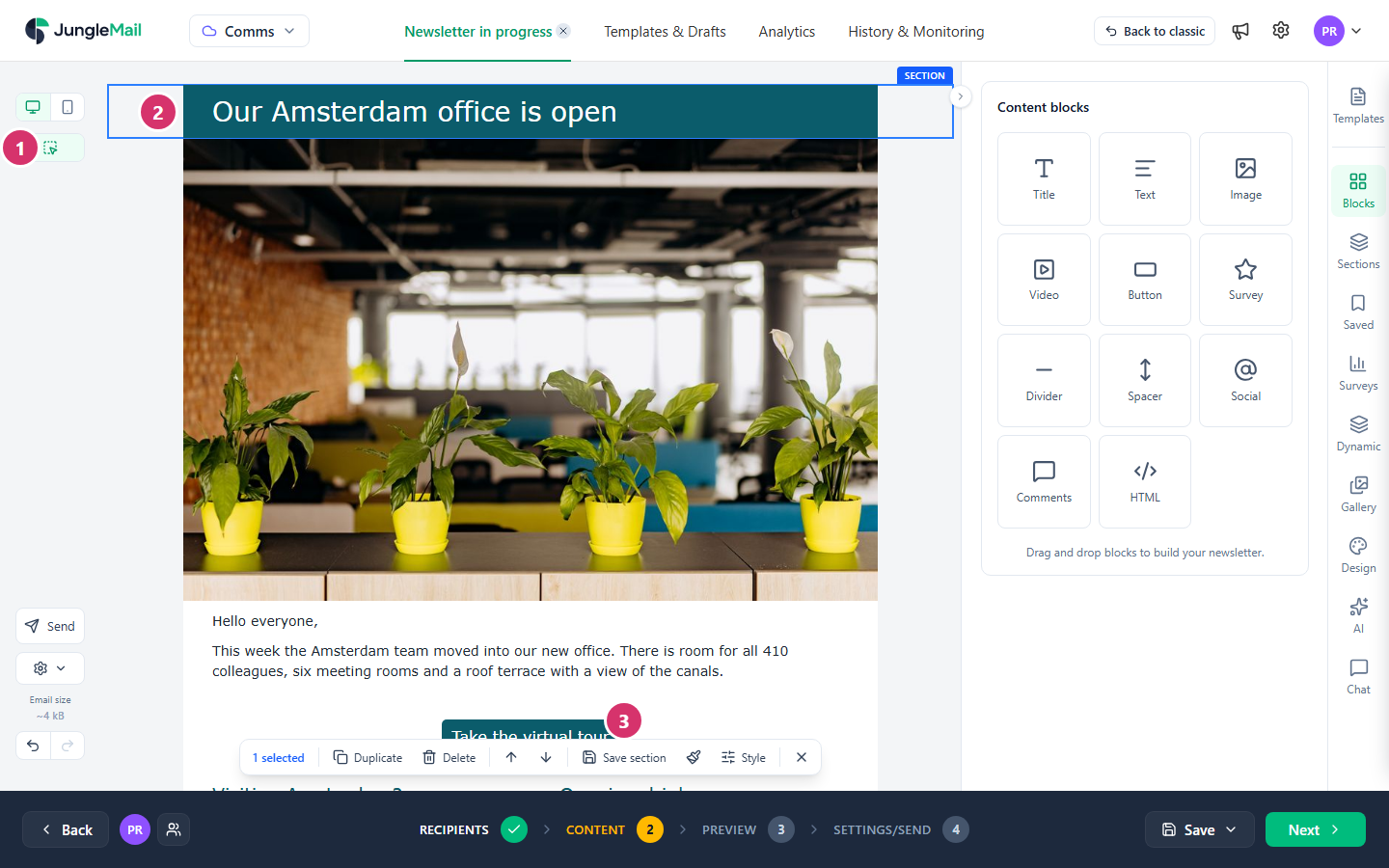
- Select blocks and sections turns selection mode on. The bar below the email says how many parts are selected.
- Select the section. Select it again to unselect it.
- Select Save section in the bar, type a name, such as
EnovaPoint Header, and select Save. Choose a name that tells colleagues what the section is and who it is for, such asPeople & Culture footer: everyone on the site sees it in Company.
JungleMail says Section has been saved. and opens Saved, where the section now is. Only sections can be saved: if a block is selected, Save section stays grayed out.
Add a saved section to an email
Section titled “Add a saved section to an email”- Select Saved.
- Find the section: the list at the top filters All, Company, Personal or Built-in sections, and Search sections finds one by name.
- Drag it onto the email, where it should go, or select it to add it at the end.
Saved sections belong to the site, so everyone on it can use them: Company lists every section saved on the site, yours included, and Personal only the ones you saved. The section’s menu (⋯) has Pin to the top, Rename and Delete, which change it for everyone on the site. A section marked with a globe is shared from the Global site, and you can’t change it here.
In the Rich Text Editor, select text and then Save a selected content on the Saved tab instead.
- Save your footer with the unsubscribe link in it. Every newsletter that uses the saved footer then has the link and the same contact details (Add an unsubscribe link).
- Update a saved section by saving it again. Adding a saved section puts a copy in the email, so what you change there stays in that email. When the section changes for good, such as a new office address in the footer, save the changed one and delete the old, so that nobody picks the outdated version.
- Pin the sections your team uses most. Pin to the top puts them first in Saved for everyone on the site, such as the site’s header and footer.
- Share organization-wide sections from the Global site. A section saved on the Global site is offered on every site, so one EnovaPoint header can serve every team, and nobody can change it on their own site. Ask an Administrator or a Template Manager of the Global site to save it there.