

Manage unsubscribes and rejections
Every JungleMail site keeps two lists of addresses its newsletters skip. Unsubscribes holds the people who unsubscribed, through the unsubscribe link in a newsletter or because you added them. Rejections holds addresses whose email bounced. JungleMail 365 leaves both out of every newsletter the site sends, whoever its recipients are, and the newsletter wizard counts them under Unsubscribed and Rejected.
The rule for both: add an address as soon as someone asks, and remove one only for a reason, a request to subscribe again or a delivery problem that is solved.
Before you begin
Section titled “Before you begin”- You need the Administrator role on the site, or a role with the Subscriber management permissions: View to see the lists, Add new / Edit to add and import addresses, and Delete to remove them.
Unsubscribes
Section titled “Unsubscribes”Go to Settings > Subscriber Management > Unsubscribes / Rejections.
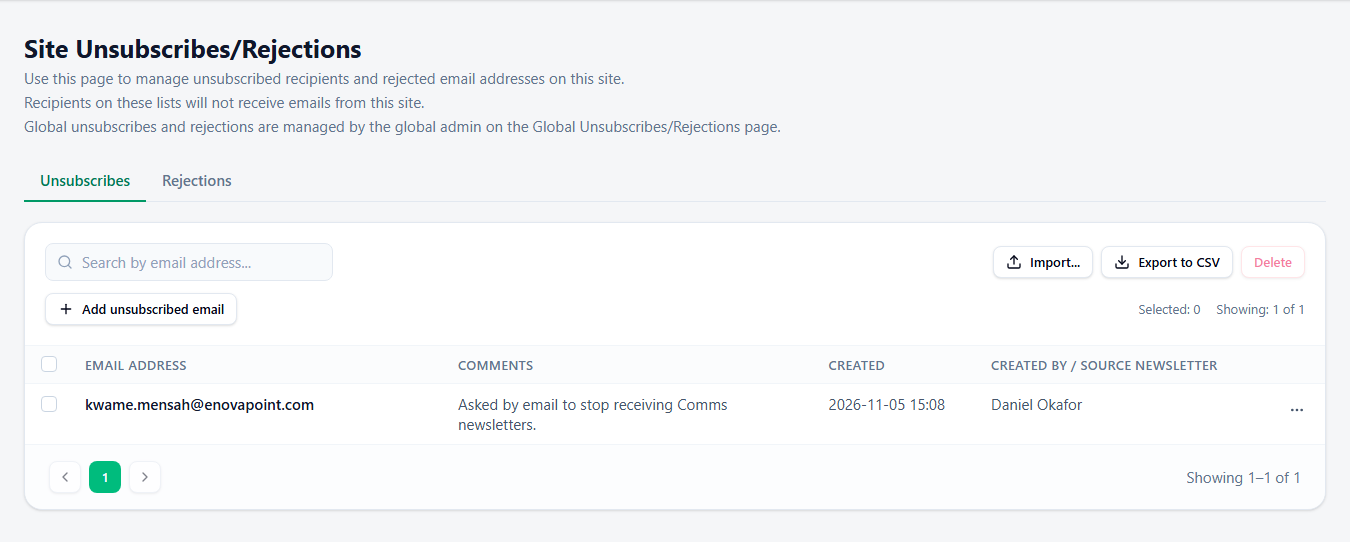
- Add unsubscribed email adds one address. Not everyone uses the unsubscribe link: add the people who ask by reply or by phone too, the day they ask, and note how and when in Comments, such as “Asked by reply, March 16, 2027”, so that anyone who looks later knows why the address is there.
- Import… adds many addresses from an Excel, CSV or TXT file of up to 10 MB, up to 10,000 at a time. Use it for the unsubscribes of a tool you used before JungleMail, before the site’s first newsletter to those people.
Removing someone from Unsubscribes means the site’s newsletters reach them again: do it only when they ask to be subscribed again. An unsubscribe here stops only this site’s newsletters; for someone who wants nothing from any site, ask your global administrator to add them to the global list (Global administrators).
Rejections
Section titled “Rejections”The Rejections tab lists addresses that bounced, with the reason. Addresses are added automatically when newsletters sent through Bird Cloud Email Service or the JungleMail mail server bounce, unless the problem is temporary, such as a full mailbox; you can’t add one by hand. With a Microsoft 365 sending account, nothing reaches Rejections: undeliverable emails come back to the sending mailbox as non-delivery reports, so look there after a large newsletter (Choose a sending account type).
- Leave hard bounces where they are. An address that doesn’t exist is usually someone who left: have it removed from the recipient source instead, such as the SharePoint list or the group (Bounces and rejections).
- Delete an address once the problem behind it is solved, such as a spam filter that blocked JungleMail’s mail servers, so that the site’s newsletters reach it again. For many addresses at once, after your IT team has allowlisted the servers, delete one blocked colleague’s address, send them a test, and delete the rest once it reaches their inbox (Allowlist JungleMail’s mail servers).
Site and global lists
Section titled “Site and global lists”These lists belong to the site. Your global administrator also keeps global lists, which apply to every site. Their addresses show a Global badge here and can be changed only under Global Management.