

Export and import templates
Export a template to keep a copy of it as a file, or to bring its design to another JungleMail 365 site, where you import the file as a new template. You can also import an HTML email designed outside JungleMail. To give every site the same template, have it shared from the Global site instead, where your organization has one: every site then uses the one template, kept up to date in one place (below).
Export a template
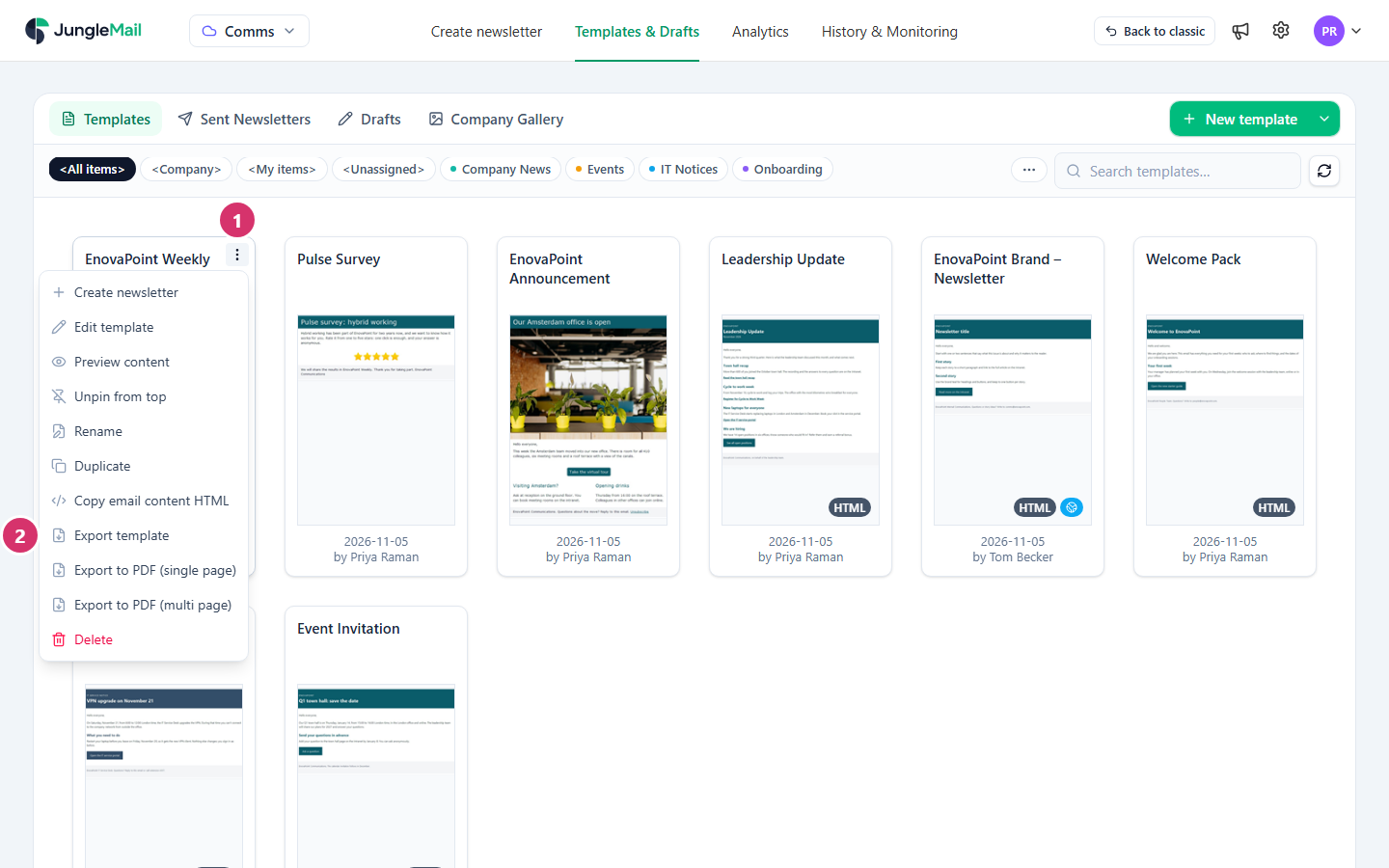
Section titled “Export a template”On Templates & Drafts > Templates, point to the template.
-
Select More actions (⋮) at the template’s top right.
-
Select Export template.
Your browser saves the file with your other downloads:
- a template made in the Drag & Drop Builder as
Template - <name>.json: the design, with its name, subject and preview text; - a template made in the Rich Text Editor or the HTML Editor as
Template - <name>.html: the email’s HTML.
- a template made in the Drag & Drop Builder as
Templates shared from the Global site can be exported the same way. To export the design of a sent newsletter or a draft, save it as a template first (Create a template).
Import a template
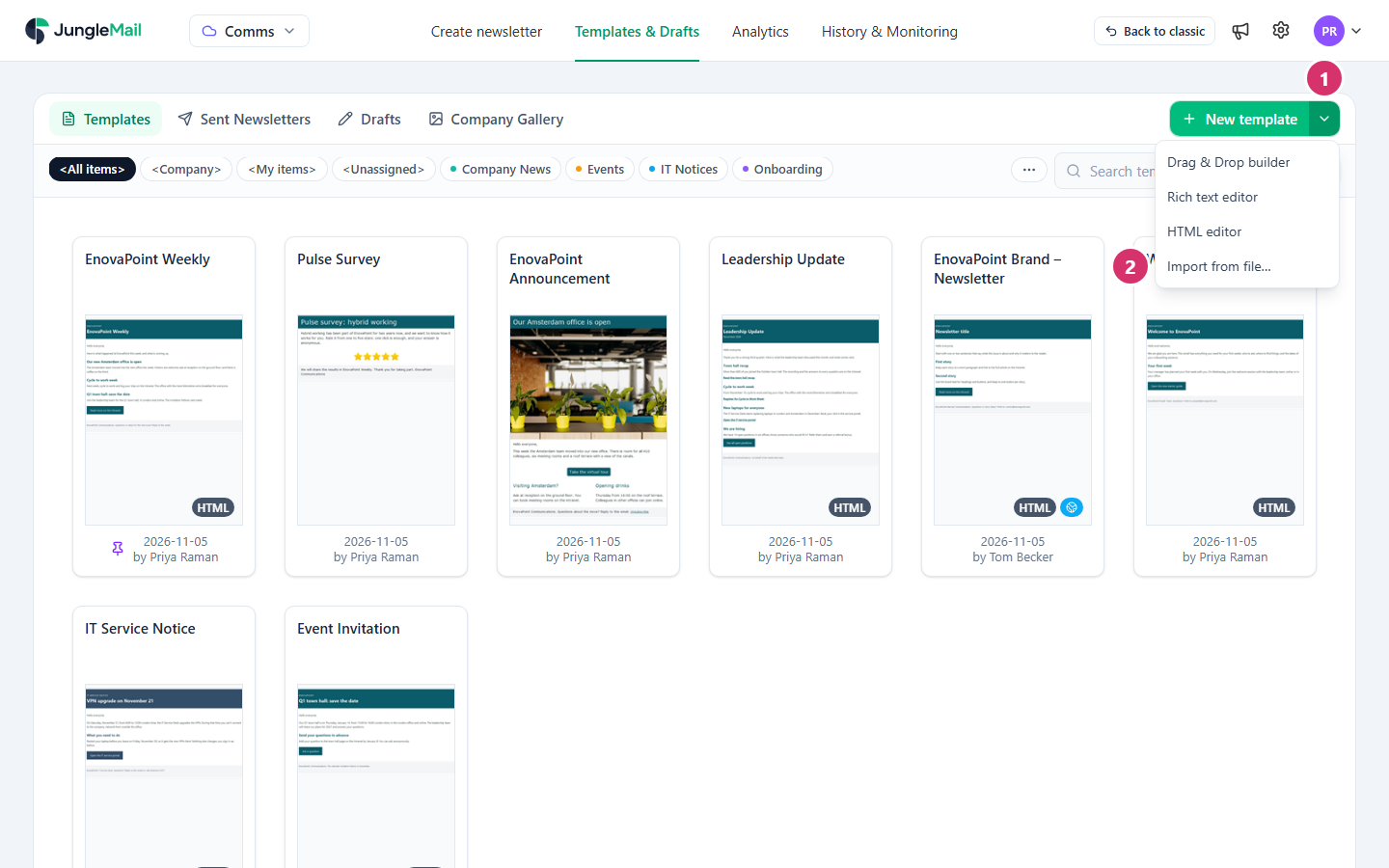
Section titled “Import a template”On Templates & Drafts > Templates, find New template at the top right.
-
Select the arrow beside New template.
-
Select Import from file…, and choose the file: a template export (
.json) or an HTML email (.html). An HTML file has to be a whole document, with its<html>tag. -
In Save as template, check the Template name: the name in the export, or the file’s name. Check the Email subject and Preview text (shown after the subject in the inbox), which an export brings with it and an HTML file doesn’t. For an HTML file, type them now: every newsletter made from the template starts with them.
-
Select Save.
The new template opens in the template editor: an export in the Drag & Drop Builder, an HTML file in the Rich Text Editor. Make any changes, then select Save and Close (Create a template).
If a template with that name already exists, JungleMail asks Overwrite template content?: select Overwrite to replace it, or Cancel and import again under another name. Choose another name unless you are sure: an overwritten design can’t be brought back, while a template you delete once the new one works waits in the Recycle Bin. A file that is neither a template export nor an HTML document is refused with That file isn’t a template export or an HTML document.
Move a template to another site
Section titled “Move a template to another site”Export the template on one site, switch to the other site in the site switcher at the top left, and import the file there. The two copies change separately from then on. To give every site the same template instead, a global administrator shares it from the Global site, and a change made there reaches every site (Share templates with every site).
Export or import in the email builder
Section titled “Export or import in the email builder”While you work on a template or a newsletter, the email builder’s Actions menu, the gear at its bottom left, also has Export template and Import template. They work on the email in front of you: Export template saves it as a file, named with the date, time and subject, and Import template replaces it with a file’s content, after asking if there is work to lose. In the Rich Text Editor and the HTML Editor, Import template takes only an HTML file.
- Export a template before you change it a lot. The file can be imported again as a template if the change doesn’t work out.
- Try an imported HTML design before others use it. Start a newsletter from it, look at it in the Preview step and send yourself a test: a real email program can show the email differently from the preview (Preview and test a newsletter).
- Start newsletters from an imported HTML file on Templates & Drafts. It becomes a Rich Text Editor template, and the email builder’s Templates panel lists it only for emails in that editor (Start a newsletter from a template).