

Recipients
A newsletter in JungleMail 365 goes to the recipients of one recipient source: groups from your organization’s directory, a SharePoint list, a file, records in Dynamics 365, addresses you type, or the people who received a newsletter you sent before. You choose the source in the To field of the newsletter wizard’s Recipients step, and JungleMail sends every recipient an email of their own.
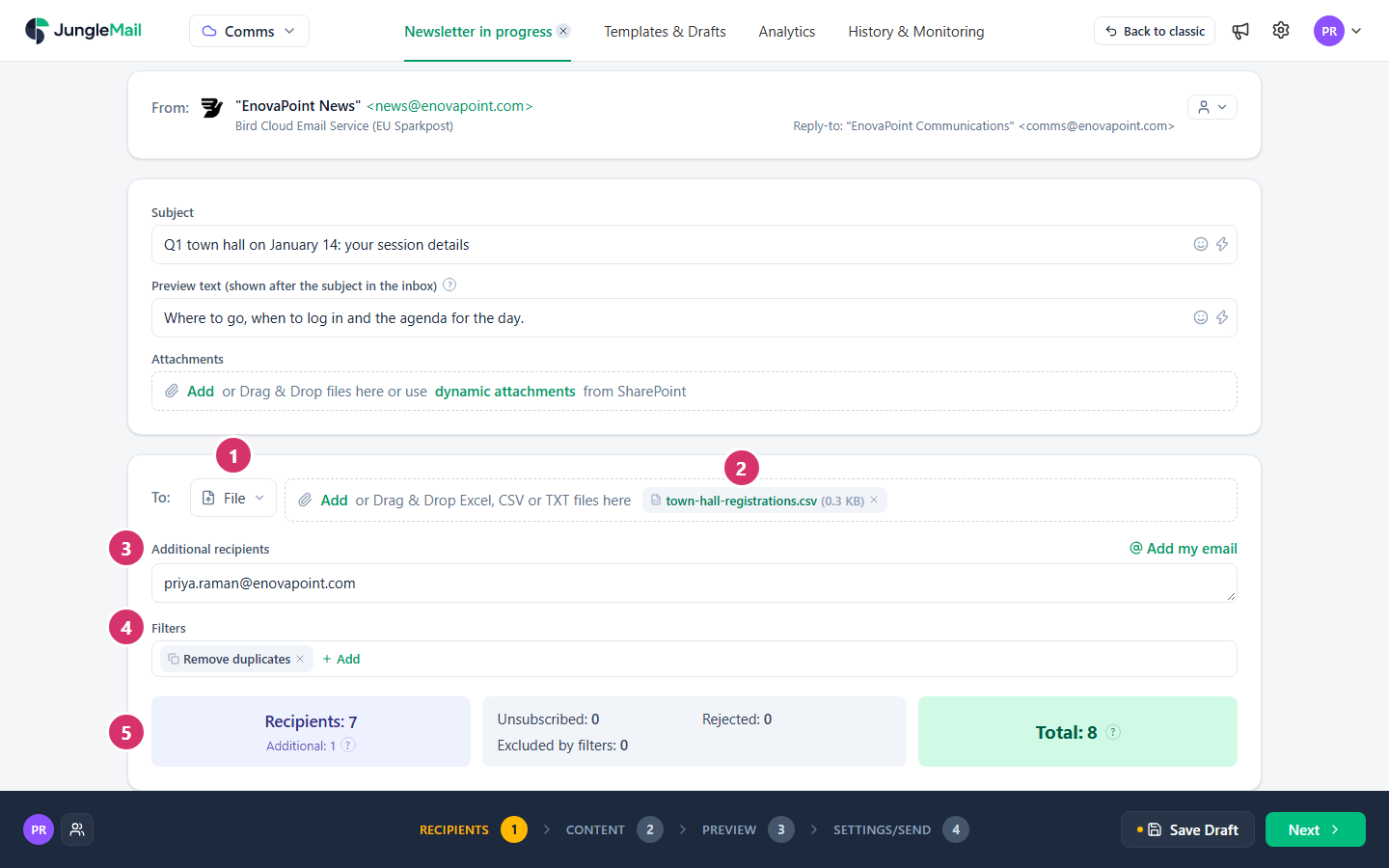
- The recipient source. Select it to choose another one; a newsletter uses one source.
- The recipients from that source: here, a file with the people who registered for a town hall.
- Additional recipients: addresses that receive the newsletter as well, such as your own. Email addresses and Previous newsletter don’t have this field.
- Filters: who is left out, such as duplicates. Remove duplicates is on in every new newsletter.
- The counts: how many recipients the source holds, how many are left out and why, and the Total who will receive the newsletter.
Recipient sources
Section titled “Recipient sources”| Source | Sends to | Needs |
|---|---|---|
| Microsoft 365, AD groups | The members of Microsoft 365 groups, distribution groups and security groups | The Microsoft Entra ID connection |
| Exchange groups | The members of Exchange groups, including dynamic distribution groups | The Microsoft Exchange connection |
| SharePoint list | The people in a SharePoint list | The SharePoint connection |
| Dynamics 365 | Contacts, accounts, leads, marketing lists and campaigns in Dynamics 365 | The Dynamics 365 CRM connection, Enterprise plan |
| Email addresses | Addresses you type or paste | Nothing |
| File | The addresses in a CSV, TXT or Excel file | Nothing |
| Previous newsletter | The people who received a newsletter you sent, or only those who opened or clicked it, or didn’t | Pro or Enterprise plan |
A site administrator sets each connection up once for the JungleMail site (Connections). Until then, choosing the source shows a message in place of its recipients, such as Microsoft Entra ID Connection is not enabled.
Your list of sources can be shorter: an administrator decides which sources your organization uses (Restrict recipient sources, groups and domains). A site that keeps its own subscribers can also offer Subscribers, everyone who subscribed through its subscription forms (Manage JungleMail subscribers).
Which source to choose
Section titled “Which source to choose”Start with groups, and use another source for the people no group holds:
- Everyone, an office or a team: a group. Your IT team keeps groups up to date, and JungleMail reads their members each time it sends, so even a recurring newsletter reaches new joiners with no list to maintain. Choose Exchange groups for a dynamic distribution group such as All Employees, and Microsoft 365, AD groups for the others. For part of a group, such as one department, add a condition rather than asking for a new group (Filter recipients).
- People that colleagues keep in a list, such as event attendees: a SharePoint list. The list’s owner keeps it current, and its columns can personalize the email.
- A list you were sent once, such as registrations exported from an event tool: a file. The newsletter keeps the file as you uploaded it, so upload it again if the list changes.
- Customers, partners and leads: Dynamics 365, where your organization keeps them.
- People who signed up: Subscribers, where your site keeps its own subscribers, or any source with the Subscription topics filter, where it reads them from SharePoint (Send by subscription topic).
- A reminder to the people who didn’t open or click an earlier newsletter: Previous newsletter.
- A few people, such as a committee: Email addresses, but never a group’s address (see below).
How a group becomes individual emails
Section titled “How a group becomes individual emails”When you choose a group, JungleMail doesn’t send to the group’s address. It reads the group’s members, including the members of any groups inside it, and sends each person an email of their own. That is why:
- merge tags fill in each reader’s own details, such as their first name (Personalize with merge tags);
- a section shown to some recipients reaches only them (Show a section to some recipients only);
- reports count every reader, so you can see who opened the newsletter and what they clicked;
- an unsubscribe removes only the person who unsubscribed.
JungleMail reads the members again when it sends the newsletter, so a scheduled or recurring newsletter reaches whoever is in the group at that time. Members without an email address are left out, and while Remove duplicates is on, a person in two of your groups gets one email.
Articles in this section
Section titled “Articles in this section”Groups from Microsoft 365
Section titled “Groups from Microsoft 365”Lists, files and Dynamics 365
Section titled “Lists, files and Dynamics 365”Send to some of the recipients only
Section titled “Send to some of the recipients only”To type addresses yourself and to read the counts, see Choose recipients. To leave people out, or to keep only those who match conditions, see Filter recipients. If the counts are lower than you expect, see Some recipients are missing.