

Bounces and rejections
An email bounces when the recipient’s mail server can’t or won’t deliver it and sends it back. JungleMail 365 records each bounce in the newsletter’s report and, unless the problem is temporary, adds the address to your site’s rejections list, so that later newsletters don’t go to it again. Bounces tell you about your recipient lists and your delivery, not about your content: the fix is in the source you send to or in your spam filter.
Kinds of bounce
Section titled “Kinds of bounce”| Kind | What happened | Address rejected |
|---|---|---|
| Soft bounce | A temporary problem: the mailbox is full, the mail server is unavailable, or the email is too large | No |
| Hard bounce | A permanent problem, such as an address that doesn’t exist | Yes |
| Spam complaint | The recipient marked the newsletter as spam | Yes |
| Message block | The recipient’s mail server refused the email, often because a spam filter stopped it | Yes |
Which newsletters report bounces
Section titled “Which newsletters report bounces”Bounces are reported for newsletters sent through Bird Cloud Email Service or your cloud’s JungleMail mail server. A Microsoft 365 sending account sends from your organization’s Exchange Online, so undeliverable emails go back to the sending mailbox as non-delivery reports, and the newsletter’s report shows no bounces (Choose a sending account type). The report also shows them only if the newsletter was sent with Track email opens on; the rejections list is updated either way.
Where you see them
Section titled “Where you see them”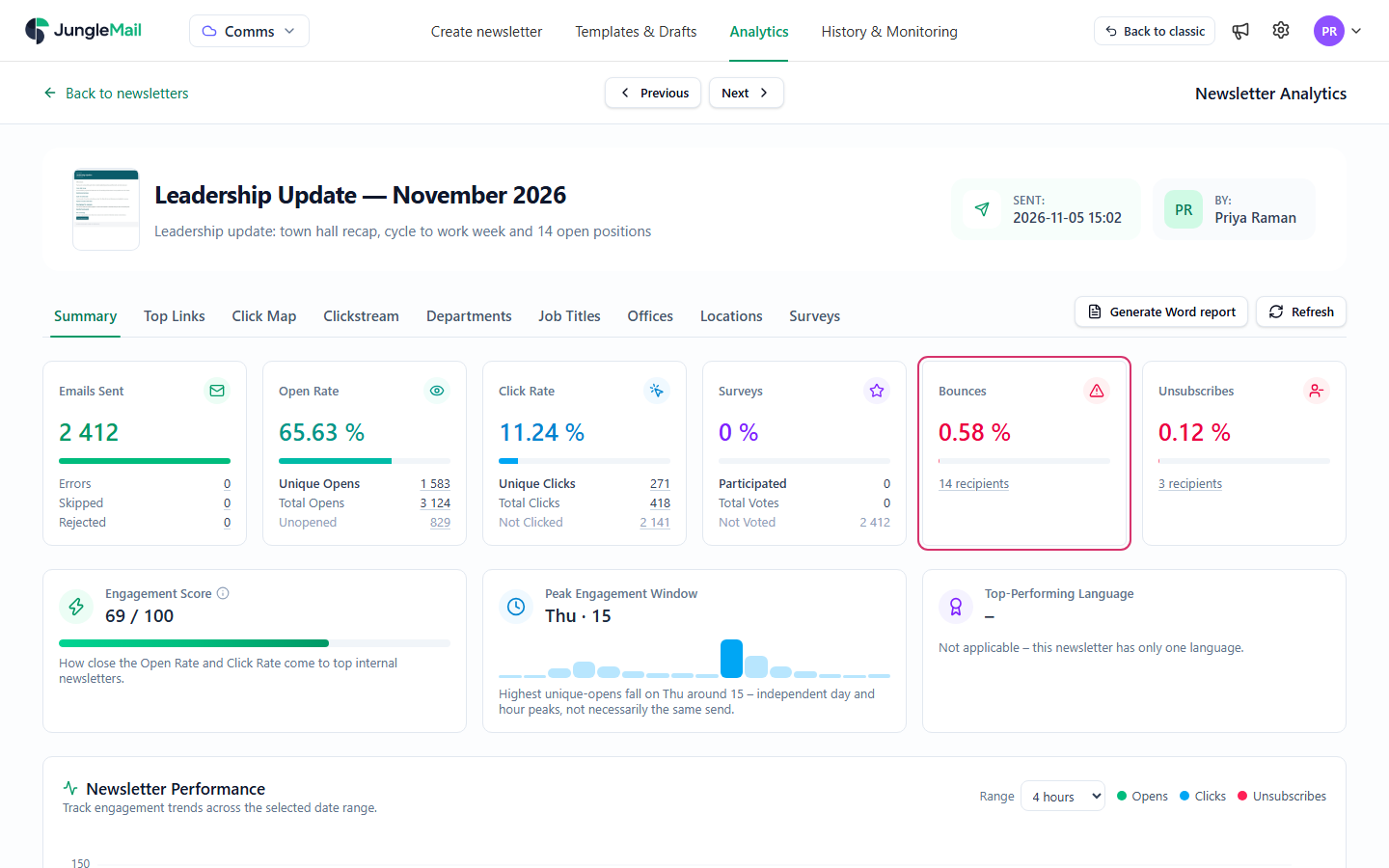
- In the list of newsletters, the Bounces column and total (Find and compare newsletter results).
- On a newsletter’s Summary tab, the Bounces tile: the share of the emails sent that bounced, and how many recipients that is. Bounced emails count as sent, so the open and click rates include them.
- In the Newsletter Log, the Bounces tab: each bounced address with the time and the reason the recipient’s mail server gave (See who opened or clicked).
- In a recipient’s activity, as Bounced for the newsletter, with the reason (Recipient activity).
Rejections
Section titled “Rejections”Every bounce except a soft bounce adds the address to the rejections list of the site the newsletter was sent from. From then on, JungleMail leaves the address out of that site’s newsletters:
- In the newsletter wizard, the To field counts these recipients as Rejected (Choose recipients).
- In the report of a later newsletter, the Emails Sent tile counts them as Rejected, and the Newsletter Log lists them under Emails > Rejected.
A site administrator sees the list in Site Unsubscribes/Rejections, on the Rejections tab, with each address’s bounce type and when it bounced, and can delete an address from it so that it receives newsletters again (Manage unsubscribes and rejections). A global administrator manages rejections that apply to every site.
What this means for you
Section titled “What this means for you”- Remove hard bounces from the recipient source. A few hard bounces are normal: they are usually people who have left. The rejections list already skips them, but remove them from the source too, such as the SharePoint list or the file you send to, so that your recipient counts stay true.
- Treat many message blocks as a delivery problem, not as readers. Many message blocks on an internal newsletter usually mean that your organization’s spam filter doesn’t trust JungleMail’s mail servers. Ask your Microsoft 365 administrator to allowlist JungleMail’s mail servers, then have one blocked address deleted from the rejections list and send it a test; once it arrives, a site administrator deletes the rest (Manage unsubscribes and rejections).
- Take a spam complaint as a sign the newsletter reached the wrong people. Check that its recipients are people who expect it, and that its unsubscribe link is easy to find, so that readers leave that way instead (Add an unsubscribe link).
- Let soft bounces be, unless the email was too large. The address stays in your next newsletter. When the reason says the message is too large, put the file on SharePoint or OneDrive and link to it instead of attaching it (Add attachments).
- With a Microsoft 365 sending account, look in the sending mailbox. The report shows no bounces, so after a large newsletter read the non-delivery reports in the mailbox it was sent from, and clean up the source.