

See who opened or clicked
Most counts on a newsletter’s Summary tab open the Newsletter Log, the list of recipients behind that number: who received the newsletter, who opened it, who clicked, whose email bounced and who unsubscribed. From the list, you can send those recipients a follow-up newsletter. Use it to act, such as reminding the people who haven’t registered for an event yet, rather than to judge who reads: an open that wasn’t counted isn’t proof that someone didn’t read.
Before you begin
Section titled “Before you begin”- If anonymous tracking was on when the newsletter was sent, the lists show pseudonyms such as
Pseudonym 12instead of addresses, and follow-ups aren’t available (How open and click tracking works). - Follow up is part of the Pro and Enterprise plans.
Open the newsletter log
Section titled “Open the newsletter log”- Select Analytics in the top menu, then the newsletter’s name.
- On the Summary tab, select a count, such as the number beside Unique Opens. The counts in the Emails Sent, Open Rate, Click Rate, Bounces and Unsubscribes tiles each open the log on their own list.
For a newsletter sent in several languages, choose ALL above the tiles first: the log covers every language.
Find the recipients
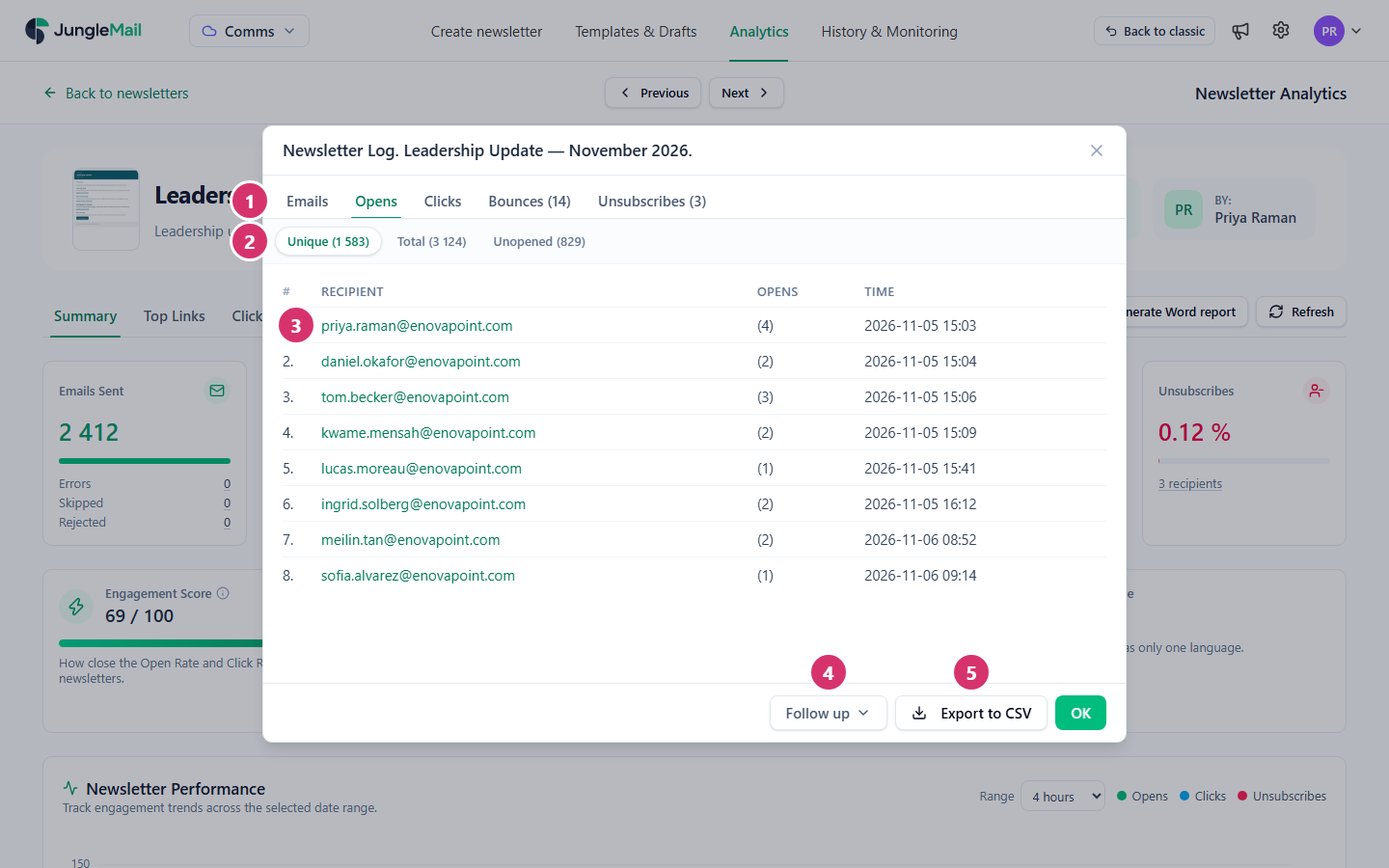
Section titled “Find the recipients”The Newsletter Log opens on the list you chose.
-
Choose what to look at: Emails, Opens, Clicks, Bounces or Unsubscribes.
-
Choose a list in the row below. Each shows how many recipients it holds:
Tab List Shows Emails Sent Every recipient the newsletter was sent to, with their opens and clicks Errors Recipients whose email could not be sent Skipped Recipients whose email was not sent, with the reason in Details Rejected Recipients left out because their address is on the rejections list Unsubscribed Recipients left out because they had unsubscribed Opens Unique Each recipient who opened, with their number of opens and the first one Total Every open, with its time and IP address Unopened Recipients who haven’t opened the newsletter Clicks Unique Each recipient who clicked, with their number of clicks and the first one Total Every click, with its time and the link Not clicked Recipients who haven’t clicked Bounces Emails that bounced, with the time and the reason Unsubscribes Recipients who unsubscribed through this newsletter, and when -
Read the recipients. Select an address to see everything that recipient has received from your site and done with it (Recipient activity). Addresses are links only where the Recipient Activity tab is shown.
-
To write to these recipients, select Follow up, available on Sent and on every Opens and Clicks list:
- Follow up newsletter starts a newsletter whose recipients are this list, taken from this newsletter when you send the follow-up. Recipients who open or click later are included.
- Follow up emails starts a newsletter with the addresses on the list now.
Choose Follow up newsletter for a reminder you schedule for later: people who act in the meantime drop out of it. Either way, the newsletter wizard opens with the recipients filled in (Follow up on a previous newsletter).
-
To keep the list, select Export to CSV. The log shows up to 200 recipients; the CSV file holds all of them.
Who clicked one link
Section titled “Who clicked one link”To see who clicked a particular link, open the Click Map tab, select the link’s badge, then View recipients (Links, click map and clickstream).
- Remind the people who didn’t click, not those who didn’t open. Unopened includes everyone who read the newsletter with pictures blocked, while a click is counted whatever the email program does. For the town hall invitation, Not clicked reaches exactly those who haven’t selected the registration link (Follow up on a previous newsletter).
- Write the follow-up as a new message. Many of its recipients have read the first one. Give it a subject of its own that says what is still to do, such as “Town hall registration closes Friday”.
- Keep exported lists short-lived. A CSV file of who opened is personal data outside JungleMail’s settings: share it only with whoever follows up, and delete it afterward.
- Where readers must not be identified, ask for anonymous tracking. Your site administrator can turn it on; you keep every rate, the lists show pseudonyms, and follow-ups are no longer possible (Delivery, tracking and report options).