

Add a survey
A survey asks recipients a question they answer with one click in the email: stars, faces, thumbs, yes or no. Their answers appear in the newsletter’s report. Use one for a question whose answers you want to count: how useful an issue was, how well hybrid working works, which of three dates suits the town hall. The answers and their comments stay in the report, where recipients don’t see them. For a discussion that colleagues can read and join, add a comments block instead (Add a comments block).
There are two kinds:
- A Survey block shows one row of rating icons, such as five stars. It is the quickest, and suits any question answered on a scale or with yes or no.
- A survey section turns a whole section into the question, with your own pictures, titles or buttons as the answers, for example three photos to vote on. Use it when people choose between options rather than rate one thing.
Before you begin
Section titled “Before you begin”- Surveys must be turned on for your site. If Survey is missing from the Blocks tab, ask a site administrator (Security and privacy settings).
- Survey sections are part of the Pro and Enterprise plans.
- The newsletter must be tracked: if Track email opens and Track clicked links are both off in the Settings/Send step, JungleMail doesn’t send it and says Email content can’t contain surveys when tracking is disabled.
Add a Survey block
Section titled “Add a Survey block”In the Content step, drag a Survey block from Blocks into the email, and select it.
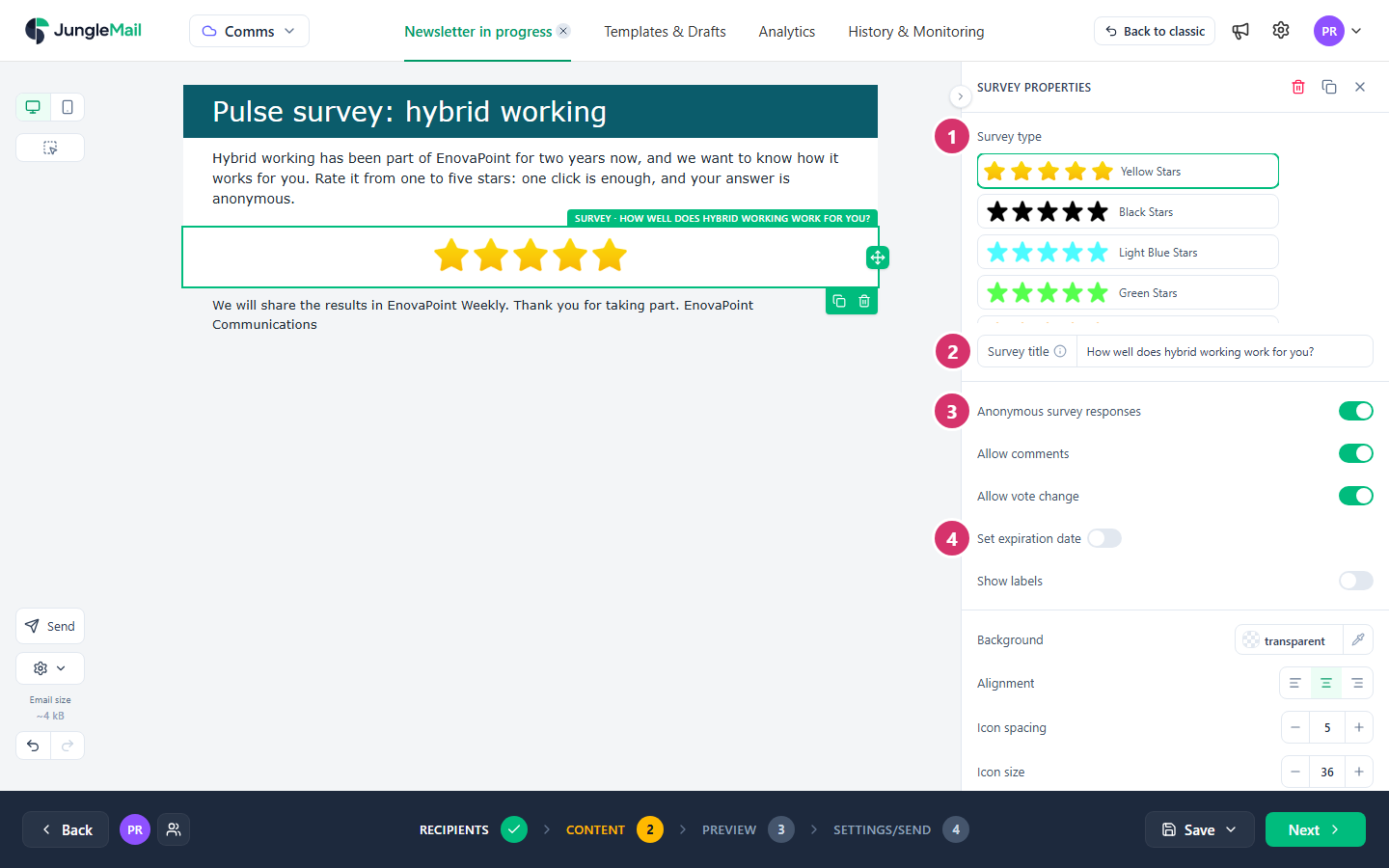
- Choose a Survey type, such as Yellow Stars or a row of faces.
- Type the Survey title, such as
How well does hybrid working work for you?. It is not shown in the email: it names the survey in the report, so ask the question in a text block above too. - Choose how recipients can answer:
- Anonymous survey responses: the report shows the answers, not who gave them. Turn it on for questions about how people feel about their work or their managers, and say so in the text above the survey, so that people answer frankly.
- Allow comments: after voting, recipients can add a comment. Turn it on when you need to know why, not only how many: the report lets you read the comments left with each answer.
- Allow vote change: recipients can change their answer by choosing again in the email.
- If voting should close, turn on Set expiration date and choose the date and time: for a vote you act on, such as the town hall date, the day before you decide. The report then names the Winner once voting has ended.
Decide these before you send: once the newsletter is sent, they can’t be changed.
Show labels adds a word under each icon, such as “Poor” and “Excellent”, which you type in Labels.
Make a section a survey
Section titled “Make a section a survey”- Select the section, and in Section properties select Survey.
- Turn on Enable survey mode.
- In Title/Group, name the survey. Sections with exactly the same title are one survey in the report, so you can spread the answers over several sections.
- In Select voting design, choose what recipients select to vote: Image, Image and Title, Image and Button, Image and Title with link, Title and Button, Button, Title with link, or Custom.
- Select Generate Example to fill the section with that design, then replace the sample pictures and words with your own. Generating replaces the content of every section of the survey, so do it first.
- Set Anonymous survey responses, Allow comments, Allow vote change and Set expiration date as for a block.
A section that holds a Survey block can’t also be a survey section. The Surveys tab has ready-made survey sections, such as Favorite Coffee and Office Party Ideas, to drag into the email.
What recipients see
Section titled “What recipients see”Selecting an answer in the email opens a page that thanks them and shows their vote. There they can add a comment, if you allowed it, and they learn whether they can change their vote. After the expiration date, the page says that voting time has expired.
The answers are on the Surveys tab of the newsletter’s report (Survey results).
- Label the ends of the scale. Turn on Show labels and type words such as “Not useful” and “Very useful”: without them, readers have to guess what three faces or five stars stand for, and whether the first or the last icon is the best.
- Ask the same question the same way in every issue. When EnovaPoint Weekly always ends with “How useful was this issue?” on the same scale, the Average score in each report and the Votes column in the list of newsletters compare one issue with the next (Find and compare newsletter results).
- Check the language of the page recipients land on. The page that thanks them is in the language of the email they got: in a newsletter in several languages, the language of their version; otherwise the email’s primary language, which starts as the site’s Default email content language. A site that writes to the Amsterdam office in Dutch should have it set to Dutch (Language, time zone and formats).