

Format text and add links
You format text where you write it, on the email: select a Title, Text or Button block, and a toolbar opens above it. A Text block has the full toolbar, with fonts, lists, links and tables; Title and Button blocks have a shorter one. Use it for what should stand out, such as a word in bold or a link: the font, size and color of all the email’s text are set once on the Design tab, where a theme changes them together (Style your email with themes and design settings).
Format text
Section titled “Format text”Select a Text block on the email and select the words to format.
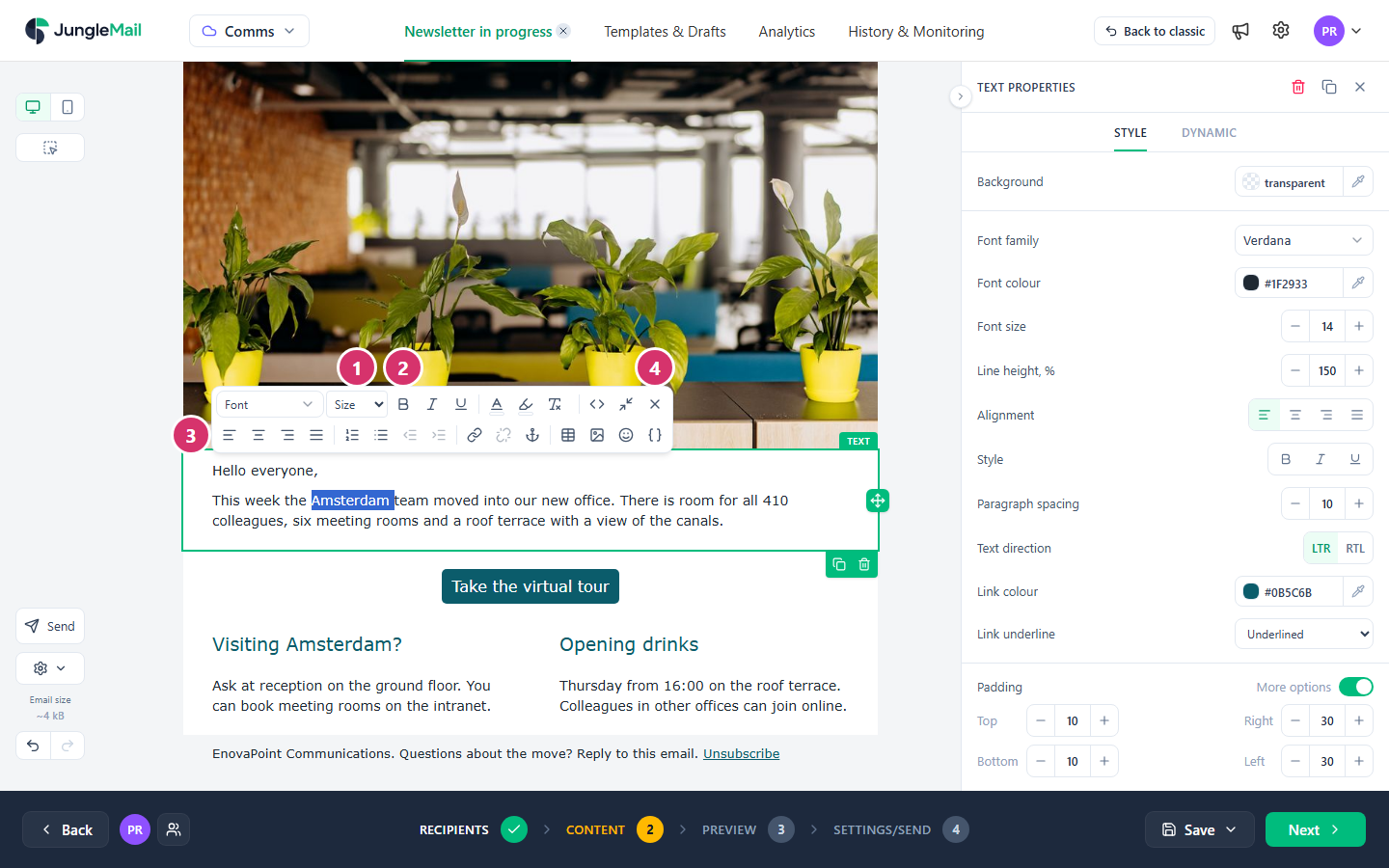
- Choose the Font and Size. Besides the standard fonts, the list has any fonts your site administrator added (Fonts, colors and other branding settings).
- Select Bold, Italic or Underline, a Text colour or a Background colour. Choose colors that stand out clearly from the background (Style your email with themes and design settings). Remove formatting takes all formatting off the selected words except their links.
- Align the paragraph with Align left, Align centre, Align right or Justify, or make it a Numbered list or a Bulleted list. Increase indent and Decrease indent work on lists. Keep body text aligned left: justified text leaves uneven gaps between words, which make it harder to read (Understanding Success Criterion 1.4.8: Visual Presentation).
- Select Finish editing, or press Esc, when you are done.
The second row also has Link (below), Anchor, Insert table, Insert image
(Add images), Insert emoji and Merge tags
(Personalize with merge tags). Typing : and two letters, such as :sm, suggests
emoji too. Source code shows the block’s HTML. Hide formatting shrinks the toolbar while you type.
The toolbar of a Title or Button block has Bold, Italic, Underline, the two colors, Anchor, Merge tags and Insert emoji. Their font, size and alignment are in the block’s properties on the right. In these blocks, Enter starts a new line within the same block.
Add a link
Section titled “Add a link”In a Text block:
- Select the words to link. Link words that say where the link leads, such as “Read the town hall recap”, rather than “click here” (Make your emails accessible).
- Select Link in the toolbar.
- In URL, type or paste the address.
- Select Apply.
To change or remove a link, put the cursor in it: a strip shows its address with Edit link and Remove link.
What you type in URL is completed for you: www.enovapoint.com becomes https://www.enovapoint.com, and an email
address such as comms@enovapoint.com becomes a link that writes an email to it. Addresses starting with tel: or a
merge tag are kept as you typed them.
Title, Image and Button blocks are linked as a whole: type the address in Link in the block’s properties.
Link to a place in the email
Section titled “Link to a place in the email”A long email can have links that jump to a section further down, such as a list of topics at the top. Some email programs ignore these links, so don’t make them the only way to reach anything.
- In the block you want to jump to, select a few words, such as its heading.
- Select Anchor, type an Anchor name, such as
cycle-to-work, and select Apply. - In a Text block, select the words for the link and select Link.
- In Link to an anchor, choose the anchor, then select Apply.
To link a Button to an anchor, type # and the anchor’s name in its Link, such as #cycle-to-work.
Paste text from another document
Section titled “Paste text from another document”When you paste from Word, Outlook or a web page, JungleMail keeps paragraphs, headings, lists, bold, italic, underline, colors, links, tables and pictures, and removes what email programs can’t show, such as scripts, forms and most styles. Check the result, and use Remove formatting where the pasted text looks different from the rest: pasted formatting also adds to the email’s size (Keep your email under Gmail’s clipping limit).
- Keep links underlined. Color alone doesn’t show every reader which words are links, and WCAG asks that color is never the only visual means of telling them apart (Understanding Success Criterion 1.4.1: Use of Color). Set Link underline on a Text block, or Links to Underlined on the Design tab for the whole email.
- Make headings and lists with the right tools. Use a Title block for a heading and Numbered list or Bulleted list for a list, not bold text or typed dashes: screen reader users jump from heading to heading and move through a list item by item (Make your emails accessible, H48: Using ol, ul and dl for lists or groups of links).
- Link to the full story rather than pasting it in. The email stays short, under Gmail’s clipping limit, and the report’s Top Links shows how many readers wanted more (Links, click map and clickstream).