

Build an email with blocks and sections
In the Drag & Drop Builder, an email is built from sections, which hold one to six columns, and blocks, which go in the columns: a title, text, an image, a button and so on. If your site has a template for what you are sending, start from it and change only what is new (Start a newsletter from a template). The example builds an announcement of EnovaPoint’s new Amsterdam office.
Add sections and blocks
Section titled “Add sections and blocks”In the newsletter wizard, go to the Content step. A new newsletter starts with two empty sections and the Templates tab open over the others: close it with the arrow at its top right.
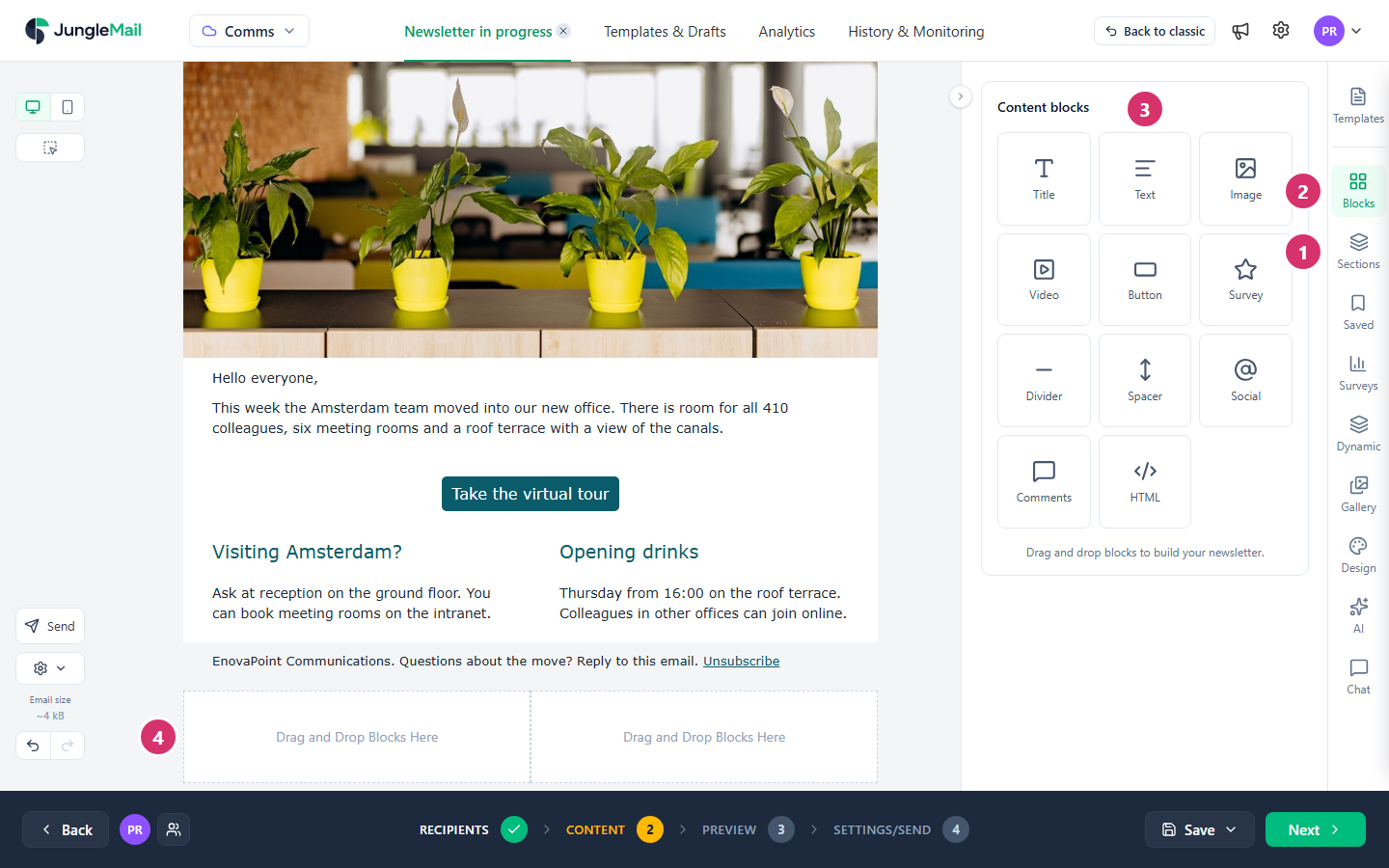
- Select Sections and drag a layout onto the email, where the new section should go. Or select a layout to add it at the end of the email. The three 2 cols layouts split the width in halves, one third and two thirds, or two thirds and one third: halves suit two short stories side by side, and a third is enough for a small picture beside its text.
- Select Blocks.
- Drag a block into a column. Or select a block to put it in the first empty column; if there is none, JungleMail says There is no empty column. Drag the block where you want it.
- Repeat for each part of the email. An empty column says Drag and Drop Blocks Here until it holds a block.
Each block is described in Blocks.
Write in a block and change its settings
Section titled “Write in a block and change its settings”Select a block on the email.
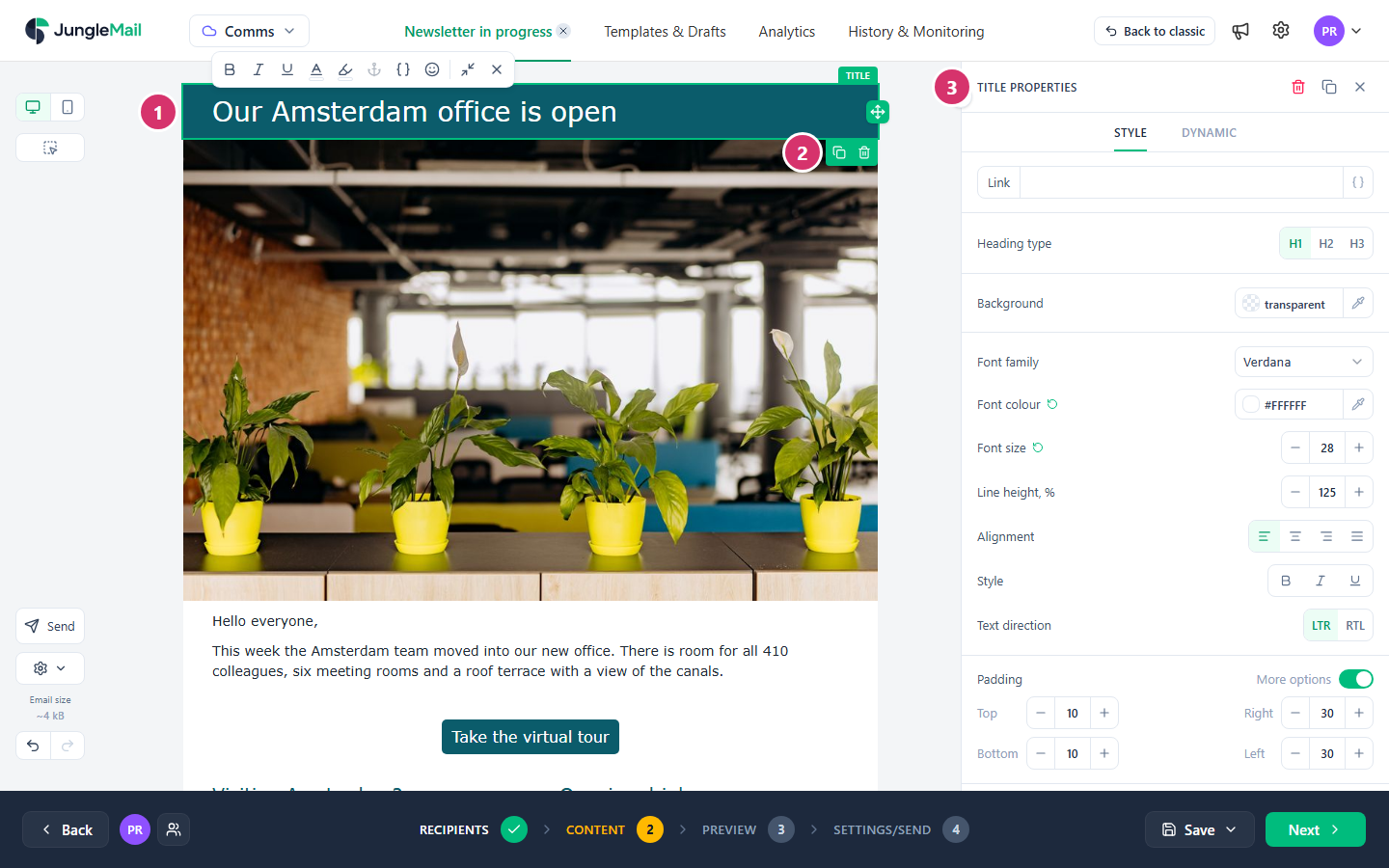
- In a Title, Text or Button block, type over the sample text. A toolbar opens above it (Format text and add links). Select Finish editing, or press Esc, when you are done.
- Use the strip at the block’s edge to move it: drag the handle (Drag to move) into another column or section. Duplicate adds a copy below it, and Delete removes it.
- Change the block in its properties on the right, such as Title properties. Changes show on the email as you make them. Discard changes at the top takes back everything you changed since you opened them; the × closes them.
Until you change a block’s style, it follows the email’s design, so change colors and fonts for the whole email on the Design tab, and here only for a block that should look different. A green arrow beside a setting means you changed it for this block; select it to go back to the design’s value (Style your email with themes and design settings).
Change a section and its columns
Section titled “Change a section and its columns”Select an empty part of a section, or its Section label, to open Section properties:
- Outer background colors the full width of the email behind the section; Content background colors only the section’s content. Background image puts a picture behind it. Not every email program shows background images, so pick a background color that also works on its own.
- Under Columns, Add column adds an empty column, up to six, as long as each stays at least 80 pixels wide. Duplicate column copies the column you are on, with its blocks. Delete column and its blocks removes it without asking; Undo brings it back.
- Each column has a tab, Col 1, Col 2 and so on, with its width. Drag a tab to change the order of the columns. To change their widths, drag the line between two columns on the email while the section’s properties are open.
- With a column’s tab chosen, Background, Inner background, Vertical align, Padding and Border apply to that column.
On phones, a section’s columns are stacked one under the other unless you choose otherwise in Mobile view (Show content on desktop or mobile only).
Undo a change
Section titled “Undo a change”Select Undo or Redo on the left, or press Ctrl+Z or Ctrl+Y while you are not typing in a block. Everything you change while a block’s properties are open is undone in one step.
- Give each story a section of its own. A section is what you can show to some recipients only, save for later issues and move as one piece, so a story that shares its section with another can’t be handled alone (Show a section to some recipients only).
- Check Mobile view as you build. On phones, a section’s columns are stacked, so a picture to the right of its text ends up below it; Reverse order puts it on top (Show content on desktop or mobile only).
- Keep the email short, and link to the rest. Every section adds to the email’s size, shown under Actions. Gmail cuts off long emails and hides what comes last, often the footer with the unsubscribe link (Keep your email under Gmail’s clipping limit).