

Some recipients are missing
Symptoms
Section titled “Symptoms”- In the newsletter wizard’s Recipients step, Total is lower than the number of people you meant to reach.
- Someone tells you that a newsletter sent to their group, list or file never reached them.
JungleMail 365 leaves people out for a reason, and most reasons have a line in the counts under To. Here a file of town hall registrations lists Daniel twice, and a filter leaves out Kwame:
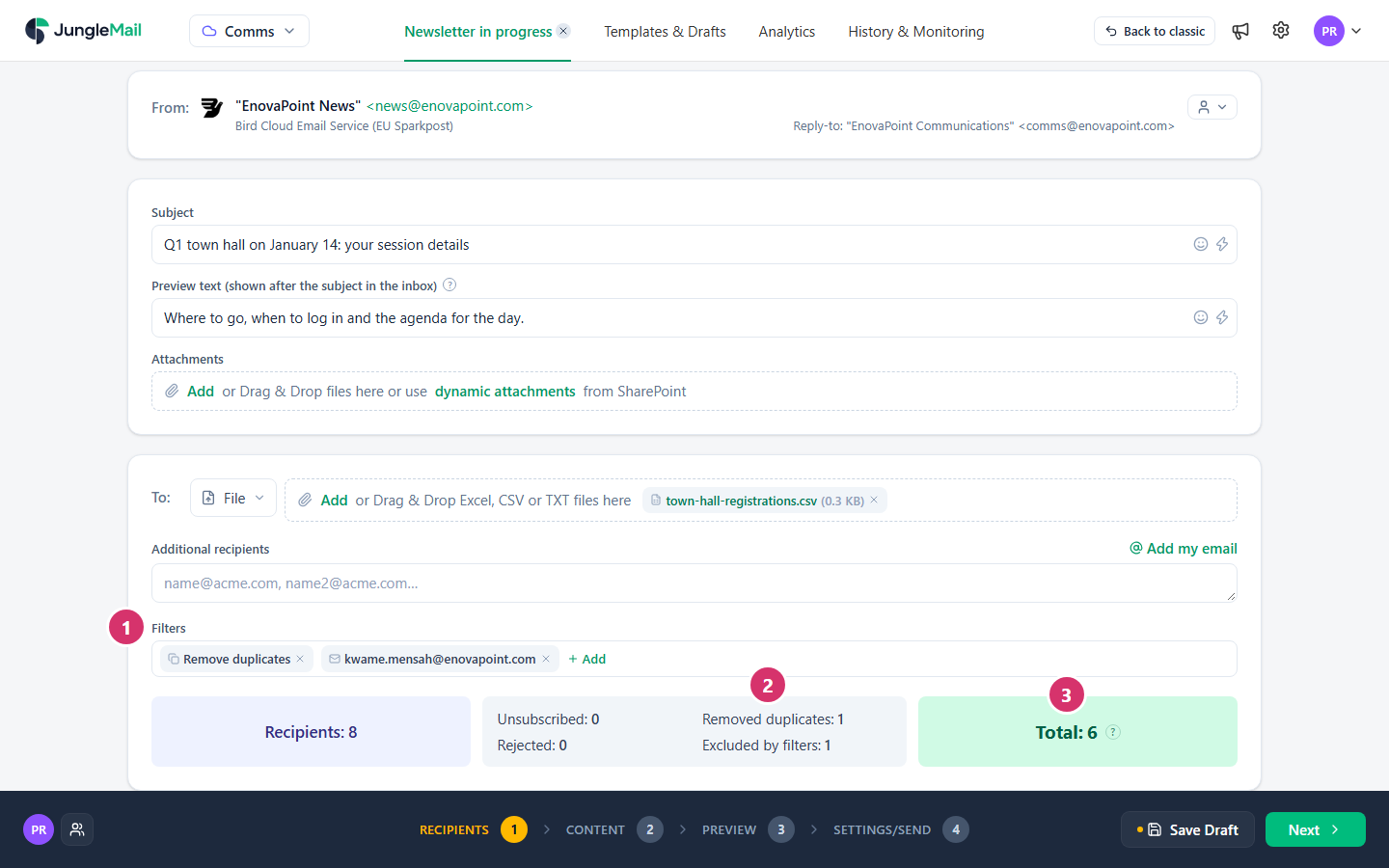
- Filters: what you, or a colleague who worked on the newsletter, chose to leave out.
- The people who are left out, by reason:
- Unsubscribed: they unsubscribed from your site’s newsletters before.
- Rejected: their address was rejected or bounced before.
- Removed duplicates: the same address came twice, such as a person in two of your groups; they get one email.
- Excluded by filters: your filters left them out, or they don’t match your conditions.
- Total: everyone who will receive the newsletter.
Other reasons don’t have a line of their own:
- A group was typed as an address. Under Email addresses, a group’s address counts as one recipient (Recipients).
- The source can’t read the group. Dynamic distribution groups are read only by Exchange groups, and SharePoint groups by neither group source.
- The person has no email address in your directory, list or file: they aren’t counted at all.
- Your organization allows only some addresses. Filters then shows Allowed domains only or Forbidden domains; select it to see the address patterns it allows or forbids.
- The list, view or file doesn’t hold them. A SharePoint list view sends only to the items it shows, and a file only to the addresses in its address column, on its first worksheet.
- Counting stopped early. With very large groups, Total shows the number counted so far followed by +, and says The recipients retrieval query has been paused. JungleMail will continue recipients retrieval during the sending process. The newsletter still goes to everyone. If Resolve all now follows the message, select it to count everyone now.
Solution
Section titled “Solution”- Find the line under To that holds the missing people.
- For Unsubscribed or Rejected, select the word: when the count isn’t 0, it opens the list of unsubscribed or rejected addresses. Take someone off the list only when they ask for your newsletters again (Manage unsubscribes and rejections).
- For Excluded by filters, select each filter under Filters to see what it leaves out, and select the × on any you don’t want (Filter recipients).
- To check one person, go to the Preview step, select the address above the preview and search for theirs. No recipient matches that. means they aren’t among the recipients (Preview and test a newsletter).
For a newsletter already sent, its report shows whom it was sent to and which addresses bounced (Bounces and rejections).
Prevent it
Section titled “Prevent it”- Choose groups with a group source. Select a group under Microsoft 365, AD groups or Exchange groups, never type its address, and use Exchange groups for dynamic distribution groups, such as EnovaPoint’s All Employees (Recipients).
- Check Total before you send. Compare it with the size of the group or list, such as 2,412 for All Employees: the lines above it say who is left out and why, while there is still time to change it.
- Clear the rejections a spam filter caused. When your spam filter refused newsletters from Bird Cloud Email Service or the JungleMail mail server, JungleMail put those addresses on the site’s rejections list. Once your IT team has allowlisted JungleMail’s mail servers, a site administrator deletes them from Rejections (Bounces and rejections).
If that does not help
Section titled “If that does not help”- An administrator can turn on Allow to download recipients CSV file in the security and privacy settings. The counts then have Export to CSV buttons for those who may change the site’s settings, to compare JungleMail’s list of recipients with a group’s members (Security and privacy settings).
- Contact support with the newsletter’s name, its recipient source and the address of one person who is missing (Get help from support).