

Add a video
Email programs can’t play videos, so a Video block shows a picture of the video, its thumbnail, with a play button. Recipients who select it watch the video in their browser. For colleagues, use a video on your SharePoint site, where its sharing settings decide who can watch it; for recipients outside your organization, use one they can open without signing in, such as a video on YouTube.
Add the video
Section titled “Add the video”In the Content step, drag a Video block from Blocks into the email, and select Add a video on it.
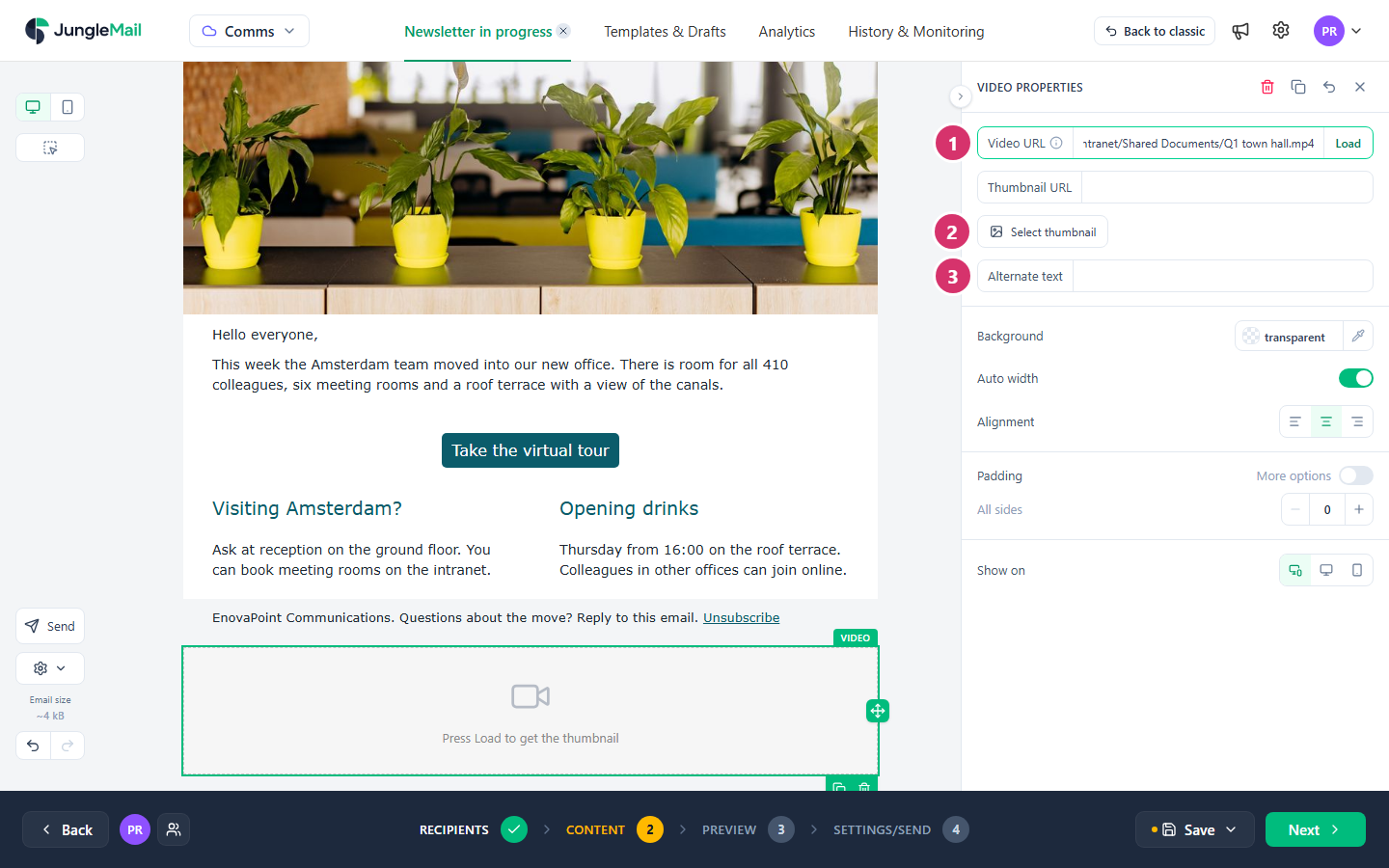
- In Video URL, paste the video’s address, such as a YouTube link or a video on your SharePoint site, and select Load. For YouTube and SharePoint videos, JungleMail makes the thumbnail and adds the play button. For other videos it says Specified video is not supported. Please use thumbnail from the gallery.
- To use another picture, or for a video from elsewhere, select Select thumbnail and choose one from the gallery. JungleMail adds the play button to it too. Once there is a thumbnail, Edit thumbnail opens it in the image editor (Edit an image).
- In Alternate text, describe the video, such as “Recording of the Q1 town hall”, for recipients who don’t see pictures.
Like an Image block, the Video block has Auto width or Width, %, Alignment, Padding and, in Mobile view, Full width on mobile.
- Share the video before you send. Give the recipients’ group access to a SharePoint video, so that everyone who selects the thumbnail can watch it (Share SharePoint files or folders).
- Link to it in the text, too. The thumbnail is a picture, and by default classic Outlook doesn’t download pictures until the reader allows them (Block or unblock automatic picture downloads in classic Outlook email messages). A line such as “Watch the recording of the Q1 town hall” works either way.
- Turn on captions. Colleagues who are deaf or hard of hearing need them, and they help anyone watching without sound (Understanding Success Criterion 1.2.2: Captions (Prerecorded)). The owner of a SharePoint video can have captions made for it (View, edit, and manage video transcripts and captions).