

Keep your email under Gmail's clipping limit
Gmail shows only the first 102 kB of an email’s code. When an email is larger, Gmail cuts it off and shows “[Message clipped] View entire message” instead of the rest, and readers who don’t select the link never see it. What falls after the cut, often the footer with the unsubscribe link, is hidden. Other email programs may do the same.
It matters most for newsletters that reach Gmail readers, such as those to partners or subscribers outside your organization, and for long ones: a recurring newsletter with SharePoint content, for example, grows with every item. Most newsletters stay well below the limit, and the builder warns you when one comes near it.
How the builder warns you
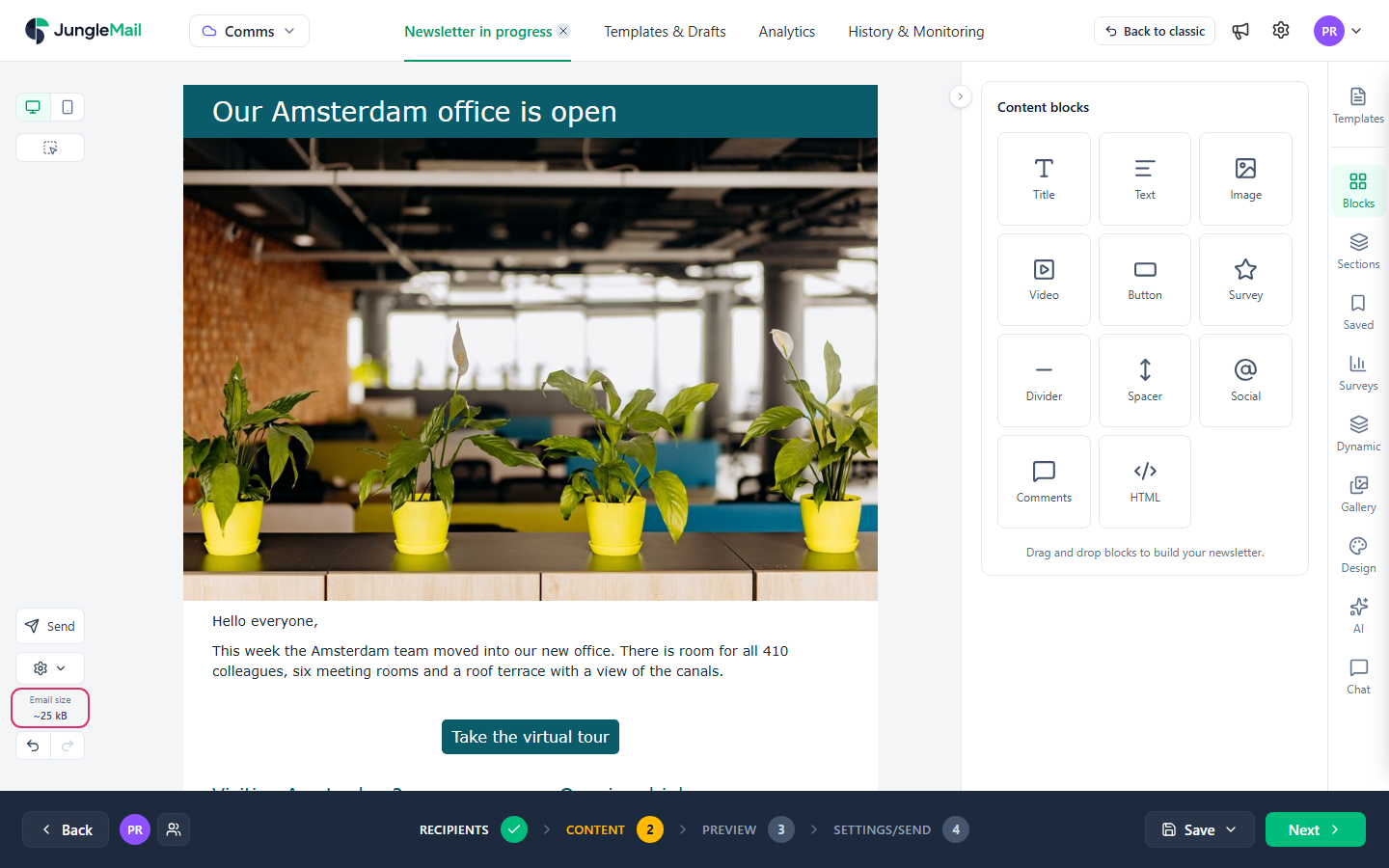
Section titled “How the builder warns you”The email’s size is shown on the left of the builder, under Actions (the gear), as Email size in kilobytes, such as ~25 kB. It is approximate, because the links are rewritten for tracking when the newsletter is sent, and it updates a few seconds after your last change.
From 95 kB, an information icon appears beside the size; point to it to read what it says:
| Size | What the builder says |
|---|---|
| Under 95 kB | Nothing |
| 95 to 101 kB | Some email clients (such as Gmail) may clip this email. Send a test to check how it arrives. |
| 102 kB and more | Some email clients (such as Gmail) clip emails over 102 kB and hide the rest behind a link. |
| 150 kB and more | Also Larger than the recommended 150 kB., and the size turns amber |
What makes an email large
Section titled “What makes an email large”The size counts the email’s code and text, not its pictures: pictures stay on the gallery’s server and are loaded when the email is opened. What adds up:
- many sections and blocks, and long text;
- text pasted from Word or web pages, which can bring a lot of hidden formatting;
- HTML blocks and code pasted in the HTML Editor;
- icons, which are written into the email rather than linked;
- SharePoint content, which grows with every item it repeats when the newsletter is sent.
What this means for you
Section titled “What this means for you”- Link to the full story instead of copying it. Put the first paragraph in the newsletter and link to the rest on your intranet: the email stays short, and the report shows how many readers wanted more (Links, click map and clickstream).
- Paste text without its formatting. Text from Word or a web page can bring more hidden code than words. On text you have already pasted, use Remove formatting (Format text and add links).
- Cap SharePoint content. Set Total items to display so that even the fullest issue of a recurring newsletter fits, not only the one you checked (Add SharePoint content).
- Use icons sparingly. Each one is written into the email; a picture from the gallery adds only its address.
- Near the limit, test in Gmail. Send yourself a test from the Preview step at a Gmail address, and check that the footer arrives (Preview and test a newsletter).