

Blocks
Blocks are the content of an email: you drag them from the Blocks tab into a section’s columns (Build an email with blocks and sections). Select a block on the email to change it in its properties, such as Text properties.
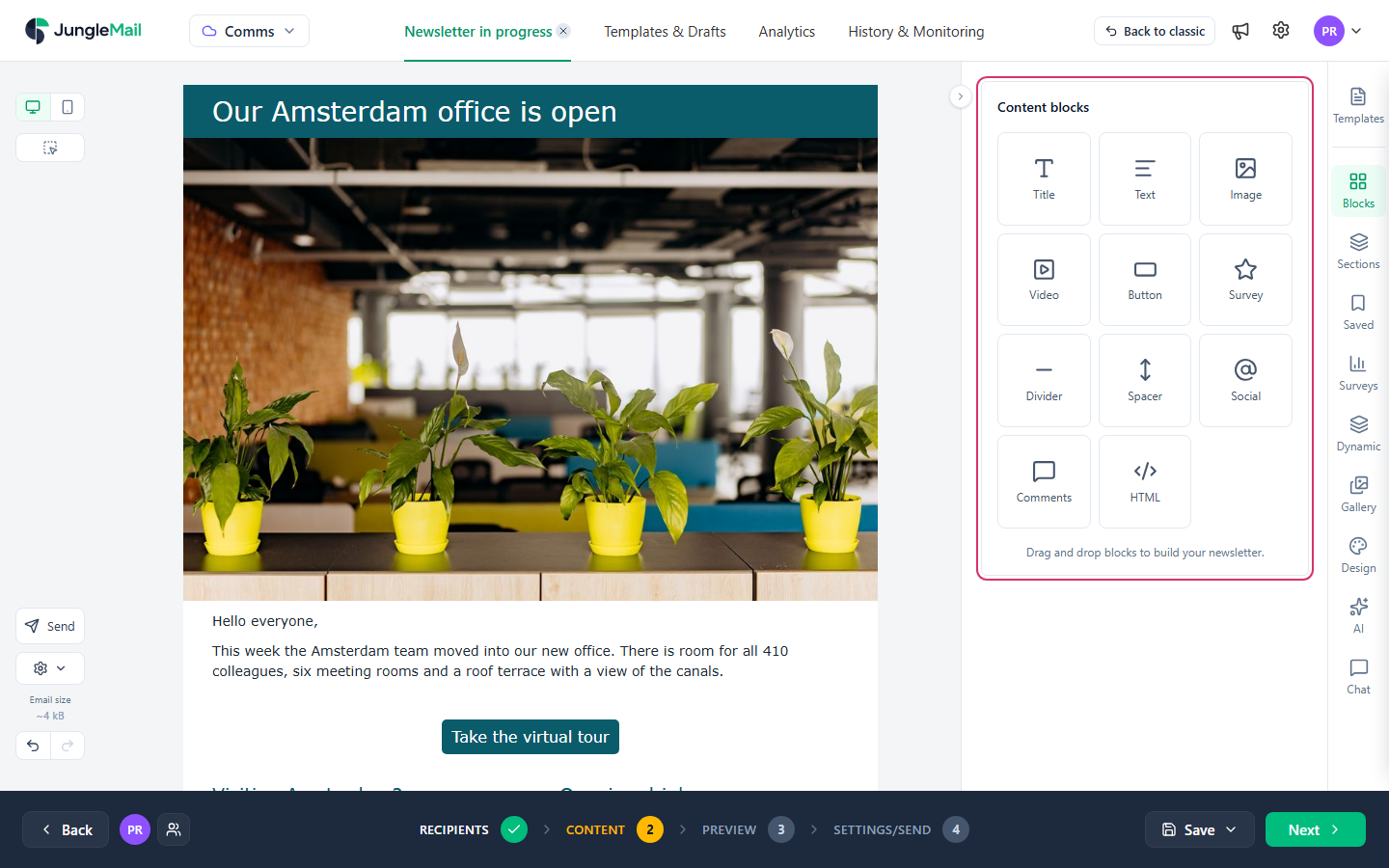
| Block | Adds | Its own settings |
|---|---|---|
| Title | A heading | Link, Heading type (H1, H2 or H3), fonts and colors |
| Text | Paragraphs, with links, lists, tables and pictures | Paragraph spacing, Link colour, Link underline, fonts and colors |
| Image | A picture, optionally linked | Image URL, Link, Alternate text, Auto width or Width, %, Edit with Editor |
| Video | A video’s thumbnail, linked to the video | Video URL with Load, Thumbnail URL, Select thumbnail |
| Button | A button that opens a link | Link, Auto width or Width, %, Corner radius, Border, Inner padding |
| Survey | A question that recipients answer with one click | Survey type, Survey title, Allow comments, Allow vote change, Set expiration date |
| Divider | A horizontal line | Border style, Thickness, Colour, Width, % |
| Spacer | Empty space | Height |
| Social | Icons that link to your social media pages | Icon set, and per icon Network, Link and Alt text; Add icon |
| Comments | Icons that lead to the newsletter’s archived copy, to like or comment on it | Icon set, Alt text per icon |
| HTML | Your own HTML code | HTML, a code editor |
More about each:
- Title and Text: Format text and add links. Emails made before the current builder can also hold Subtitle blocks, which work like Title.
- Image: Add images and Edit an image.
- Video: Add a video.
- Survey: Add a survey.
- Comments: Add a comments block. The block is grayed out until a site administrator sets up the newsletter archive.
Which block to use
Section titled “Which block to use”- Make headings with Title blocks. Bold, larger text in a Text block looks like a heading but isn’t one to a screen reader, whose users jump from heading to heading, and the Design tab styles every title at once (Make your emails accessible).
- Use a Button for the action a story leads to. It is easier to tap on a phone than a linked word. Keep links within a sentence in the Text block.
- Use an Image block for a picture on its own. With Full width on mobile, it spans the width of a phone’s screen. A small picture that text flows around goes in a Text block (Add images).
- Show a video with the Video block, not a linked Image. It makes the thumbnail of a YouTube or SharePoint video and adds a play button, so readers see at once that it is a video.
- Keep the HTML block for what no other block can do. Its code adds to the email’s size (Keep your email under Gmail’s clipping limit), and only a test email shows you how email programs display it.
Settings most blocks share
Section titled “Settings most blocks share”| Setting | What it does |
|---|---|
| Background | The color behind the block |
| Font family, Font colour, Font size | The text’s look, on blocks with text |
| Alignment | Where the block’s content sits: left, center, right, or justified for text |
| Padding | The space around the content. More options sets each side separately |
| Border | A line around a Title, Text or Button block |
| Show on | Both, Desktop only or Mobile only (Show content on desktop or mobile only) |
Until you change them, a block’s colors, fonts and spacing come from the email’s design (Style your email with themes and design settings). In Mobile view, a block’s properties show only what you can change for phones.
Title, Text, Image, Button and HTML blocks also have a Dynamic tab, to fill them from SharePoint (Add SharePoint content).