

Find and reuse past newsletters
Every newsletter sent from a JungleMail site stays in its history. From there you can look at what was sent and to whom, open its results, or start a new newsletter from it: the quickest start for a newsletter much like one you sent before.
Find a newsletter
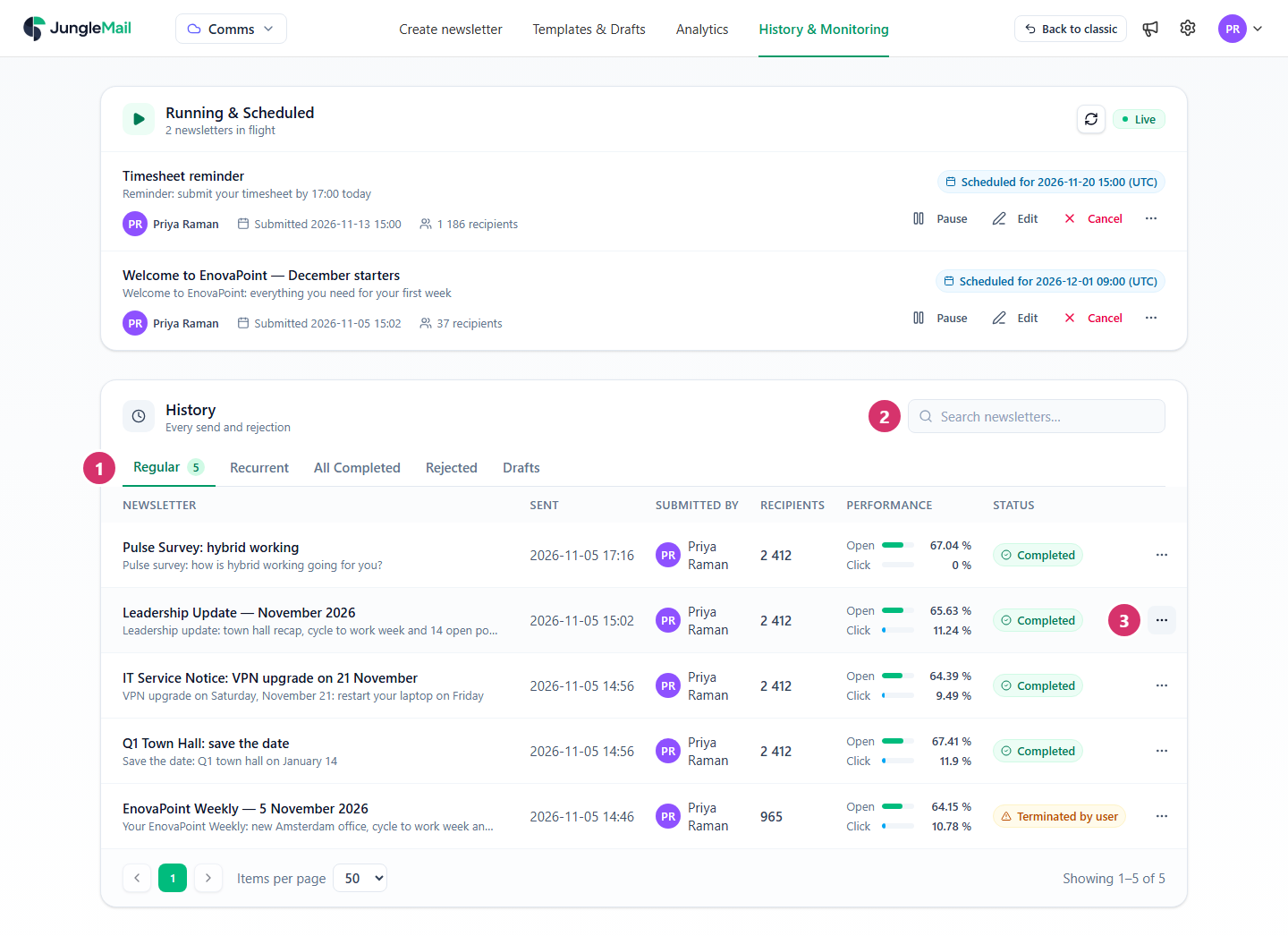
Section titled “Find a newsletter”Select History & Monitoring in the top menu. Sent newsletters are under History, below the newsletters still running.
-
Choose a tab:
Tab Lists Regular Newsletters sent once Recurrent Recurring newsletters All Completed Both Rejected Newsletters an approver rejected Drafts A link to the drafts, which are under Templates & Drafts > Drafts -
To find a newsletter by its name, subject or sending address, type in Search newsletters and press Enter.
-
Select More actions (…) at the end of the newsletter’s row for what you can do with it (below).
Each row shows when the newsletter was sent, who sent it, how many recipients it had, its open and click rates, and its status, such as Completed or Terminated by user.
See what was sent
Section titled “See what was sent”In More actions, select:
- Open preview for the newsletter’s details: its content, its recipients, its settings, and a short report with how many emails were delivered. Selecting the newsletter’s name does the same.
- Open analytics for its full results (Read a newsletter report).
Reuse it
Section titled “Reuse it”| In More actions | What you get |
|---|---|
| Copy newsletter | A new newsletter with everything from this one: recipients, content, settings, attached files and recipient files |
| Load recipients | This newsletter’s recipients, in the newsletter you’re working on or in a new one |
| Load content | This newsletter’s content in the newsletter you’re working on or in a new one, which opens at the Content step. JungleMail asks first if that replaces content |
Use Copy newsletter to send a newsletter again much as it was, such as next month’s reminder; Load content to send the same email to other people; and Load recipients to send something new to the same people, such as everyone who registered for the town hall.
Copy newsletter closes the newsletter you’re working on first. If it has unsaved changes, JungleMail asks: Yes saves it as a draft, Cancel newsletter deletes it, and Cancel keeps you where you are.
You can also reuse a past newsletter from inside the newsletter wizard:
- In the Recipients step, Quick actions fills the newsletter with a copy of one of the three latest newsletters.
- In the Content step, the Sent Newsletters tab lists past newsletters to start the content from.
To send to the people who opened or clicked an earlier newsletter, or to those who didn’t, choose the recipient source Previous newsletter instead (Follow up on a previous newsletter).
Delete a newsletter
Section titled “Delete a newsletter”In More actions, select Delete, then confirm. The newsletter goes to the Recycle Bin, where you or a site administrator can restore it (Restore deleted items).
Delete a sent newsletter only when nobody needs it any more: once it leaves the Recycle Bin, its analytics are deleted with it, and the images and links in the emails already sent may stop working. To keep a trial send out of your results, mark it as a test instead (Find and compare newsletter results).
- Check a copy before you send it. Copy newsletter brings last time’s attached files and recipient files. A file holds the people as they were when it was uploaded, and an attached agenda may be out of date (Send to recipients in a file).
- Keep a template of a newsletter you repeat. A template stays as you left it, while a copy brings last issue’s news to replace. And if your site doesn’t store newsletter content, sent newsletters can’t be copied or loaded as content at all (Create a template, Security and privacy settings).
- Read the report before you reuse the content. Open analytics shows which links readers selected: keep what drew clicks, and rethink what didn’t (Links, click map and clickstream).