

Add an unsubscribe link
An unsubscribe link lets a recipient stop receiving newsletters from your JungleMail site. Each recipient gets a link of their own, so JungleMail knows who unsubscribed. Put it in the footer, where readers look for it, and give every newsletter that goes outside your organization one: Gmail asks every sender to give recipients an easy way to unsubscribe, and Gmail and Yahoo require senders of bulk email to show a clearly visible unsubscribe link in the message body (Email sender guidelines, Sender Best Practices).
JungleMail also adds the one-click unsubscribe headers that Gmail and Yahoo require of bulk senders, which let them offer their own Unsubscribe button beside the sender’s name. The headers don’t replace the link: the same guidelines ask for one in the message body as well.
Add the link
Section titled “Add the link”In the Content step, select the Text block for the link, often the last one, and select the words to link, such as “Unsubscribe from these updates”. To add the words with the link, place the cursor where they should go instead. Then select Merge tags in the toolbar.
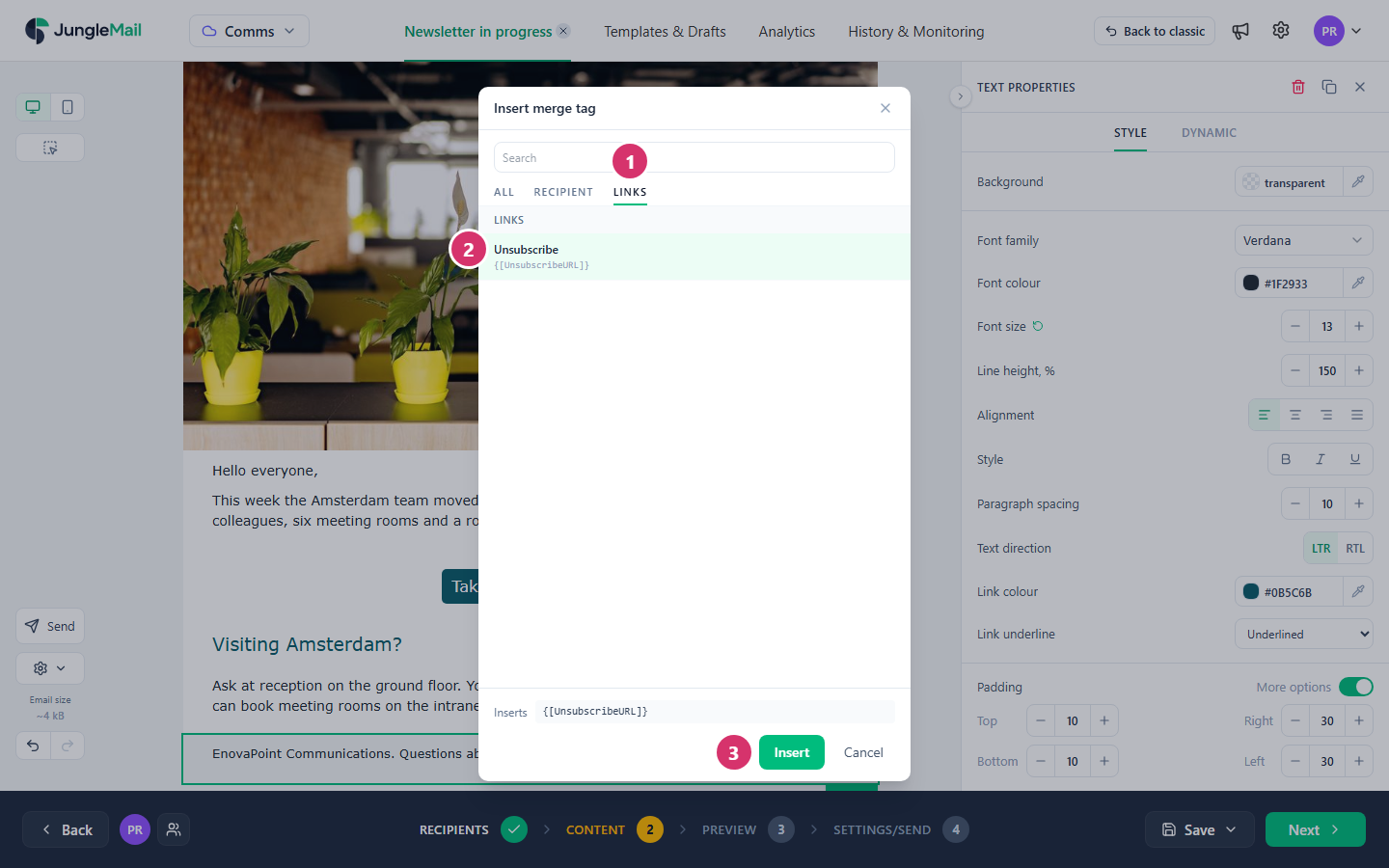
- Select Links.
- Select Unsubscribe.
- Select Insert. Selected words become the link; otherwise the link is added with the text “Unsubscribe”.
To make a Button unsubscribe, select Merge tags ({}) at the end of its Link instead, and choose
Unsubscribe in the same way.
If your site lets recipients choose which newsletters they get, Links also has Manage subscription, which leads to their subscription preferences instead (Subscribers).
What recipients see
Section titled “What recipients see”- The link opens a page, We’re sorry to see you go, with the recipient’s email address and an Unsubscribe button.
- After they select it, the page says Successfully unsubscribed.
- Their address is added to your site’s unsubscribes, and newsletters from the site no longer go to it. Site administrators see the list under Unsubscribes / Rejections (Manage unsubscribes and rejections).
The address is unsubscribed from this JungleMail site only, not from your organization’s other sites.
- Leave the link out of internal newsletters. An unsubscribe stops every newsletter the site sends, the ones your colleagues must read included. Keep the link for newsletters to people outside your organization.
- Say who the reader unsubscribes from. The link stops every newsletter the site sends, whatever its topic, so name the sender in the linked words: “Stop receiving newsletters from People & Culture” tells the reader what they give up, where “Unsubscribe” alone doesn’t (Manage unsubscribes and rejections, Make your emails accessible).
- Offer Manage subscription where the site has topics. A reader who can drop one topic doesn’t have to leave them all, so put Manage subscription first, beside the unsubscribe link (Subscribers).
- Keep the footer within Gmail’s clipping limit. In a long email, Gmail hides what comes last, often the footer with the unsubscribe link (Keep your email under Gmail’s clipping limit).
- Save the footer as a section. With the link in a saved footer, every newsletter built with it has the link, and nobody has to remember to add it (Save and reuse sections).
- Test the link before you send. Send yourself a test and open the link: in a test it leads to a page that says Unsubscribe is not supported in preview or design mode., which shows that the link works and unsubscribes nobody. The page with Unsubscribe opens only from a sent newsletter (Preview and test a newsletter).