

Getting started
JungleMail 365 is how your organization sends newsletters and announcements to its people, from Microsoft 365. Start here if you are new to it: these articles explain what it is, how to sign in, and how to send your first newsletter or set JungleMail up for others.
After you sign in, JungleMail opens at the dashboard of your JungleMail site.
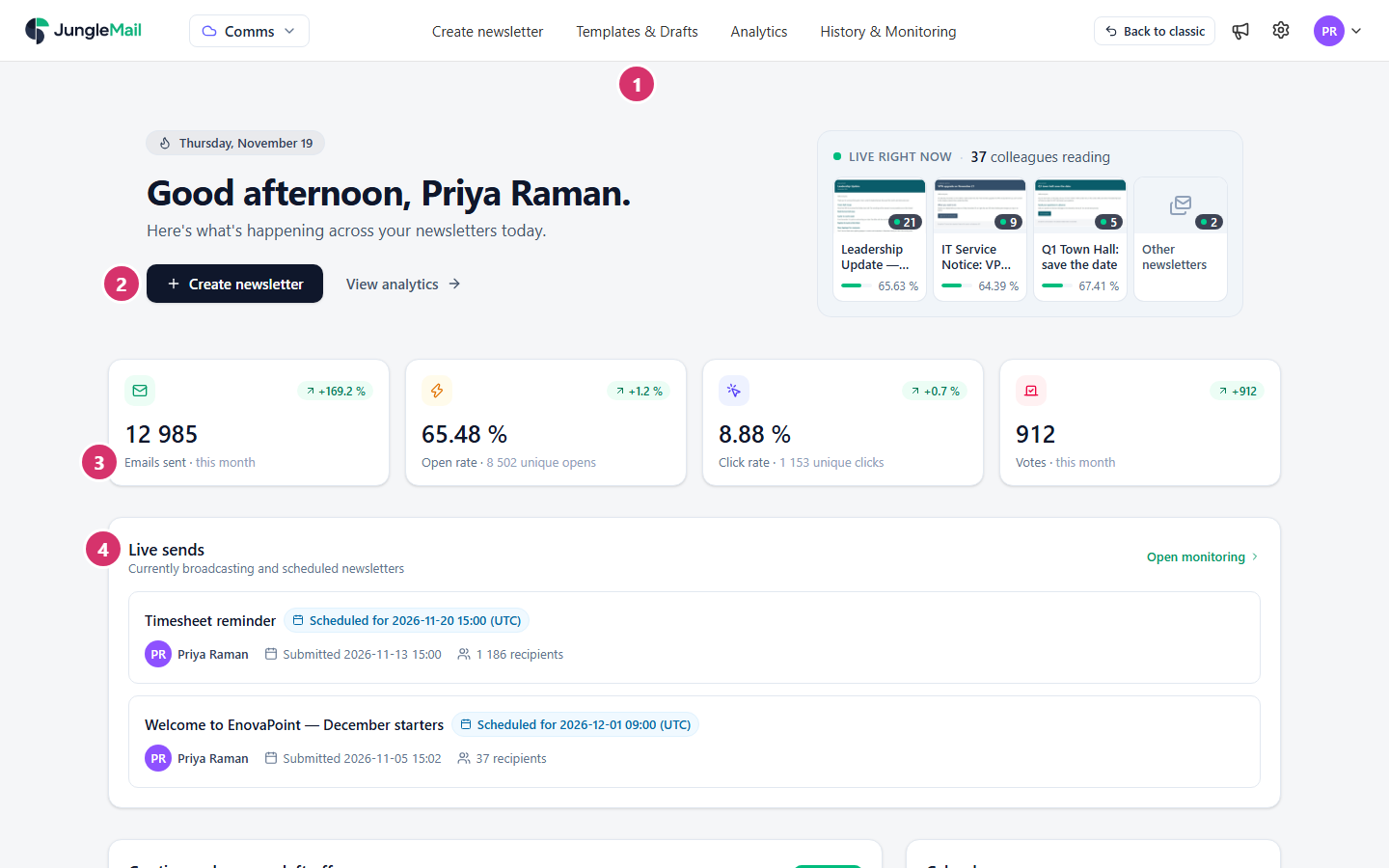
- The top menu leads to everything else: newsletters, templates, analytics and history (Find your way around).
- Create newsletter starts a new newsletter.
- This month’s results for the site: emails sent, open rate, click rate and survey votes, each compared with the same days last month.
- Live sends lists the newsletters being sent now and those scheduled for later.
Further down, Continue where you left off lists your drafts, Recent newsletters the six latest newsletters of the last 30 days with their results, and Calendar the newsletters sent and planned this month.
Where to start
Section titled “Where to start”- If you write newsletters: send your first newsletter to yourself and two or three colleagues. It takes about 15 minutes and goes through every step once, so that you know them before a newsletter to a whole department depends on it.
- If you set JungleMail up: follow Set up JungleMail for your organization in order. Editors can’t send until their site has a sending account, and your first site makes everyone who signs in an administrator until you change it.
- If you are the Microsoft 365 administrator: grant consent for the whole organization first, so that nobody is stopped by an approval request when they sign in (Grant consent to JungleMail).
If you write and send newsletters
Section titled “If you write and send newsletters”If you set JungleMail up for others
Section titled “If you set JungleMail up for others”- Set up JungleMail for your organization
- Set up Microsoft 365 for JungleMail, for Microsoft 365 administrators
- Manage a JungleMail site and Manage your organization