

Add SharePoint content
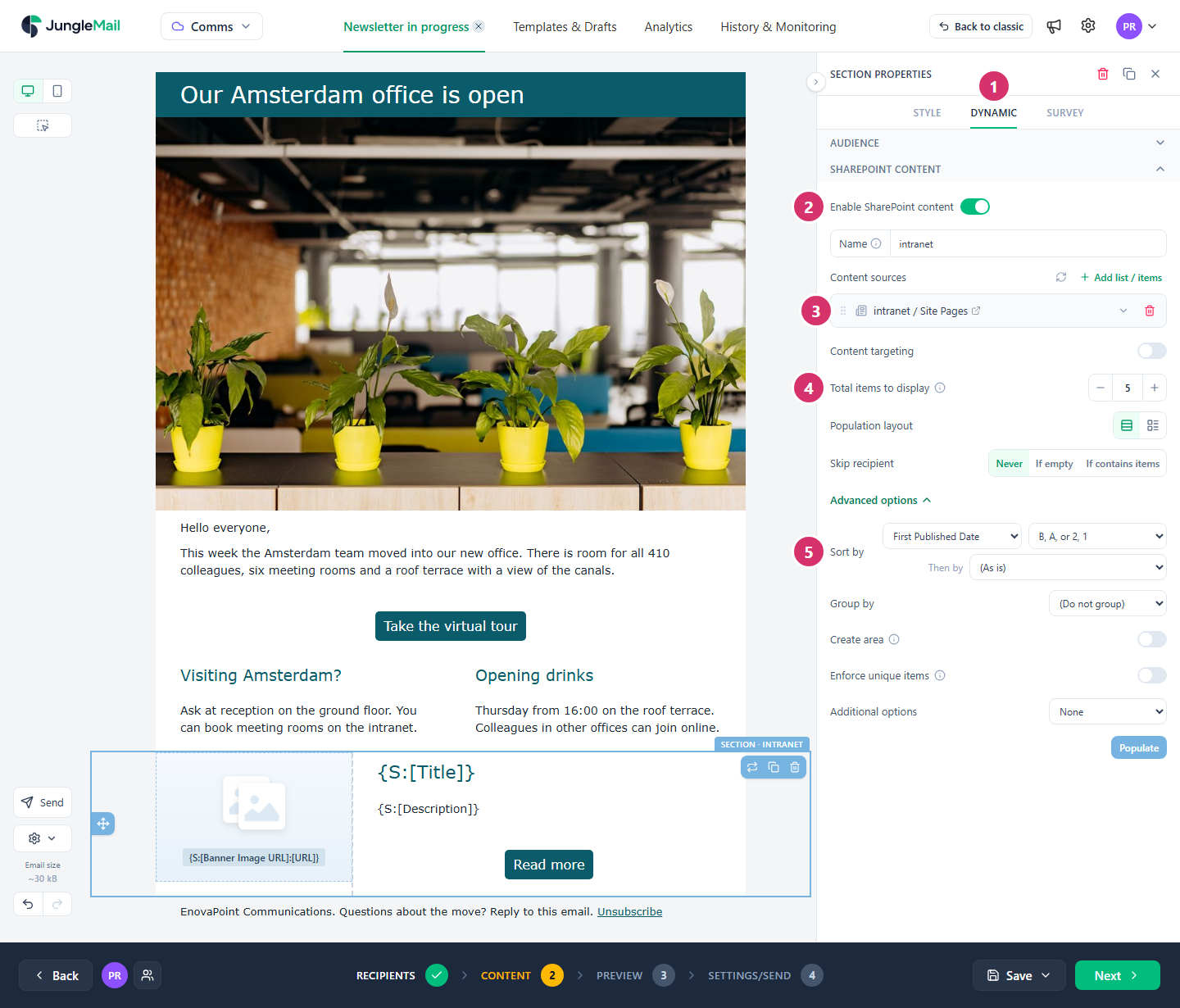
SharePoint content fills part of your email with items from a SharePoint list or library: news posts, events, documents, people to congratulate. You design one item, and JungleMail repeats it for each item it finds when the newsletter is sent, so a recurring newsletter always shows the latest. The example shows the five newest news posts from EnovaPoint’s intranet.
A whole list, as described here, suits a newsletter that should fill itself in, such as a weekly digest of new posts and coming events. When an editor chooses the stories for each issue, pick the items instead (Pick SharePoint items).
Before you begin
Section titled “Before you begin”- Your site needs the SharePoint connection, which a site administrator sets up once (Connect SharePoint). Until then, the Dynamic tab says SharePoint Connection is not enabled. If you can reach the SharePoint site, Click here to enable lets you authorize the connection for it.
- SharePoint content is part of the Pro and Enterprise plans. On other plans the Dynamic tab says Dynamic content is not part of this plan. Several lists in one section and Group by need the Enterprise plan.
Connect a section to a list
Section titled “Connect a section to a list”In the Content step, add a section laid out for one item, for example 2 cols with an Image block on the left and a Title, a Text and a Button block on the right. Then select the section. Among the builder’s tabs on the right, Dynamic has ready-made sections to start from, such as Major News, whose blocks already show a news post’s columns.
-
In Section properties, select Dynamic.
-
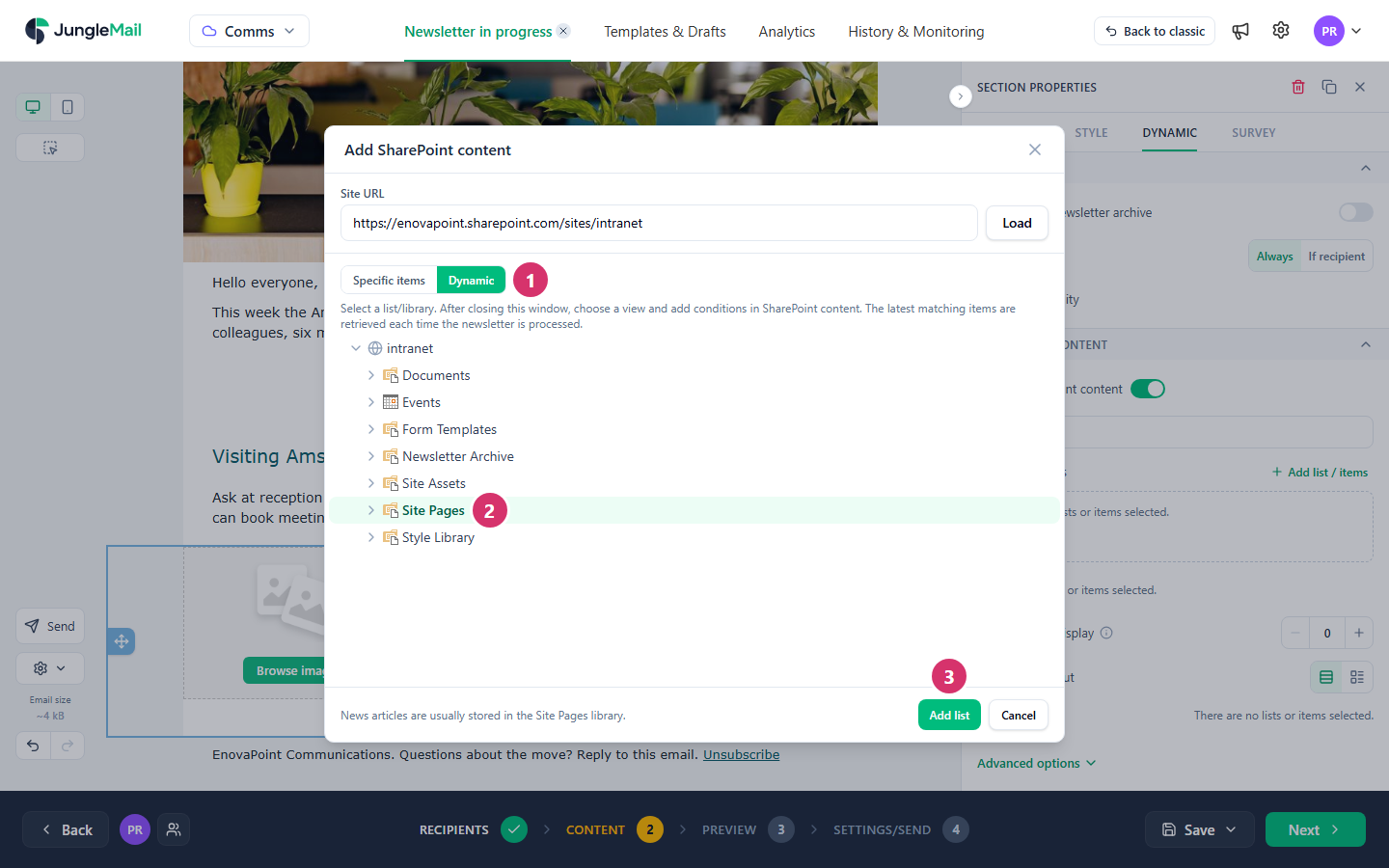
Turn on Enable SharePoint content. Add SharePoint content opens on the SharePoint site your JungleMail site is connected to.
-
Leave Dynamic selected, select the list or library, such as Site Pages, and select Add list. It’s listed under Content sources. For a list on another SharePoint site, type the site’s address in Site URL and select Load first. To choose particular items instead, select Specific items (Pick SharePoint items).
-
Set Total items to display, such as 5. Keep it to what readers will scan: every item makes the email longer, and a long email is cut off by Gmail (Keep your email under Gmail’s clipping limit).
-
Select Advanced options, then set Sort by to the column to order the items by, such as First Published Date, and choose B, A, or 2, 1 for the newest first.
The section’s outline on the email turns blue, and its label adds the content’s Name: the SharePoint site’s title, such as intranet, unless you type another.
Fill the blocks with the list’s columns
Section titled “Fill the blocks with the list’s columns”Now tell each block which column of the list it shows:
- Select the Title block, delete its sample text, and select Merge tags in the toolbar.
- On the Dynamic section tab, choose the column, such as Title, and select Insert.
- Do the same in the Text block, with a column such as Description.
- Select the Image block and, in Image properties, select Merge tags (
{}) at the end of Image URL. Choose the picture column, such as Banner Image URL:URL for a news post’s banner. The picture columns are also on the Dynamic content tab when you choose an image for the block. - Select the Button block, and in its Link, insert Item URL, so the button opens the item in SharePoint.
These merge tags are written like {S:[Title]}: S: for a dynamic section, B: for a dynamic block. They work only
inside the section or block they belong to.
Choose which items appear
Section titled “Choose which items appear”Expand a source with Show additional settings to set:
| Setting | What it does |
|---|---|
| List view | The SharePoint view to take items from, with its own filter and order |
| The filter | Conditions on the list’s columns, such as Created is within the last 7 day(s). Add condition adds one more |
| Items limit | How many items to take from this source |
And for the whole section, Sort by and the settings after it under Advanced options:
| Setting | What it does |
|---|---|
| Total items to display | How many items the email shows in total, across all sources |
| Population layout | In a section with several columns: one item per row, or one per column. With two columns of different widths, one per row, or Alternate: the columns swap places for every other item |
| Skip recipient | Leaves a recipient out when the content is empty, or not empty (Skip sending when there is no new content) |
| Sort by, Then by | The order of the items |
| Group by | Puts the items under headings (Group SharePoint content) |
| Create area | Repeats up to three sections for each item, instead of one |
| Enforce unique items | Shows each item only once in the email, even if several sections would show it |
| Additional options | Remove section above if empty leaves out the section above, such as a heading, when no items are found; Remove section above if not empty when some are |
A block can have SharePoint content too: select a Title, Text, Image, Button or HTML block and use its Dynamic tab. On the Enterprise plan, a dynamic block inside a dynamic section can filter its items by the section’s item, with the value type Parent column. When a dynamic block finds no items, Remove section if no results were found, under Advanced options and on unless you turn it off, leaves out the section the block is in.
Check the result
Section titled “Check the result”Go to the Preview step: the preview shows the section filled with the items as they are now.
To see the items on the canvas and edit them by hand, select Populate on the Dynamic tab, or Populate dynamic section on the section’s outline. This replaces the dynamic section with ordinary sections holding today’s items: it no longer updates from SharePoint. Undo turns it back. Actions > Populate dynamic blocks and sections does this for the whole email.
Example: celebrate colleagues
Section titled “Example: celebrate colleagues”To recognize colleagues in every issue, collect their milestones in a SharePoint list, such as a Recognition list
filled in through a form, and add a dynamic section with the filter Created is within the last 7 day(s). Each
week’s newsletter then shows the people added that week.
- Match the filter to the schedule. A weekly newsletter with
Createdis within the last 7 day(s) shows the week’s items; a monthly newsletter with the same filter shows only its last week. - Let a SharePoint view choose the items of a recurring newsletter. Changing the view in SharePoint changes the next issue, while editing a scheduled recurring newsletter cancels the series until you schedule it again (Monitor, pause and stop a newsletter). Don’t delete or rename the view: the section then finds nothing.
- Take content only from lists every recipient may read. JungleMail reads the list with the access of your site’s SharePoint connection, not of each recipient, and the email shows the items’ text to everyone it goes to, whatever their own permissions (Connect SharePoint).
- Save templates and recurring newsletters before you populate them. A populated section keeps the items of the day you populated it. Populate a section to look at its items, then select Undo before you save.
- Plan for a quiet week. An empty section is left out of the email; when the SharePoint content is the reason for the newsletter, skip sending instead (Skip sending when there is no new content).