

Show a section to some recipients only
One newsletter can carry content for some of its readers only: a section for the London office, a reminder for managers, a note for colleagues outside the company. Each recipient gets the email without the sections that are not meant for them.
Use it when most of the newsletter is for everyone and a part is for some: one newsletter keeps one schedule, one subject and one report, and nobody gets two emails that mostly say the same. Send separate newsletters when most of the content differs, or when each audience needs its own subject. When the whole newsletter is for some people only, filter the recipients instead (Filter recipients), and for the same content in several languages, use a multilingual newsletter (Send a newsletter in several languages).
Before you begin
Section titled “Before you begin”- Choose the recipients first, in the Recipients step. The conditions use what JungleMail knows about them, such as their department or office, so until the recipients are chosen there are no fields to choose from: the builder says No recipient fields are available yet.
Set the conditions
Section titled “Set the conditions”In the Content step, select the section and, in Section properties, select Dynamic.
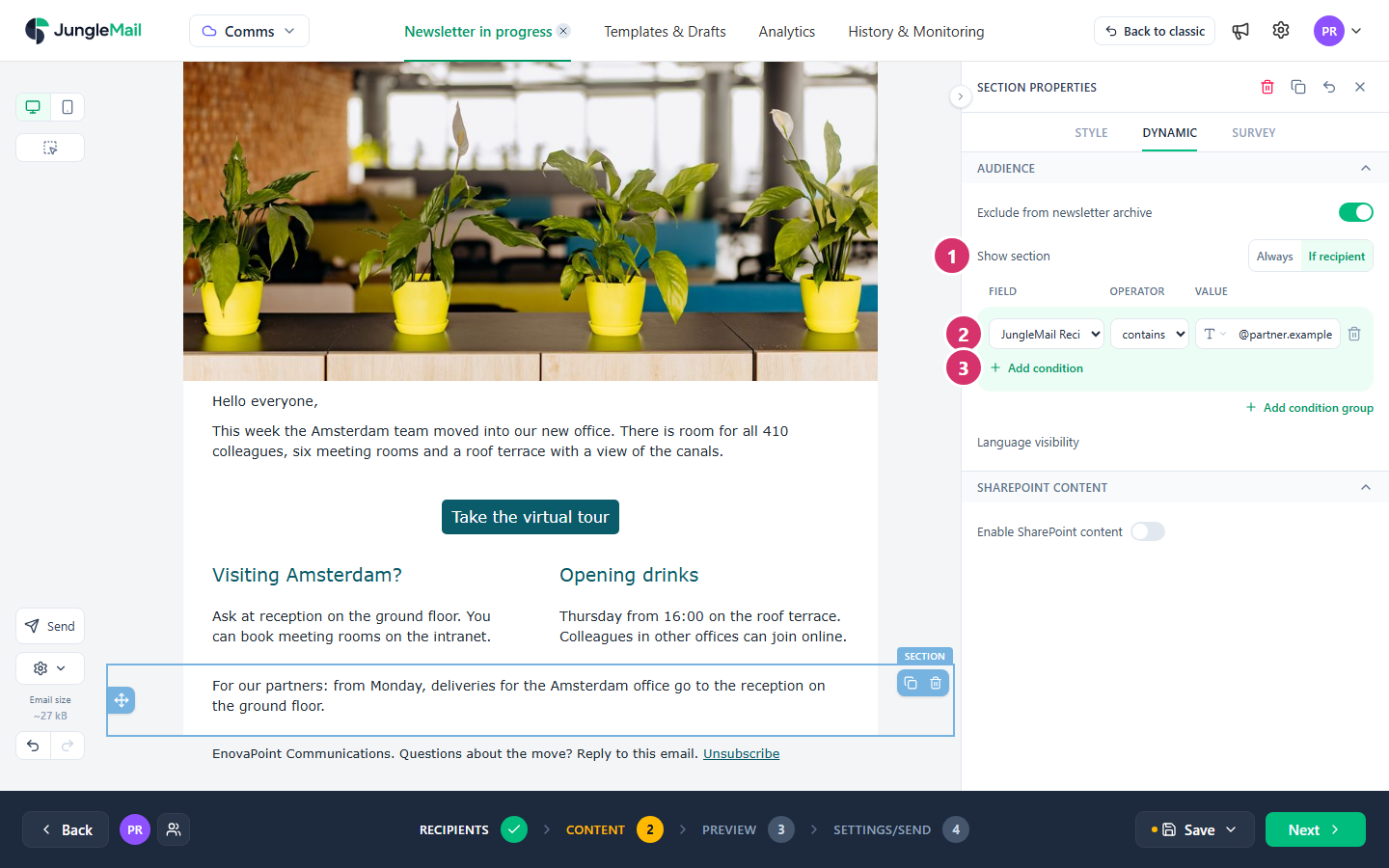
- Under Audience, set Show section to If recipient.
- Set the condition: choose the field, such as an office or a department; the operator, such as is equal to, contains or is not equal to; and the value.
- To add another condition, select Add condition, and choose between And (every condition must be true) and
Or (one is enough). Add condition group groups conditions, as brackets would. Join is not equal to
conditions with And: Office is not equal to
LondonOr Office is not equal toDubaiis true for everyone.
The section’s outline on the email turns blue. Only sections can have conditions; to show a single block to some recipients, put it in a section of its own.
For example, to show a section to the Sales and Marketing teams but not to their managers, use a group:
- (Department is equal to
SalesOr Department is equal toMarketing) - And Job title is not equal to
Manager
The fields depend on where the recipients come from. For a Microsoft 365 group, they include each member’s details from
Microsoft Entra ID, such as Department, Office and Job title, and Recipient source group: which of your
chosen groups they are in. For recipients typed as email addresses, they include JungleMail Recipient Address: the
condition JungleMail Recipient Address contains @partner.example shows a section only to the outside partners
among them.
If your site archives newsletters to SharePoint, If recipient also turns on Exclude from newsletter archive, so that the archived copy doesn’t show content meant for some readers only.
Check the result
Section titled “Check the result”In the Preview step, choose recipients who should and shouldn’t see the section, and check the preview for each (Preview and test a newsletter).
- Check that your directory has the value. A condition such as Office is equal to
Londoncompares what Microsoft Entra ID holds about each person, so someone whose office is empty there doesn’t see the London section. In the Preview step, look at a recipient you know is in London; if the section is missing, ask your IT team to fill in the profiles (How to manage user profile information in the Microsoft Entra admin center). - Use the group when the directory is incomplete. If you send to the London Office and Amsterdam Office groups,
the condition Recipient source group is in range of, with
London Officechosen in its list, follows group membership, which your IT team keeps up to date, rather than a profile field that may be empty. - Keep Exclude from newsletter archive on. The archived copy is one page for everyone who opens the archive, so a section meant for managers would be there for all to read.
- Send a test of each version. A test email is made for the recipient shown in the preview: select a London recipient before you send one to check the London section in Outlook, then a recipient from outside London.