

Approve or reject a newsletter
When you are an approver on a JungleMail site with built-in approval, every newsletter submitted there waits for your answer. JungleMail emails you a review request with a link to the newsletter, and lists the newsletter at the top of History & Monitoring, under Pending approval. Your review is the last check before the newsletter reaches people: look at who it goes to and from which address, as well as at what it says.
Before you begin
Section titled “Before you begin”- A site administrator has made you an approver on the site (Set up newsletter approval).
Open the newsletter
Section titled “Open the newsletter”Select the link in the review request, or select History & Monitoring in the top menu.
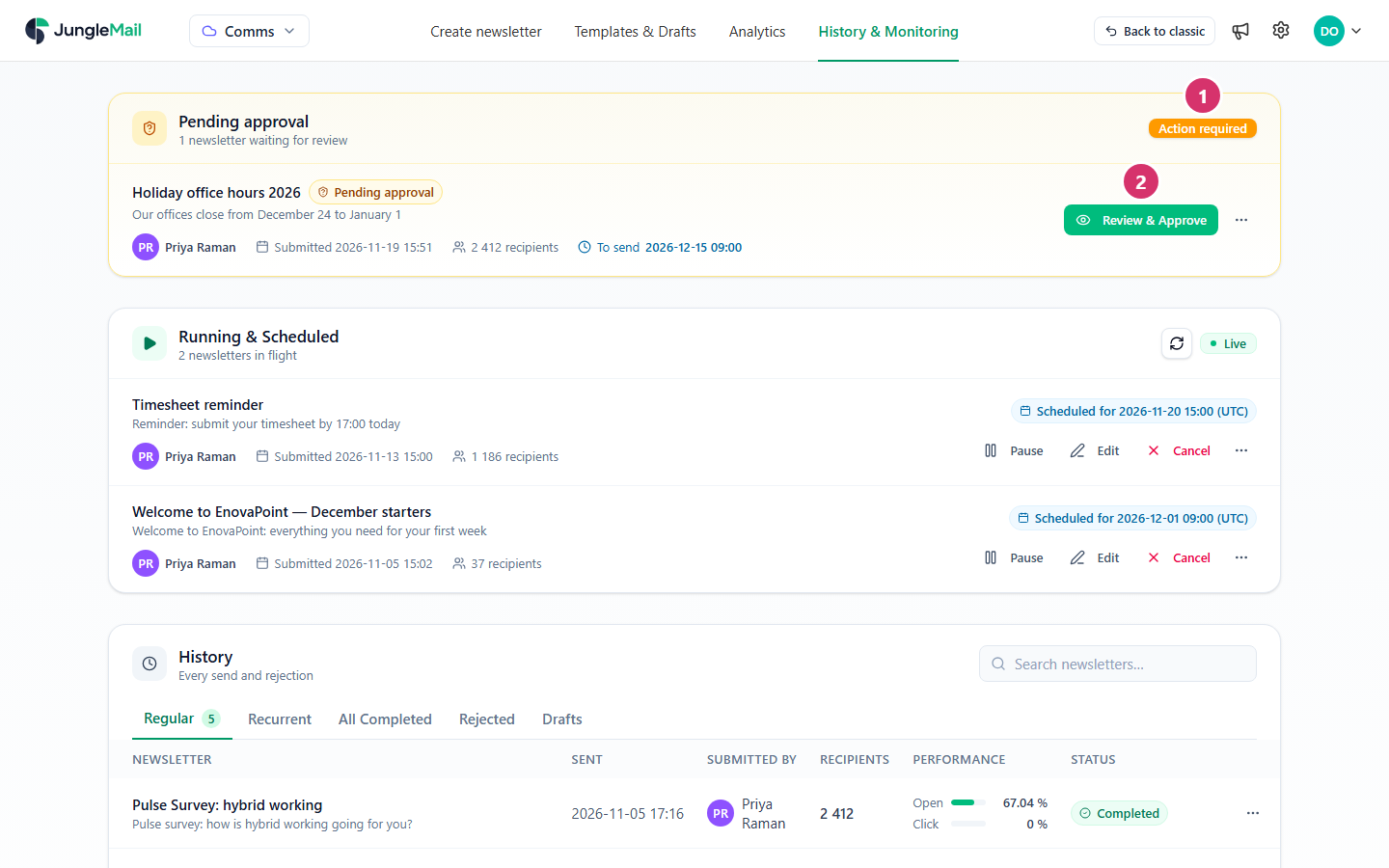
- Action required: the newsletters under Pending approval wait for review.
- Beside a newsletter that waits for you, select Review & Approve. Where you aren’t an approver, or have already answered, the row shows who it is still Awaiting response from instead.
Review and decide
Section titled “Review and decide”The review page shows who submitted the newsletter and when, and it is marked Pending your approval at the top right.
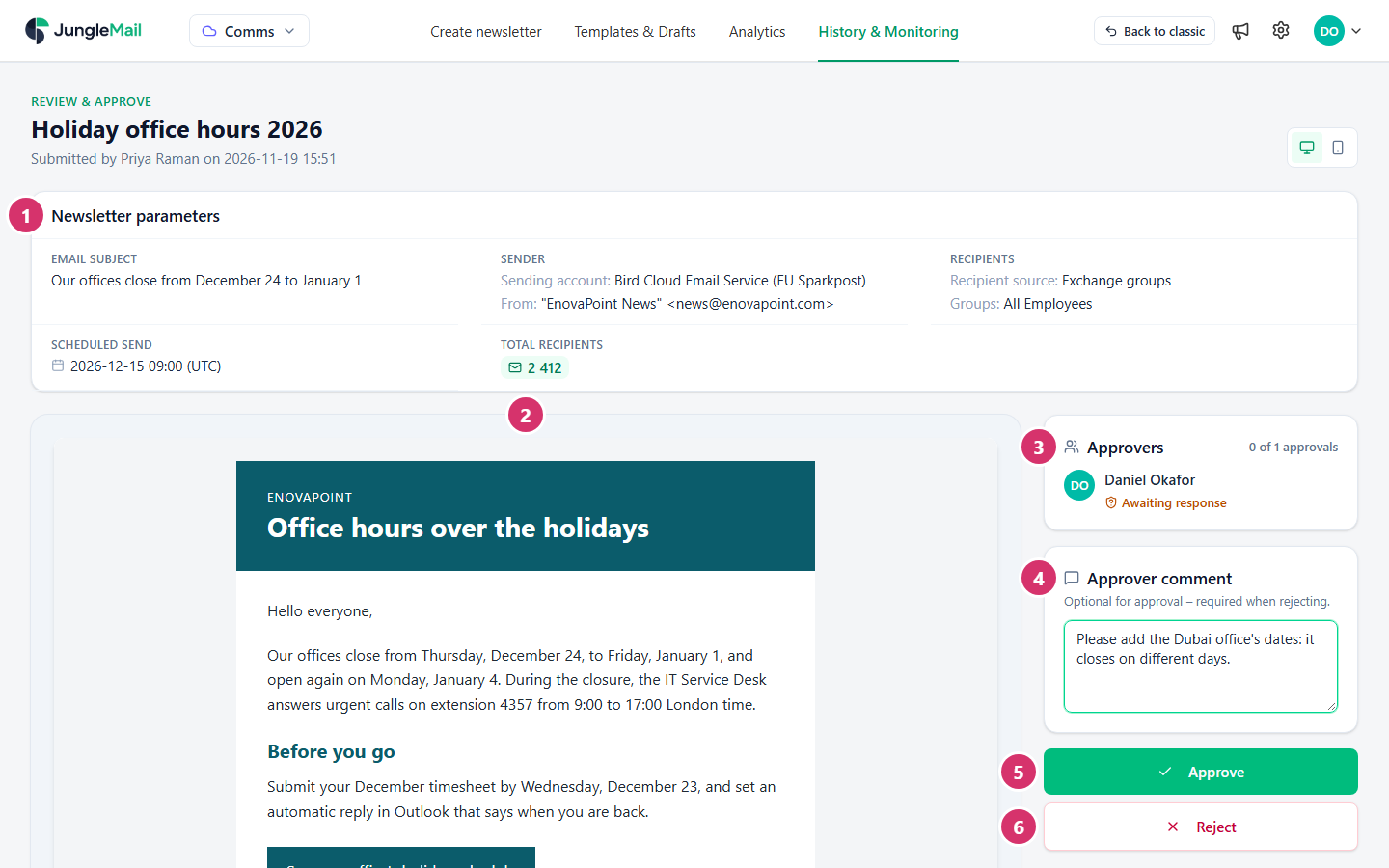
- Check Newsletter parameters: the Email subject, the Sending account and From address, the Recipient source with its groups, list or addresses, any Additional recipients and Exclusion filters, when it goes out (Scheduled send, or Immediately after approval), and the Total recipients. Total recipients is the quickest check of the audience: a newsletter for the London office that shows All Employees’ 2,412 instead of 820 is going to the wrong people.
- Check the content in the preview. The two buttons at the top right switch it between desktop and mobile, and selecting the newsletter’s title opens it at full size.
- Under Approvers, see who has answered, for example 1 of 2 approvals: each approver is marked Approved, Awaiting response, Rejected or Skipped.
- In Approver comment, write what the submitter should know. A comment is optional when you approve and required when you reject. When you reject, say what to change and where, such as “The registration button opens last year’s form”: the submitter works from your comment. They read it in the email JungleMail sends once the newsletter is approved or rejected, and under More actions > Open approval review.
- Approve records your approval. Once enough approvers have approved, JungleMail sends the newsletter.
- Reject records your rejection and notifies the submitter, who sees your comment. The newsletter goes back to their drafts.
JungleMail asks you to confirm either answer. Back to History & Monitoring takes you back to the list.
If your site needs every approver’s approval, the newsletter goes out only when the last one approves. A newsletter whose approvals are complete but which isn’t sent yet shows All approvers have approved, and Approve and send sends it.
- Reject for what must change before it goes out. A rejection sends the newsletter back to the submitter’s drafts. For a point that can wait, such as a style note for next time, approve and put it in your comment.
- Answer before the scheduled send. Scheduled send says when the newsletter is due: answer before then, so that it can go out on time. If you approve it later, it goes out at once. With Immediately after approval, the last approval sends it at once, so approve only when it is ready to go.
- Ask for a test if you want it in your inbox. The submitter can send you a test email, if their role allows tests to others, so that you see the newsletter as Outlook or your phone shows it (Preview and test a newsletter).