

Work on a newsletter together
Several people can work on one newsletter at the same time: for example, you set it up while a colleague writes part of the content. Everyone sees the changes as they are made. One person is the newsletter’s editor and can use every step; the others work on the content. Use it when several people write one newsletter, such as an update with news from several teams, or for a colleague to check the content before you send it. Build such a newsletter in the Drag & Drop Builder, where everyone can edit at once.
Invite people
Section titled “Invite people”Open the newsletter in the newsletter wizard. The collaboration controls are at the bottom left. On a newsletter that isn’t saved yet, Invite users and Copy link first ask you to save it as a draft: select Save Draft.
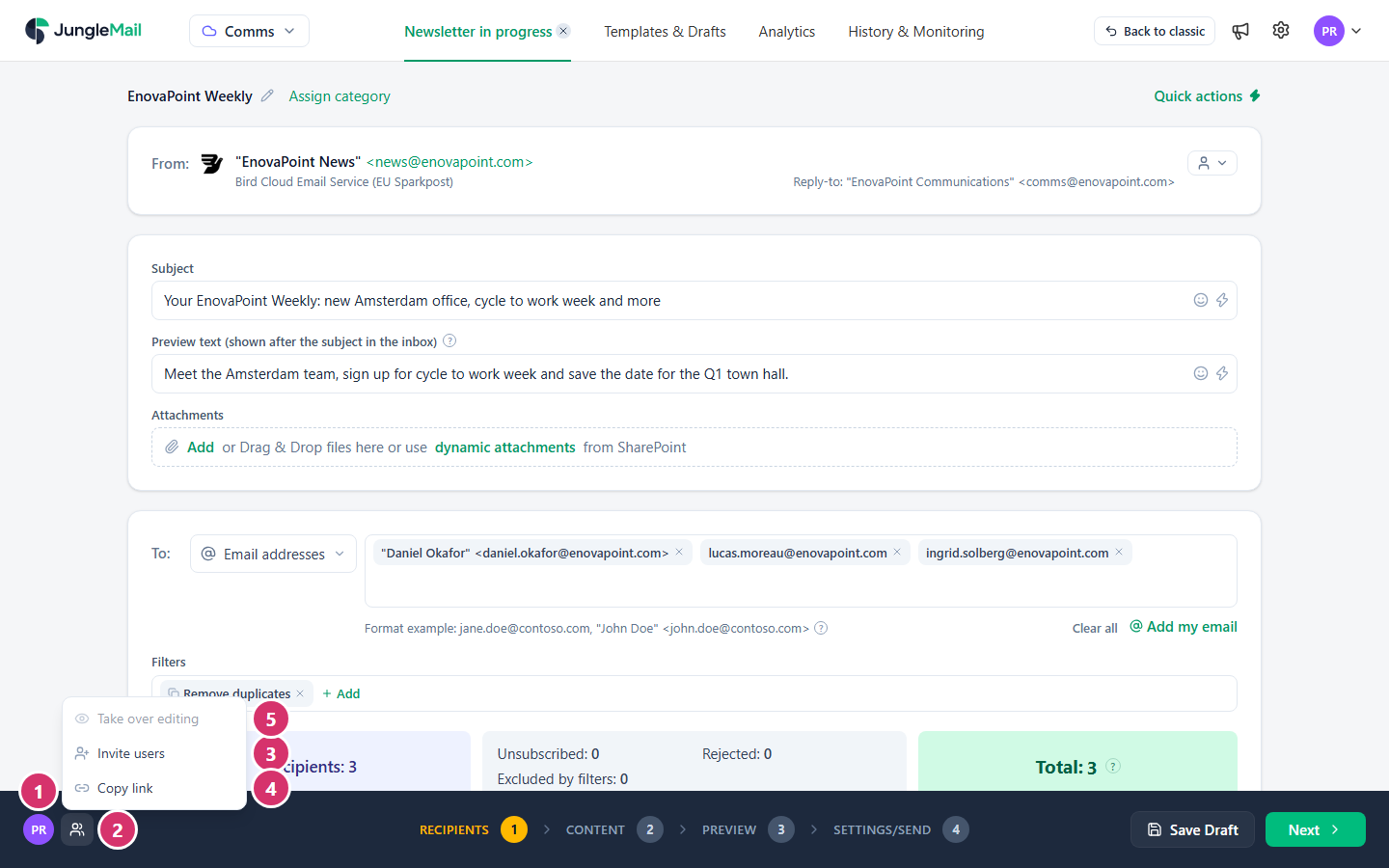
- The initials of everyone working on the newsletter right now. Point at them to see the names.
- Select Who is working on this newsletter.
- Select Invite users and choose the people. Each gets an email with a link to the newsletter.
- Or select Copy link and send the link yourself. Anyone who can open JungleMail 365 can work on the newsletter with it.
- Take over editing makes you the newsletter’s editor (see below). It appears once the newsletter is saved, and is grayed out for whoever is already the editor.
When someone joins, JungleMail tells everyone, for example Daniel Okafor is now working on this newsletter.
Who can change what
Section titled “Who can change what”The editor, at first the person who opened the newsletter, can use every step. Everyone else can work on the email in the Content step: in the Drag & Drop Builder all of you edit it at once, while in the Rich Text Editor and the HTML Editor only the editor changes it and the others watch. The other steps are grayed out for them, and pointing at one says who the editor is, for example Only Priya Raman can use this step. Take over editing to unlock it.
To change the recipients or the settings yourself, select Take over editing in the collaboration menu. You become the editor, and the person who was the editor works on the content.
While you work together:
- If your connection drops, JungleMail shows Reconnecting… and pauses editing until the connection is back. A change that didn’t reach the others is undone, and JungleMail says so.
- No one can cancel the newsletter while others are working on it.
- When someone sends the newsletter, everyone else is told This newsletter has been sent. Their changes to the content were saved as they made them.
Templates
Section titled “Templates”You can edit a template together too. In the template editor, the Collaboration menu has Invite users and Copy link. In the Drag & Drop Builder, everyone edits the template at the same time. In the Rich Text Editor and the HTML Editor, one person at a time edits it; the others watch the changes as they happen until they select Take over editing.
- Let whoever sends the newsletter be its editor. Only the editor can use the Recipients, Preview and Settings/Send steps. Priya, who sends EnovaPoint Weekly, keeps that role, while Daniel writes his leadership column in the Content step.
- Agree who writes what in the Chat tab. The email builder has a Chat tab for talking while you work; on a newsletter that isn’t saved yet, your first message saves it first (Design emails).
- Ask before you take over editing. The editor loses the other steps at once and goes back to the content, perhaps in the middle of choosing the recipients.