

Send or schedule a newsletter
You send a newsletter, or schedule it for later, in the last step of the newsletter wizard, Settings/Send. Schedule it for a time your readers are likely to read it rather than sending it the moment it is ready: until that time, you can still edit or cancel it. Send now suits what can’t wait, such as a notice about a service outage.
Before you begin
Section titled “Before you begin”- The newsletter needs a sending account, recipients, a subject and content. Settings/Send lists anything that is missing; select Fix. beside it to go there. When nothing is, it says Ready to take off!
Send it now
Section titled “Send it now”- Go to the Settings/Send step.
- In When to send, leave Now selected.
- Select Send now. JungleMail sends the newsletter without asking again and takes you to History & Monitoring.
On a site that requires approval, the button is Submit for approval instead (Submit a newsletter for approval).
Schedule it
Section titled “Schedule it”In the newsletter wizard, go to the Settings/Send step.
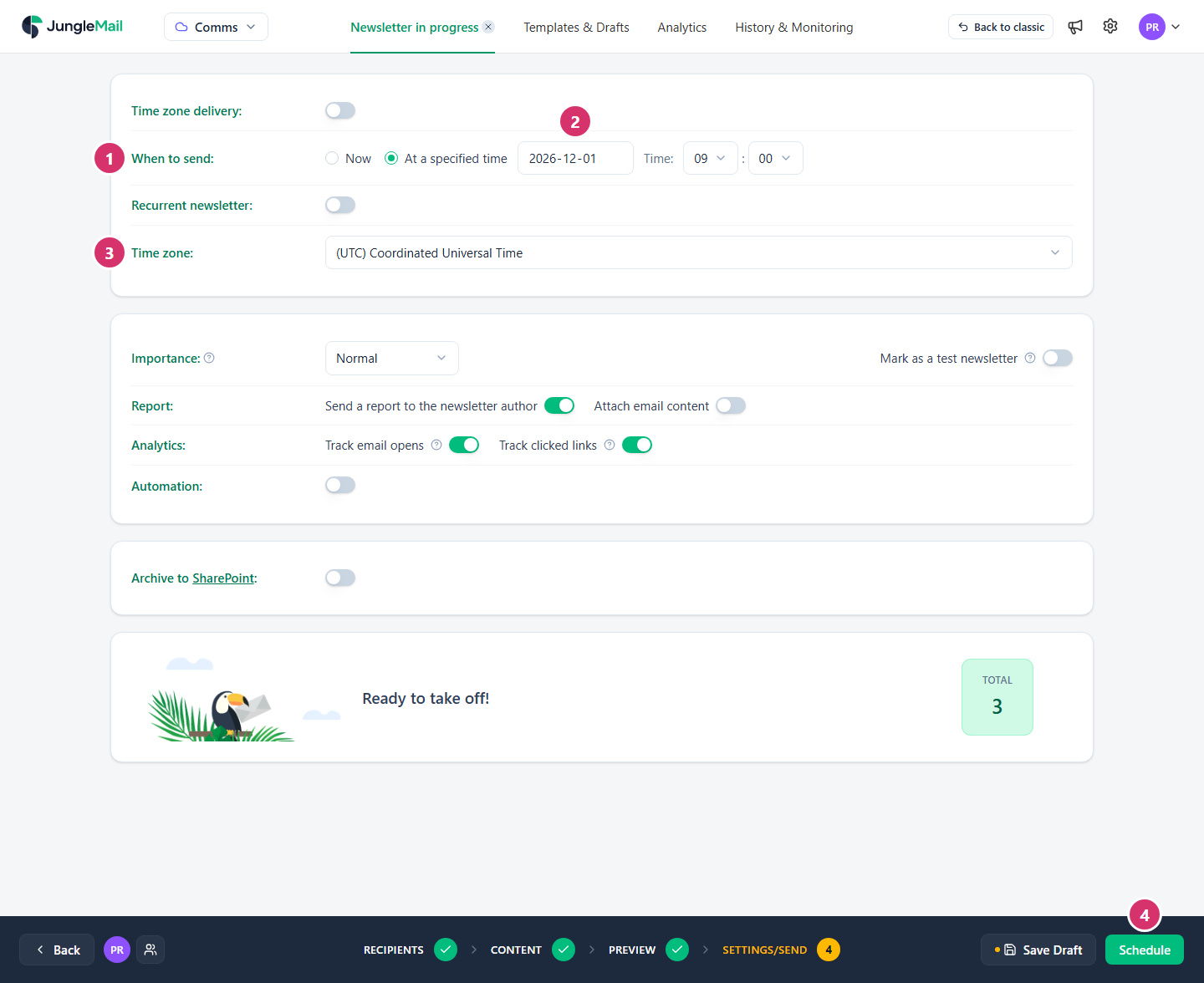
- In When to send, select At a specified time.
- Choose the date and the Time. For a good time, look at when readers opened your earlier newsletters: their reports show it under Peak Engagement Window and Opens by Hour of Day (Read a newsletter report).
- Check the Time zone they refer to. It starts as your site’s time zone; change it when the time you have in mind is another zone’s, such as 9:00 in Sydney for a newsletter to the Sydney office.
- Select Schedule.
A time that has already passed is refused: the step says The scheduled date must be in the future.
Deliver at the same local time everywhere
Section titled “Deliver at the same local time everywhere”With Time zone delivery on, you choose a date and a time, and each recipient gets the newsletter at that time in their own time zone: 9:00 in London and 9:00 in Dubai. Recipients whose time zone JungleMail can’t work out get it at that time in the Default time zone. The step also previews when each group of recipients will receive it.
Use it for a newsletter to several time zones, such as EnovaPoint’s offices from Chicago to Sydney, where one time would reach some readers at night. Choose as Default time zone the zone of your largest office, such as London for EnovaPoint, and schedule the newsletter a day ahead or more. Recipients whose local time has already passed when the newsletter starts sending get it at once, not at the time you chose.
Time zone delivery is part of the Enterprise plan.
After you send it
Section titled “After you send it”The newsletter is listed in History & Monitoring under Running & Scheduled while it is being sent or waits for its time. There you can follow its progress, pause it or stop it. Once it has reached everyone, it moves to History.
To send a newsletter again and again, for example every Tuesday, turn on Recurrent newsletter in the same step, on the Pro and Enterprise plans (Set up a recurring newsletter).
- Look at the calendar before you choose a day. The dashboard’s Calendar shows your site’s newsletters sent, planned and waiting for approval, so that yours doesn’t land on the same morning as another (The dashboard).
- Allow time with a Microsoft 365 sending account. A mailbox sends up to 30 messages a minute (Exchange Online limits), so a newsletter to EnovaPoint’s 2,412 employees takes about 80 minutes to reach the last of them. The type of account shows under the address in From. For a notice that must arrive by a set time, schedule it that much earlier, or send it from a JungleMail mail server if your site has one (Choose a sending account type).
- Pause at once if you spot a mistake. In History & Monitoring, Pause holds the emails not yet sent while you decide what to do (Monitor, pause and stop a newsletter).