

Set up a recurring newsletter
A recurring newsletter goes out again and again on a schedule you set: every Tuesday at 9:00, or on the last working day of each month.
It is meant for news and updates that come from SharePoint: with SharePoint content in the email, each issue picks up the latest stories and items, without anyone touching it (Add SharePoint content). A weekly news digest from your intranet is the typical example; a reminder whose text stays true every time, such as a monthly timesheet reminder, works as well. For a newsletter you write anew each time, start every issue from its template instead (Start a newsletter from a template).
Before you begin
Section titled “Before you begin”- Recurring newsletters are part of the Pro and Enterprise plans.
- The newsletter needs a sending account, recipients, a subject and content, as any newsletter does.
Set the schedule
Section titled “Set the schedule”In the newsletter wizard, go to the Settings/Send step. The example sends EnovaPoint Weekly every Tuesday at 9:00 for six weeks.
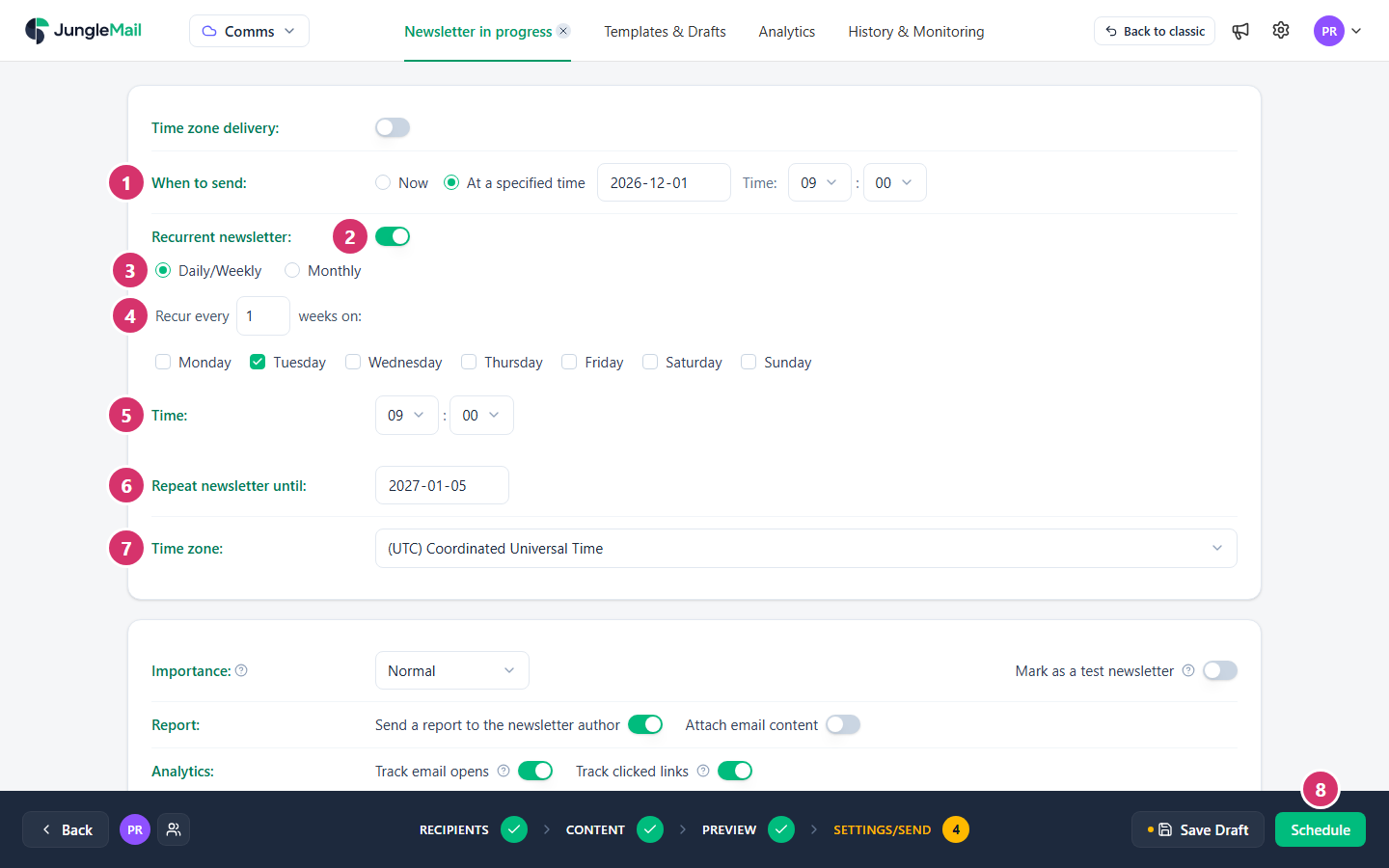
- In When to send, select At a specified time, then choose the date and Time of the first newsletter.
- Turn on Recurrent newsletter.
- Select Daily/Weekly to repeat on days of the week, or Monthly to repeat on a day of the month (see below).
- For Daily/Weekly, type in Recur every how many weeks apart the newsletters go, from 1 to 8, and select the days. For a daily newsletter, select every working day.
- In Time, choose the time of day the newsletters after the first go out.
- In Repeat newsletter until, choose the last day a newsletter may go out, or leave it empty to repeat until you cancel it. Give a series with an end, such as reminders until benefits enrollment closes, its last day, so that it stops by itself.
- Check the Time zone the times refer to.
- Select Schedule.
Monthly newsletters
Section titled “Monthly newsletters”With Monthly, select the months to send in, then choose the Day: a day from 1 to 31, First working day, Last working day or Last day. Working days are Monday to Friday. In months shorter than the day you chose, such as the 31st, the newsletter goes out on the last day of the month. For a reminder tied to the end of the month, such as timesheets, choose Last working day rather than a date, which can fall on a weekend.
After you schedule it
Section titled “After you schedule it”The newsletter waits in History & Monitoring, under Running & Scheduled, which shows the date and time of the next one. From there you can pause, edit or cancel it (Monitor, pause and stop a newsletter). Sent issues are listed under History > Recurrent.
If something doesn’t fit, the step says so:
| Message | What to do |
|---|---|
| At least one day of the week must be selected. | Select a day under Recur every |
| At least one month must be selected. | Select a month under Monthly |
| Specified date must be greater than scheduled date. | Choose a Repeat newsletter until date after the first newsletter |
- Write fixed text that stays true. Every issue sends the same content, apart from what fills itself in when it is sent, such as SharePoint content and formulas. Leave dates and “this week” out of the text you type, and let a formula name the month in the subject: Current Month |MMMM| in the subject’s Quick actions (Write the subject and preview text).
- Skip the weeks with no news. A sending condition on the SharePoint content sends nothing when it finds no new items (Skip sending when there is no new content).
- Send to a group, not a file. JungleMail 365 reads a group’s members again for every issue, so new starters get the next one; a file stays as it was when you uploaded it (Recipients).
- Schedule it again after you edit it. Edit cancels the series and opens it as a draft, and no issue goes out until you select Schedule again, with a first date in the future (Monitor, pause and stop a newsletter).