

Export a template or newsletter to PDF
A PDF of a newsletter is useful for printing, as a record of what was sent, or to share with someone who didn’t receive it. JungleMail 365 makes the PDF from the email as recipients see it.
Export from Templates & Drafts
Section titled “Export from Templates & Drafts”In the top menu, select Templates & Drafts.
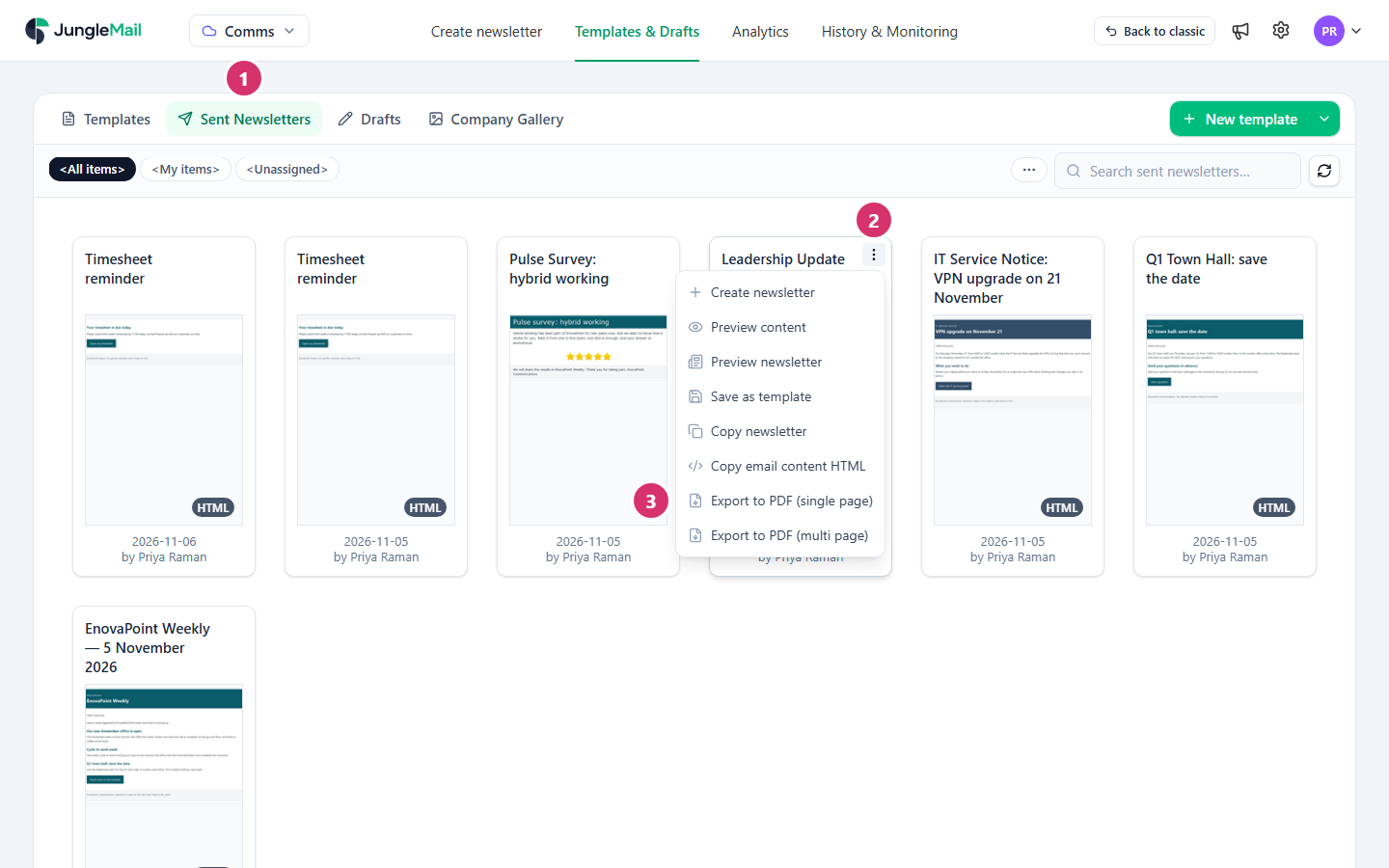
- Select the tab: Templates, Sent Newsletters or Drafts.
- Point to the template or newsletter and select More actions (⋮) at its top right.
- Select Export to PDF (single page) or Export to PDF (multi page): single page to read or keep on screen, multi page to print.
Your browser saves the PDF with your other downloads, named after the email’s subject, or after its name if it has no subject.
| Option | What you get |
|---|---|
| Export to PDF (single page) | The whole email on one long page, as on screen |
| Export to PDF (multi page) | The email divided into pages, ready to print |
A sent newsletter is exported as it was sent. A template or a draft is exported as it is now.
Export from a newsletter’s preview
Section titled “Export from a newsletter’s preview”The eye on a sent newsletter opens its preview, as it does in History & Monitoring; in Analytics, the title at the top of a newsletter’s report opens it too. On the preview’s Content tab, select Export PDF, then Export as single-page PDF or Export as multi-page PDF.
When there is no PDF
Section titled “When there is no PDF”- The menus have no Export to PDF: PDF export isn’t set up for your JungleMail.
- A sent newsletter can’t be exported: the site is set not to keep newsletter content after sending (Do not store newsletter content), so there is nothing left to export (Security and privacy settings).
- A message about a size limit appears instead of a file: the PDF would be larger than JungleMail allows. The message gives the limit.
- Archive to SharePoint for a record of everything. With the archive on, on the Pro and Enterprise plans, a site keeps a copy of each newsletter it sends in a SharePoint list or library, where colleagues can find it, without anyone exporting it (Archive newsletters to SharePoint).
- Keep a PDF of newsletters you need longer than the site keeps them. A site can delete sent newsletters automatically after a number of months, and once they are deleted there is nothing left to export (Audit copies and data retention).
- On a site that doesn’t keep newsletter content, export the draft before you send it. The newsletter is under Drafts while you work on it, and a draft is exported as it is now; once the newsletter is sent, its content is gone (Security and privacy settings).