

Security and privacy settings
The Security and Privacy tab of a site’s settings decides what JungleMail 365 stores about recipients, which features editors can use, and whom newsletters can reach. Go to Settings > Settings; it is the first tab. You need the Administrator role on the site, or a role with Manage Settings.
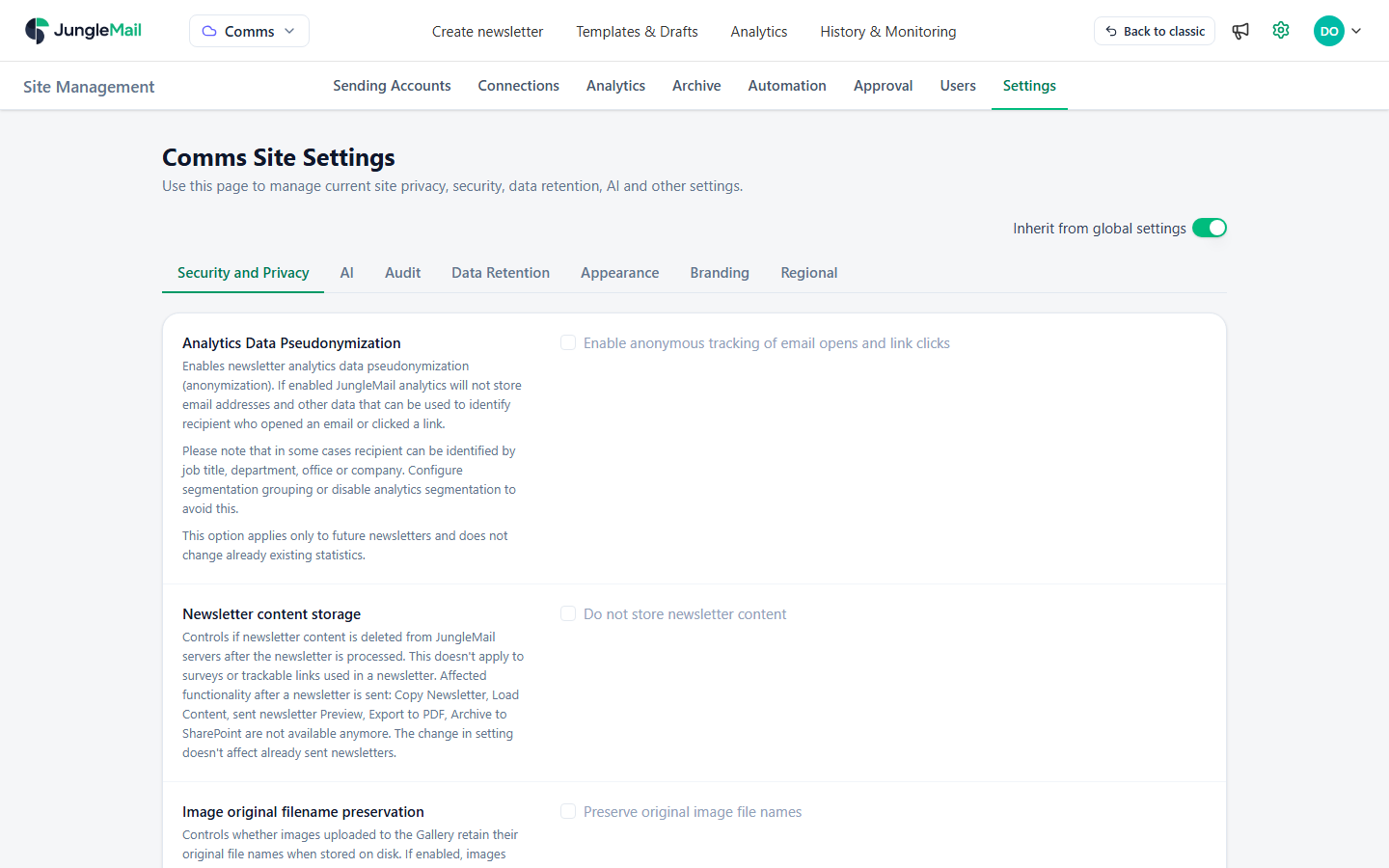
While Inherit from global settings is on, the site uses the settings your global administrator chose for every site, and nothing on the seven tabs can be changed here. To give the site its own settings, turn it off, change what you need, and select Save.
Analytics and content
Section titled “Analytics and content”| Setting | What it does |
|---|---|
| Analytics Data Pseudonymization > Enable anonymous tracking of email opens and link clicks | Analytics no longer stores email addresses or anything else that tells who opened or clicked. Newsletters sent before keep their statistics. A department, job title, office or company can still point to one person: group such values or leave those segments off (Set up analytics segments and locations) |
| Newsletter content storage > Do not store newsletter content | Deletes a newsletter’s content from JungleMail’s servers once it is sent, apart from surveys and trackable links. Sent newsletters can then no longer be copied, previewed, loaded as content, exported to PDF or archived to SharePoint later; the archive still receives each newsletter as it is sent. Newsletters already sent are not affected |
| Image original filename preservation > Preserve original image file names | Images uploaded to the gallery keep the file name they had, rather than a generated one. Only new uploads |
| Surveys > Enable surveys | Lets editors add surveys to newsletters |
Recipients
Section titled “Recipients”| Setting | What it does |
|---|---|
| Allowed recipient sources | Which recipient sources editors can choose in To: Microsoft 365, AD groups, SharePoint list, Exchange groups, Dynamics 365, Email addresses, File, Previous newsletter and, while the site keeps JungleMail subscribers, Subscribers. At least one stays on |
| Allowed Microsoft Entra ID Groups | Allow all groups (default), or Allow only selected groups and the groups editors may send to. Needs the Microsoft Entra ID connection and the Enterprise plan |
| Allowed Exchange Groups | The same for Exchange groups, with the Microsoft Exchange connection. Enable Exchange Groups recipient caching keeps the groups’ members, so later newsletters to them are prepared faster; Cache status says which groups are cached |
| Allowed email domains | Allow all email addresses (default), or Allow only specified email address patterns. Addresses that match none of the patterns are left out before the newsletter is sent |
| Forbidden email domains | Allow all email addresses (default), or Forbid specified email address patterns. Addresses that match any pattern are left out |
| Recipients retrieval debug mode > Allow to download recipients CSV file | Lets global administrators download the recipients JungleMail resolved for a newsletter, to compare with a group’s members. Only global administrators see the change |
Patterns are separated by commas. Each is an exact address, a pattern with *, or a regular expression between ^ and
$. To let a site send only inside EnovaPoint and to one partner, for example:
*@enovapoint.com, *@partner.exampleYour global administrator can set the same restrictions for every site (Restrict recipient sources, groups and domains).
Which to choose
Section titled “Which to choose”- To keep readers anonymous, turn on anonymous tracking, not only hide the tab. Hiding Recipient Activity (Change the menu colors and template tabs) removes one view, but JungleMail still stores who opened and clicked. Anonymous tracking stores no addresses, at a cost: editors can no longer follow up with the people who didn’t open a newsletter (Delivery, tracking and report options).
- Keep newsletter content stored unless a policy says otherwise. Do not store newsletter content takes away copying, previews and PDF export for every newsletter sent after it, so turn it on only when newsletter content must not stay on JungleMail’s servers.
- Offer only the recipient sources the site needs. On a site that sends to directory groups, turning off File and Email addresses keeps newsletters going to lists your IT team maintains rather than to addresses an editor typed or uploaded.
- Use one domain list, not both. Allowed email domains suits a site that must stay inside the organization and a few partners, as in the example above; Forbidden email domains suits a site that may write to anyone except a few domains.
- Limit the groups on a site with one audience. With Allow only selected groups, the People & Culture site, for example, could offer only the groups HR writes to, so that nobody sends to All Employees from it by mistake.