

Send to a SharePoint list
The SharePoint list recipient source sends a newsletter to the people in a SharePoint list: the address in each item, or the people in a person column. You can send to the whole list or only to the items in one of its views, and every column of the list can fill in merge tags, such as each reader’s office. Choose it for people that colleagues keep in a list, such as event attendees or project members; for everyone in an office or a team, a group needs no list kept up to date (Recipients).
Before you begin
Section titled “Before you begin”- A site administrator has set up the SharePoint connection for your JungleMail site (Connect SharePoint). Until then, the source shows a message instead of the list (below).
- JungleMail 365 reads the list with your own SharePoint permissions or with those of a service account, depending on how the connection was set up, so it can use only lists that account can open (SharePoint connection: service account or selected sites).
- The list has a column with email addresses, or a person column.
Choose the list
Section titled “Choose the list”In the newsletter wizard, go to the Recipients step.
-
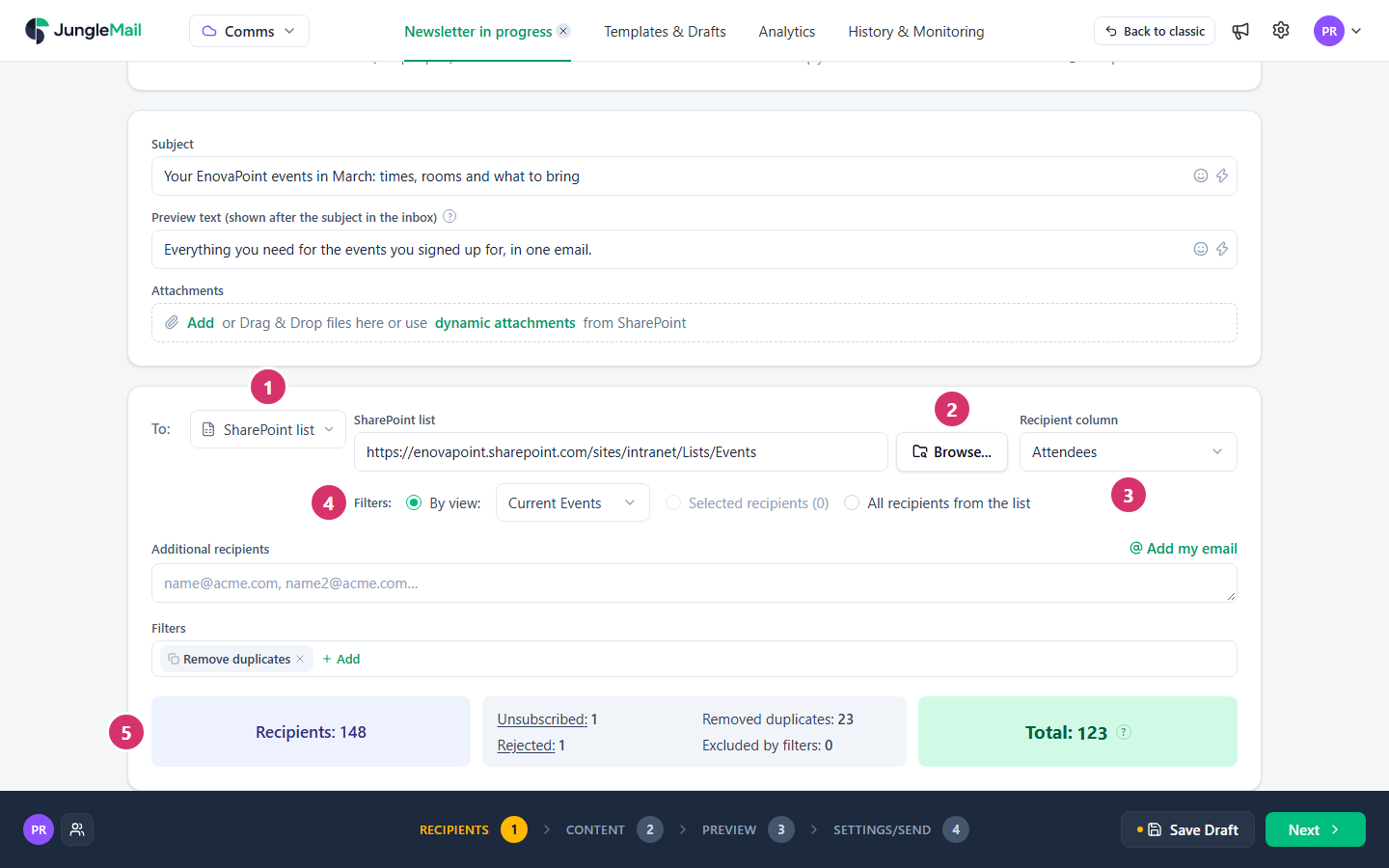
Open the list next to To and select SharePoint list.
-
Under SharePoint list, select Browse…, go to the site and select the list, such as Events on
https://enovapoint.sharepoint.com/sites/intranet. You can also paste the list’s address into the box. -
Check that Recipient column shows the column with the addresses or the people, such as Attendees, and choose another one if it doesn’t. It offers only the columns that can hold an address. Where the list has both, choose the person column: it also gives each person’s job title, department, office and picture as merge tags (Merge tags).
-
Next to Filters, choose which items get the newsletter:
- By view and one of the list’s views, for the items that view shows, such as Current Events;
- All recipients from the list, for every item;
- Selected recipients, for items that were selected in SharePoint. The number of selected items is beside it; it can be chosen only when the newsletter was started from selected items (see below).
To reach some of the items, use a view, and ask the list’s owner for one if none fits, such as attendees of one session: the Conditions filter, which narrows groups, isn’t offered for lists (Filter recipients).
-
Check the counts below: Recipients is everyone in the items you chose, and Total is everyone who will receive the newsletter.
To send to some items only, start the newsletter in SharePoint: in the list, select the items, then select JungleMail 365 in the list’s command bar. JungleMail opens a new newsletter in a new tab, with that list and Selected recipients chosen. The JungleMail 365 button comes with the JungleMail Modern Pack (Install the JungleMail Modern Pack).
Each item gets one email per address: an item whose address column holds two addresses, or whose person column holds two people, sends two emails. Items without an address are left out.
Use the list’s columns in the email
Section titled “Use the list’s columns in the email”Every column of the list can be a merge tag. If the list has a column Office, the email can say “See you at the London office” to one reader and “See you at the Dubai office” to another. Insert the columns from Insert merge tag in the email builder, or from Placeholders & Formulas in the subject’s Quick actions (Personalize with merge tags).
If the connection is not enabled
Section titled “If the connection is not enabled”In the newsletter wizard’s Recipients step, with SharePoint list chosen:
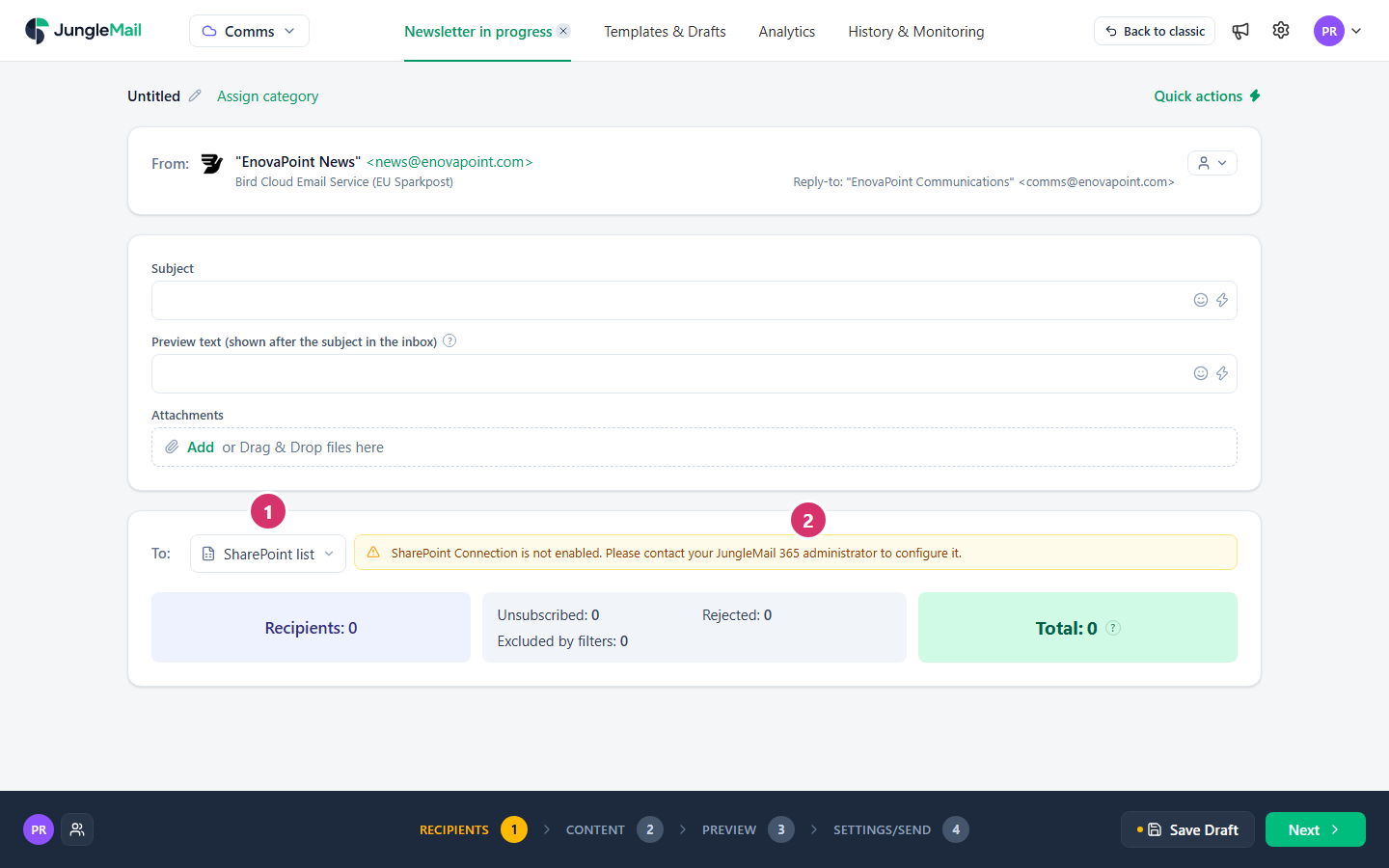
- The source.
- SharePoint Connection is not enabled. Please contact your JungleMail 365 administrator to configure it.: your JungleMail site has no SharePoint connection yet. Site administrators see Go to Connections… here, to set it up.
If the box has (reactivate connection) beside SharePoint list and JungleMail can’t read a list you could read before, select it and sign in again. JungleMail then says SharePoint connection reactivated. It’s offered when the connection uses each person’s own account.
- Name the columns the way reports look for them. Columns called Department, Office, Job Title and Company let the newsletter’s report break its results down by them. A list’s own Title column doesn’t count as a job title (Results by department, job title, office and company).
- Look at a reader whose item has gaps. A merge tag for an empty column stays empty in that reader’s email: check one of them in the Preview step, then fill in the column or reword the sentence (Preview and test a newsletter).
- Keep recipient lists on sites that JungleMail can read. With a service account, the connection reaches only what that account can open; per site, only the sites granted to JungleMail. Ask your site administrator before you build a list on a new site (SharePoint connection: service account or selected sites).