

Set the default template
Every new newsletter starts from a default template. Unless you choose another, that is JungleMail 365’s own blank design. Replace it with one of your organization’s, made on the Global site, and every newsletter starts with your header, footer and branding, even when an editor starts from scratch. Each editor has its own default: one for the Drag & Drop Builder and one for the Rich Text Editor. A new newsletter starts from the Drag & Drop Builder’s, or from the Rich Text Editor’s when only that one is chosen. A new template, and Start from Scratch / Switch to in the email builder, start from the default of the editor you pick.
Choose the default once, for every site, and give a site a default of its own only when its branding differs, such as a team with a header of its own (below).
Before you begin
Section titled “Before you begin”- Default templates are made on the Global site, by someone with the Administrator or Template Manager role there; a global administrator needs one of them too (below).
- To choose the default for every site, you need to be a global administrator. To choose it for one site, you need to be an administrator of that site.
- Default templates are part of the Enterprise plan.
Make a default template
Section titled “Make a default template”- On the Global site, select Company Gallery in the top menu, then Default.
- Select New template, then Start with drag & drop builder or Start with rich text.
- In New default template, type the Template name and select Create.
- Design the header, footer and branding every newsletter should start with, then select Save and Close (Create a template).
Beside each default template’s name, Drag & drop or Rich text says which editor it is for. Default templates aren’t published like shared templates: a default template is used once it is chosen in the settings below.
Choose the default for every site
Section titled “Choose the default for every site”Select Settings (the cog at the top right), then Global Management > Settings.
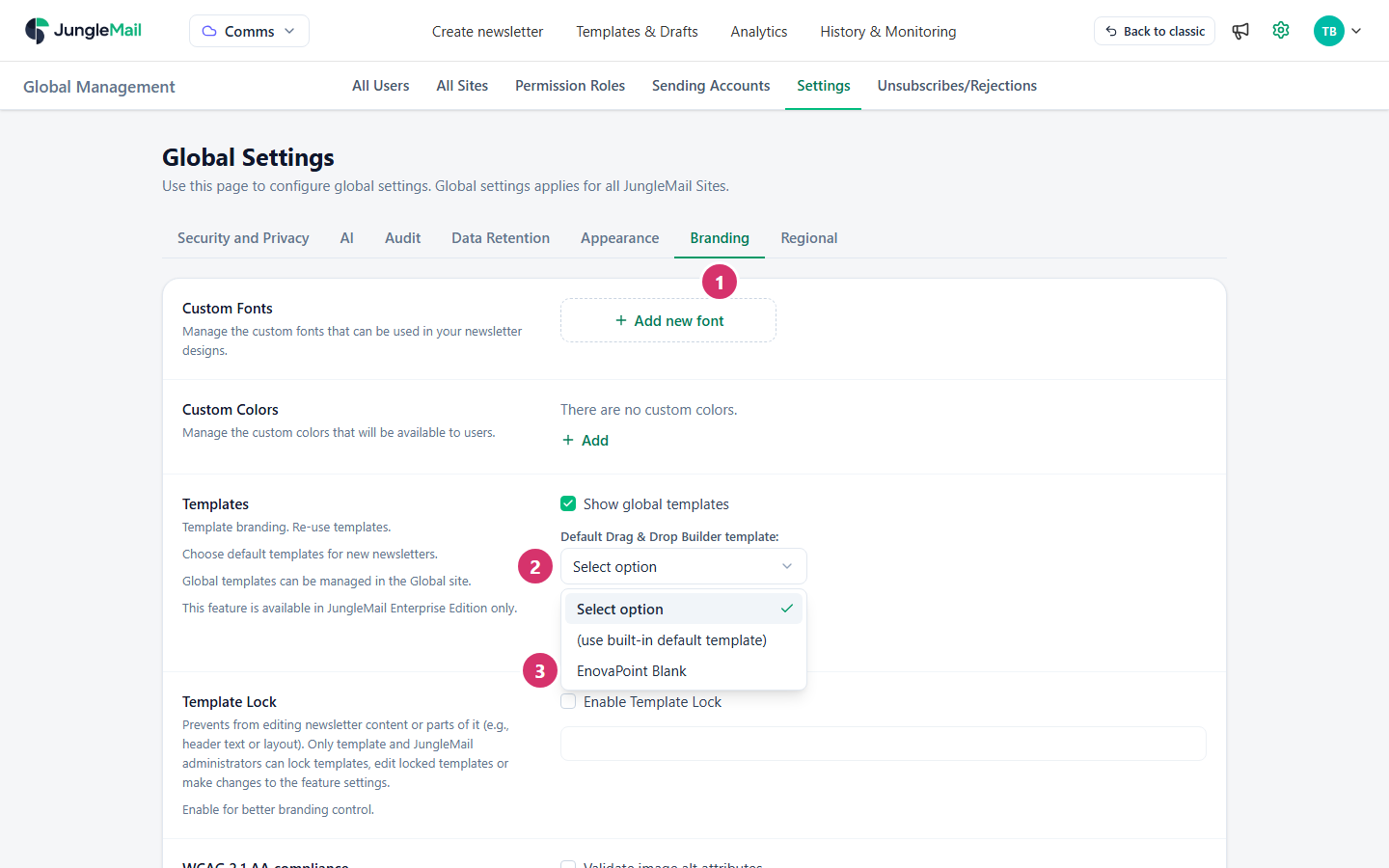
- Select the Branding tab.
- Under Templates, open Default Drag & Drop Builder template, or Default Rich Text Editor template for the other editor. Whenever you choose a Rich Text Editor default, choose a Drag & Drop Builder one too: with only a Rich Text Editor default, every new newsletter opens in the Rich Text Editor, which has no blocks, sections or themes.
- Choose the template. (use built-in default template) goes back to JungleMail’s own, which the list then shows as Select option.
- Select Save in the bar that appears at the bottom of the page.
Every site that inherits the global settings starts its new newsletters from that template.
Choose the default for one site
Section titled “Choose the default for one site”Select Settings (the cog at the top right), then Site Management > Settings, and the Branding tab. The Templates row is the same as above.
While Inherit from global settings, at the top of the page, is on, the site uses the global settings and the controls are grayed out. Turning it off gives the site settings of its own, on every tab of the page (Global settings and inheritance). Then choose the default template as above, and select Save. From then on, the site no longer follows changes to the global settings on any tab, such as which recipients newsletters may reach, so do this only for a site that needs a default of its own.
In the same row, Show global templates decides whether the site lists the templates shared from the Global site (Share templates with every site).
- Keep the default to what every email needs: the header with your logo, and the footer with your contact details and an unsubscribe link. Every new newsletter starts from it, a one-off invitation as much as a weekly update, so anything more has to be deleted each time (Add an unsubscribe link).
- Use only merge tags that every recipient source has, such as
{First name}. Newsletters to groups, lists and files all start from the default, and a merge tag that the recipients’ source doesn’t have stays in the email as typed (Merge tags). - Update the default and the shared templates together when your branding changes. Each is a separate copy, and the newsletters already made keep the design they started with (Share templates with every site).