

Write and design with the AI assistant
The AI assistant writes and changes your email from a request in plain words: “Write a newsletter about our latest news”, “Make this shorter and easier to read”, “Draw a picture for the header”. It works in all three editors, on the AI tab.
Use it for a first draft built from material you give it, such as a report or a web page, and for rewording, shortening or restyling what you have written. It knows nothing of your organization beyond what you give it, so the facts, the names and the final read are yours.
Before you begin
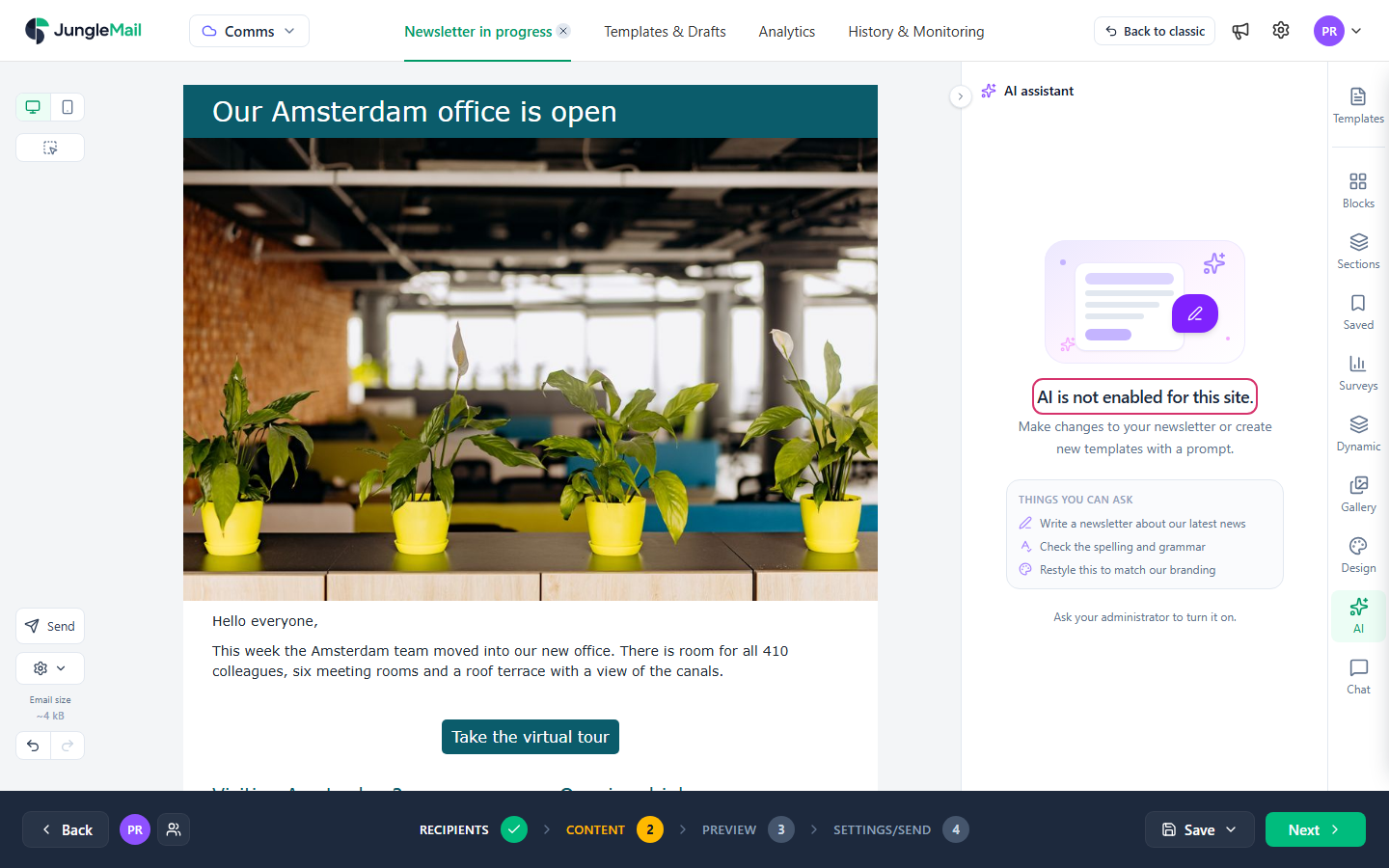
Section titled “Before you begin”- A site administrator turns AI on for your site and chooses its models: OpenAI ChatGPT, Google Gemini or both (Turn AI features on or off). Without it, there is no AI tab, or it says AI is not enabled for this site.
- You need permission to edit newsletters or templates.
Ask for a change
Section titled “Ask for a change”- In the Content step, select AI. The first time, read the note about how your messages are processed and select I understand and agree.
- Type your request in Ask the assistant…, or pick one from Things you can ask. Be specific: who the email is for, what it should say, how long it should be. “Write a short story for the London office about Cycle to Work Week, with a button to register” gets closer on the first try than “Write about cycling”.
- To give the assistant material, select + (Attach a file) or drop files on the panel: pictures, PDF, Word (.docx), text, CSV or HTML files, up to 10 per message, of which one document. A document can be up to 8 MB; a larger picture is made smaller. Pasting a link to a page works too. Attach the source rather than describing it, so that the assistant writes from your facts. Leave out anything confidential: it goes to OpenAI or Google (Turn AI features on or off).
- Press Enter to send. Shift+Enter starts a new line.
In the Drag & Drop Builder you can keep working while it answers; the other two editors are locked until it has finished. Select Stop to cancel. Its changes land in the email when the answer is complete, all at once: Undo takes them all back in one step. If a change no longer fits, for example because you deleted the block it was about, the assistant skips it and says so beside its answer.
Check everything it writes before you send the email: AI can make mistakes. Read it as you would a colleague’s draft, and compare every name, date, figure and link with your source.
Work on part of the email
Section titled “Work on part of the email”When only part should change, select it first: a request about selected blocks leaves the rest alone, while one about the whole email can also rework parts you had finished.
- In the Drag & Drop Builder, select Select blocks and sections on the left and select the parts to change.
- Select Ask AI in the bar below the email. The request box shows Selected content and how many parts.
- Ask, for example, Rewrite the selected content or Make the selected content shorter.
Pictures, branding and earlier chats
Section titled “Pictures, branding and earlier chats”- Pictures: ask for one, such as “Draw a picture for the header”, or for a change to a picture in the email, such as “Make the header photo brighter”. When it is clear where the picture goes, the assistant puts it there; otherwise it shows it with Apply, which puts it in its block. In the Drag & Drop Builder, you can also drag a picture onto the email. To keep it in your site’s Gallery, for example to use it in the other two editors, select Save to gallery in its menu. Edit with AI on an Image block starts the same from that picture (Edit an image).
- Branding: in the branding list at the top of the panel, which shows No branding at first, select Import from a website… and type your organization’s web address. The assistant reads your colors, fonts, logo and tone of voice, and then designs in them. Branding is shared with everyone on your site, and Edit branding lets you correct what it found. Each email keeps the branding chosen for it: a newsletter made from a template starts with the template’s, and one without starts with the branding you used last.
- Model: choose OpenAI ChatGPT or Google Gemini, if your site has both, and Fast mode for quicker, slightly less polished answers. Fast mode suits small changes, such as shortening a paragraph; leave it off for a whole newsletter.
- Chats: New chat starts over; Earlier chats lists your previous conversations. Your chats are private. JungleMail keeps each one for 30 days after you last use it, then deletes it.
The assistant can’t send the email, choose recipients, change the subject line, show sections to some recipients, fill them from SharePoint, or manage templates and saved sections. It can suggest a subject line for you to copy. In an email with several languages, it changes the words, pictures and links of the primary language only, while design changes apply to every language, and it doesn’t translate: use Translate… (Translate an email).
- Import your branding once, and correct it for everyone. Branding is shared across your site, so when one person
checks the colors, logo and tone in Edit branding after importing
www.enovapoint.com, everyone’s designs benefit. - Check what it adds as well as what it writes. Check the Alternate text the assistant writes for each picture it makes, add it to a picture you drag onto the email, which comes without, and check that buttons lead to the right page (Make your emails accessible).
- Keep the wording of a request that worked. Chats are deleted 30 days after you last use them, so a request you reuse for every issue, such as the one that turns the week’s intranet news into the EnovaPoint Weekly roundup, is safer in a document of your own.