

Send to Dynamics 365 records
The Dynamics 365 recipient source sends a newsletter to records in your organization’s Dynamics 365: the contacts, accounts or leads in one of its views, the members of marketing lists, or the audience of a campaign. JungleMail 365 reads them when it sends the newsletter, and every record’s address gets an email of its own.
Use it for customers, partners and leads that your organization keeps in Dynamics 365: the newsletter goes to the records as they are on the day it is sent, with no export to keep up to date. For your own employees, choose a group (Recipients).
Before you begin
Section titled “Before you begin”- Your organization has the Enterprise plan.
- A site administrator has connected Dynamics 365 to your JungleMail site and chosen which record types it offers (Connect Dynamics 365 CRM). Until then, the source shows a message instead of the records (below).
Choose the records
Section titled “Choose the records”- In the newsletter wizard’s Recipients step, open the list next to To and select Dynamics 365.
- Select Add. The Select Recipient Source window opens.
- On the left, select the kind of records: Marketing Lists, Campaigns, Accounts, Contacts or Leads. You see only the kinds your site administrator turned on. Choose Marketing Lists when your sales or marketing team has already chosen the audience, and Contacts, Accounts or Leads with a view to reach every record that matches it.
- In View, choose one of the Dynamics 365 views of those records, such as active contacts. Then:
- for Accounts, Contacts and Leads, that is all: the records in the view get the newsletter;
- for Marketing Lists, tick the lists in the table below. It shows each list’s Type, Dynamic or Static, and its Member Type. A dynamic list finds its members with a query each time it is used, so it stays current; a static list holds the members someone added by hand (Create a marketing list using in-app marketing);
- for Campaigns, choose the Campaign, and in Type what to send to: its Campaign Activities, its Marketing Lists or its Leads. For an activity, choose it in Activity; for marketing lists, tick them.
- Under Email fields, tick the addresses to send to: Email, Email Address 2 or Email Address 3. A record can have three; tick at least one. Tick Email alone unless your records keep the address people want in another field: every ticked field that holds an address sends an email of its own, so a contact with two addresses gets the newsletter twice and counts as two unique recipients (How unique recipients are counted).
- Select OK. Your choice appears in the box as one or more chips.
- To send to more records, select Add again. Check the counts below: Total is everyone who will receive the newsletter.
To change a choice, select its chip; to remove it, select the × on it.
If your site administrator turns off a record type you used, its chip is marked and the newsletter can’t be sent until you remove it: Dynamics 365 record type Leads is disabled by administrator. Please remove Dynamics 365 item., with that type’s name.
If the connection is not enabled
Section titled “If the connection is not enabled”In the newsletter wizard’s Recipients step, with Dynamics 365 chosen:
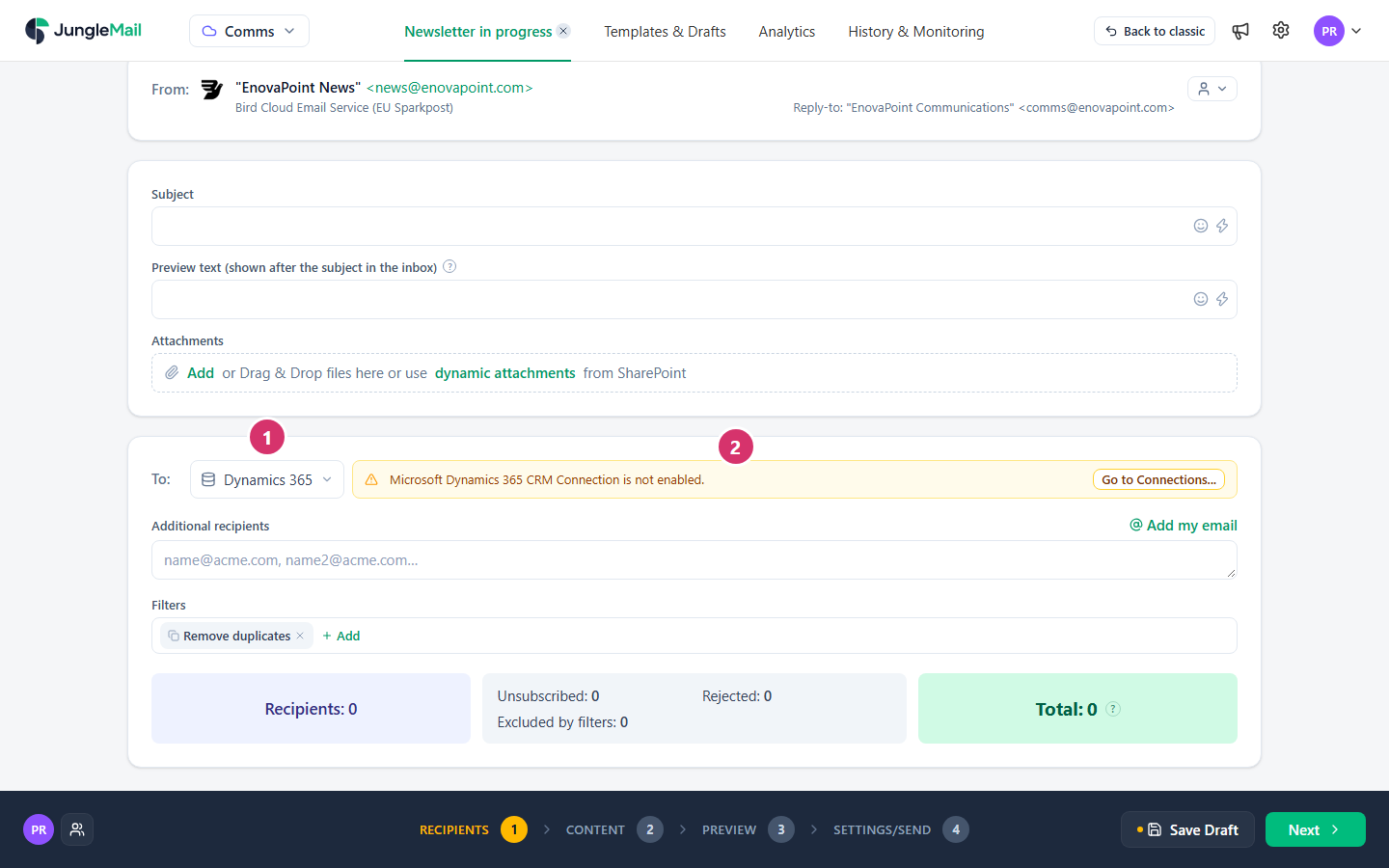
- The source.
- Microsoft Dynamics 365 CRM Connection is not enabled.: your JungleMail site isn’t connected to Dynamics 365 yet. A site administrator selects Go to Connections… to set the connection up; if you aren’t one, ask yours.
- Send from your own, authenticated domain. Newsletters to customers go to mail services outside your organization, such as Gmail, which asks every sender for SPF or DKIM authentication (Email sender guidelines). Through a JungleMail mail server, have your domain authorized first (Send from your own domain).
- Put an unsubscribe link in every newsletter to customers. A reader who can’t stop your newsletters may report them as spam instead, and Gmail asks senders to keep the share of their email reported as spam below 0.3% (same source). Your organization may also require the link in newsletters to people outside it (Add an unsubscribe link).
- Leave out the people who don’t want marketing email. Ask whoever runs Dynamics 365 for a view or marketing list that respects the contact preferences recorded there, and use it for every newsletter.
- Check the unique recipients before a large send. Each customer address your organization hasn’t sent to this quarter adds one to its count. Before you send to thousands of them, compare the Total with what is left of your plan this quarter, which a global administrator sees on Subscription (How unique recipients are counted).