

Export results to CSV or Word
JungleMail 365 exports its results in two forms: CSV files, with every row behind a list or a tab, and a Word report that summarizes one newsletter. CSV files hold tab-separated values; open them in Excel or another spreadsheet program. Export a CSV file to work with the figures yourself, such as a yearly review; generate a Word report to share one newsletter’s results with people who don’t use JungleMail.
Export the list of newsletters
Section titled “Export the list of newsletters”- Select Analytics in the top menu.
- Narrow the list with Search newsletter, Category and Sent date (Find and compare newsletter results).
- Select Export to CSV above the table.
The file, such as Analytics - 2026-11-05.csv, has a row for each newsletter that matches the filters, on every page
of the list, up to 1,000. Its columns include the title, subject, category, sending address, send time and sender,
then the sent, skipped and failed emails, opens, clicks, survey votes, unsubscribes and bounces with their rates, and
the share of each device.
Export a tab of a newsletter’s report
Section titled “Export a tab of a newsletter’s report”Open the newsletter’s report from Analytics, then the tab to export.
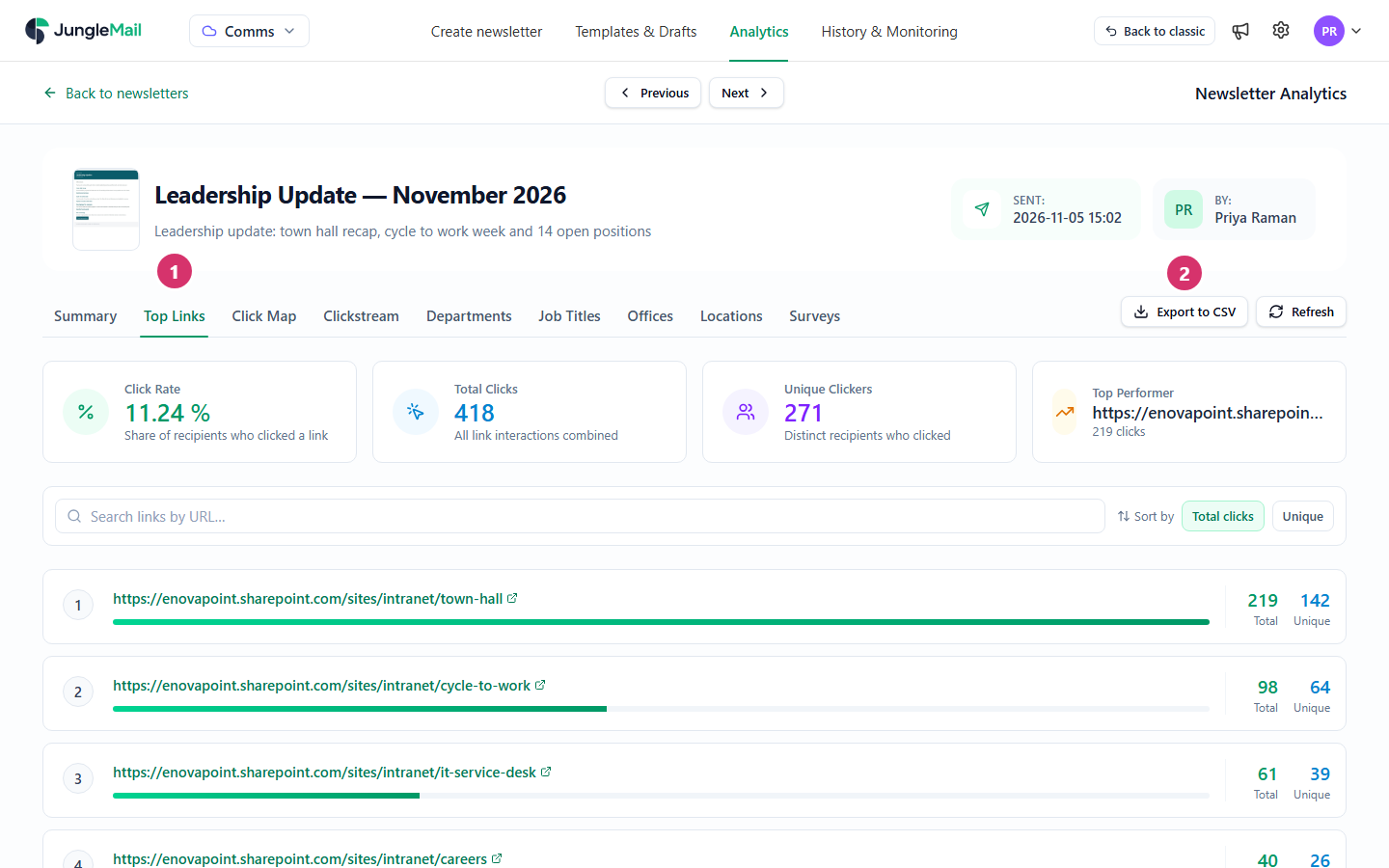
- Select the tab: Top Links, Clickstream, Departments, Job Titles, Offices, Companies, Locations or Surveys. A breakdown’s tab, such as Companies, shows only if your site has it turned on (Set up analytics segments and locations).
- Select Export to CSV.
Each tab exports what lies behind it:
| Tab | One row per |
|---|---|
| Top Links | Recipient and link clicked, with the number of clicks and the first |
| Clickstream | Recipient, with the first five links they clicked and when |
| Departments, Job Titles, Offices, Companies | Group, with its sent emails, opens, clicks, unsubscribes and bounces |
| Locations | Country, or state on a country’s page, with the same figures |
| Surveys | Vote, with the recipient, the survey, the answer, the comment and the time |
The Summary and Click Map tabs have no CSV export.
Export a list of recipients
Section titled “Export a list of recipients”Wherever JungleMail lists recipients, Export to CSV downloads the whole list, including the rows the screen leaves out:
- the Newsletter Log, one list at a time, such as the unique opens (See who opened or clicked);
- Link click details, the recipients who clicked one link on the Click Map;
- the votes for one answer of a survey;
- one recipient’s activity, on the Recipient details page; it holds every activity, whatever the filter shows (Recipient activity).
If anonymous tracking was on when the newsletter was sent, the files hold pseudonyms instead of addresses.
Generate a Word report
Section titled “Generate a Word report”- Open the newsletter’s report from Analytics. It opens on the Summary tab.
- Select Generate Word report.
The document, such as Leadership Update — November 2026 - Newsletter Report - 2026-11-05.docx, holds the
newsletter’s figures, laid out by a template. Word reports are part of the Pro and Enterprise plans.
A site administrator can replace the default template with your site’s own in Settings > Analytics, under Word report template. The fields a template can show are listed in Word report formulas.
- Import the file if Excel puts each row in one column. The values are separated by tabs, not commas. In Excel, select Data > From Text/CSV, choose the file, and pick Tab under Delimiter (Import or export text (.txt or .csv) files).
- Export a long period in parts. The list of newsletters exports up to 1,000 rows, so for a busy site export a year one quarter at a time with Sent date, and combine the files in Excel.
- Share figures, not lists of people. The list of newsletters, the group tabs and the Word report hold results; the Top Links, Clickstream, Surveys and Newsletter Log exports, and the other lists of recipients, hold their addresses. Send the first kind to anyone who asks for results, and keep the second to the people who follow up, deleting the file when you are done.
- Give the Word report your site’s template. Ask a site administrator to set a template with your logo and the figures your leadership asks for, so that every report you send looks the same (Word report formulas).