

Start a newsletter from a template
Starting from a template gives a newsletter its design straight away: JungleMail 365 copies the template’s content into the newsletter, and you change only what is new. You can start from the Templates & Drafts page, or pick a template while you work on the newsletter’s content. For a regular newsletter, start from its template rather than from the last issue: you begin with the design instead of last week’s stories, so nothing out of date slips through.
Start from the Templates & Drafts page
Section titled “Start from the Templates & Drafts page”In the top menu, select Templates & Drafts.
-
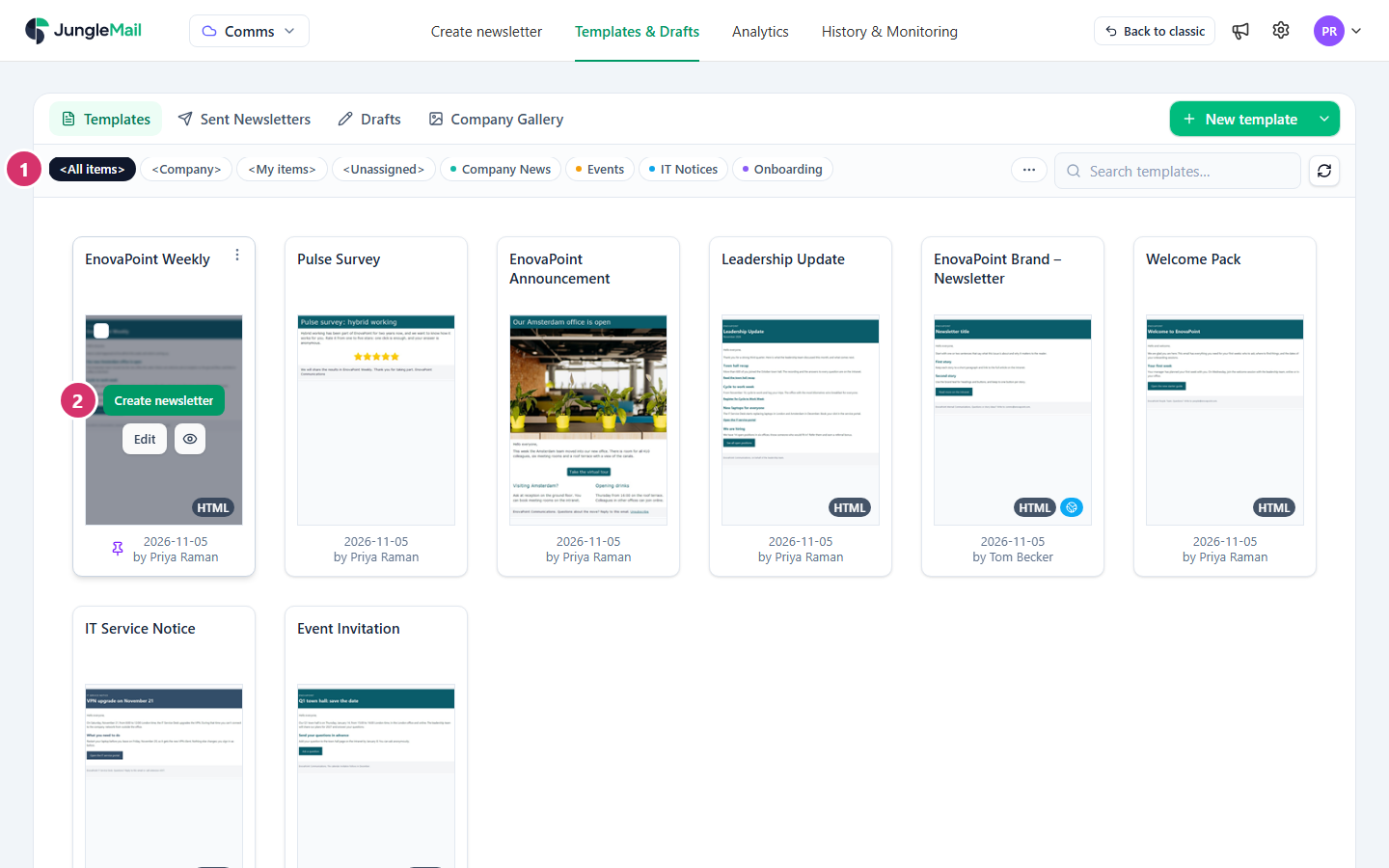
On the Templates tab, find the template: select its category, or type part of its name in the search box at the end of the row.
-
Point to the template and select Create newsletter. To look at the template first, select the eye beside Edit.
JungleMail opens the newsletter wizard at its first step, Recipients, with the template’s content, subject and preview text in the newsletter. The newsletter takes the template’s name until you rename it: give it the issue’s own name with the pencil beside it, such as EnovaPoint Weekly — 16 March 2027, so that History & Monitoring and Analytics list each issue under a name of its own.
-
Choose the recipients and carry on as with any newsletter (Create and send newsletters).
Create newsletter is also on the other tabs:
- Sent Newsletters: starts a newsletter with the content of one you sent before. To copy its recipients and settings as well, use Copy newsletter in its More actions (⋮) instead (Find and reuse past newsletters).
- Company Gallery: starts from a ready-made design under JungleMail Templates, or from a template shared with every site under Templates.
Put a template into the newsletter you are working on
Section titled “Put a template into the newsletter you are working on”While a newsletter is in progress, the button on a template reads Load to newsletter instead. It replaces the content of that newsletter with the template’s, keeps its recipients and settings, and opens its Content step. If the newsletter already has content, JungleMail asks first: select Confirm in Replace the content? to go ahead. A subject or preview text you have already typed is kept.
Pick a template in the Content step
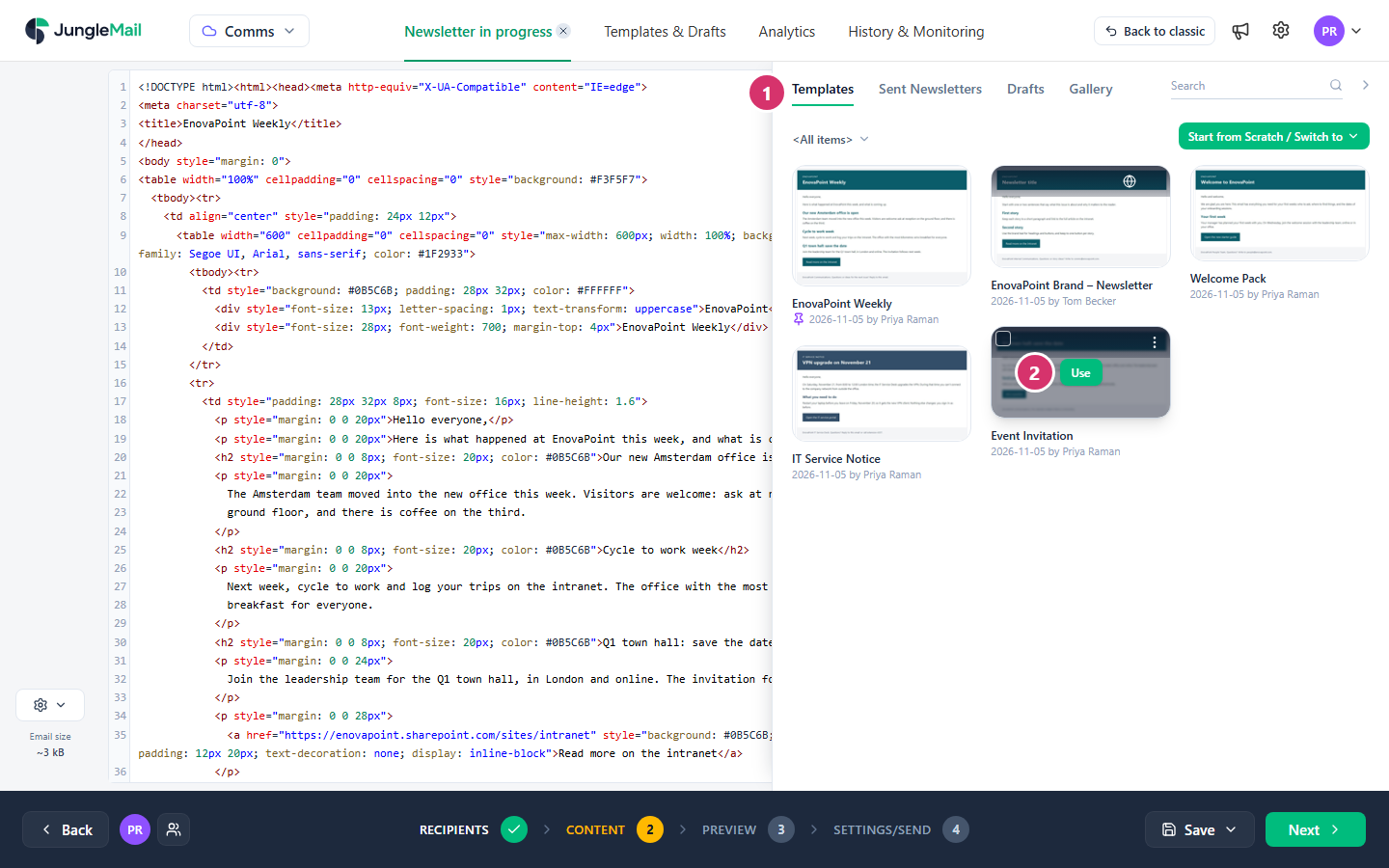
Section titled “Pick a template in the Content step”In the newsletter wizard, go to the Content step. When you start a new newsletter, the email builder’s Templates panel is already open; otherwise select Templates at the right edge of the builder.
-
Choose where the design comes from: Templates and, where your site shows them, Sent Newsletters, Drafts or Gallery.
-
Point to the template and select Use, or drag it onto the email.
If you have already worked on the email, JungleMail asks first, in Replace this email?: select Overwrite. In the Drag & Drop Builder, Undo brings the previous content back; in the Rich Text Editor and the HTML Editor it can’t.
- Give each issue its own subject and preview text. They come from the template, so they are the same every time until you change them: put the issue’s main story in the subject, and let the preview text add to it (Write the subject and preview text).
- Look for notes you haven’t replaced. Before you send, go through the email in the Preview step for any sample text the template left, such as a heading still waiting for its story (Preview and test a newsletter).
- Check what comes with a copy. If you start from Copy newsletter instead, the earlier newsletter’s recipients, attachments and recipient files come too, and may be out of date (Find and reuse past newsletters).